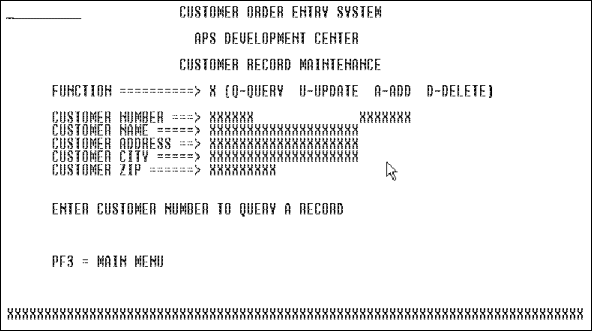
Figure 5-1: Screen Displaying One Occurrence of Data
This chapter contains the following sections:
You complete your application by defining its processing logic using Online Express, a menu-driven painter that offers a fill-in-the-blanks approach. Online Express references the information that you have specified in the other APS painters and importers, and prompts you to define the processing logic for those specifications. You do the following to complete your application in Online Express:
Online Express provides predefined teleprocessing and database function logic. You simply select the predefined function codes that you need.
Teleprocessing (TP) functions transfer screen data and program control from the current program to another screen or program. The predefined TP functions include the following:
|
TP Function |
Description |
|---|---|
|
S(end) |
|
|
M(SG-SW) |
Schedules a new program and optionally passes a screen record or other data record to it. |
|
X(CTL) |
|
|
C(all) |
|
|
C(lear) |
|
|
E(xit) |
Database functions read from and write to your application's database. The predefined database functions include the following:
|
Write Function |
Description |
|---|---|
|
A(dd) |
|
|
D(elete) |
|
|
U(pdate) |
The screen design dictates which functions act on which fields. When you painted your screen, you designed it to display data in one of the following three formats:
One occurrence of data at a time. For example, your screen might display the name, address, and other information about a particular customer, as shown in Screen Displaying One Occurrence of Data. To query the record in this example, the end user enters q(uery) in the Function field and a value in the record key field, Customer Number. The developer has assigned the S(end) function to the PF3 key so that the end user can press PF3 to display the Main Menu.
Figure 5-1: Screen Displaying One Occurrence
of Data
On such a screen, any function that you define for the program acts on all fields. You can select any of the following functions:
|
A(dd) |
D(elete) |
N(ext) |
S(end) |
|
C(all) |
E(xit) |
Q(uery) |
U(pdate) |
|
C(lear) |
M(SG-SW) |
R(efresh) |
X(CTL) |
Multiple occurrences of data, displayed in a repeated record block. For example, your screen might display rows of information about many items in inventory, as shown in Screen Displaying Multiple Occurrences of Data. Because this sample program has just one function--query--a function field is not required. The end user starts the query by entering a part number in the record key field. The developer has assigned the F(orward) and B(ackward) functions to the PF8 and PF7 keys so that the end user can press these keys to scroll through the repeated record block.
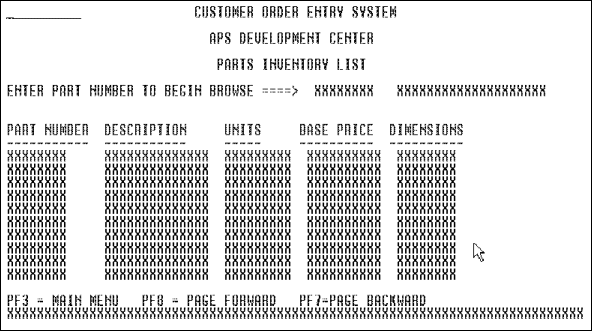
Figure 5-2: Screen Displaying Multiple
Occurrences of Data
On such a screen, any function that you define for the program acts on all fields. You can select the same functions that are available for single occurrences of data, plus the F(orward) and B(ackward) functions for scrolling through the repeated block.
Both single and multiple occurrences of data. For example, your screen might display information about a single customer order and a list of the parts ordered, as shown in Screen Displaying Single and Multiple Occurrences of Data.
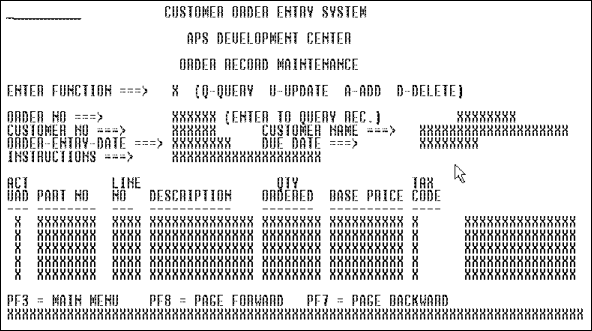
Figure 5-3: Screen Displaying Single and
Multiple Occurrences of Data
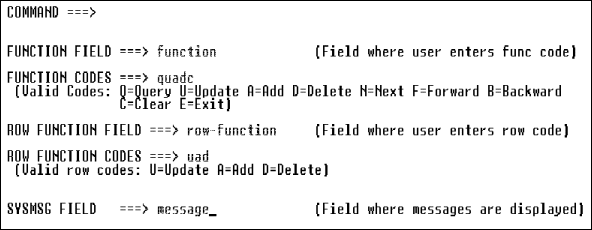
If your screen displays both single and multiple occurrences of data, you might have to define two function fields:
Use the primary and row function fields to act upon data as follows:
|
Primary Function Field Functions |
Data Acted
On |
|---|---|
|
Database read functions: |
|
|
B(ackward) |
All repeated record block row data |
|
F(orward) |
All repeated record block row data |
|
N(ext) |
All data on the screen |
|
Q(uery) |
All data on the screen |
|
R(efresh) |
All data on the screen |
|
Database write functions: |
|
|
A(dd) |
Only the single occurrence data |
|
D(elete) |
Only the single occurrence data |
|
U(pdate) |
Only the single occurrence data |
|
Teleprocessing functions: |
|
|
C(all) |
All data on the screen |
|
C(lear) |
All data on the screen |
|
E(xit) |
All data on the screen |
|
M(SG-SW) |
All data on the screen |
|
S(end) |
All data on the screen |
|
X(CTL) |
All data on the screen |
|
A(dd) |
A row of the repeated record block |
|
D(elete) |
A row of the repeated record block |
|
U(pdate) |
A row of the repeated record block |
Screen Displaying Single and Multiple Occurrences of Data illustrates a screen displaying both single and multiple occurrences of data--information about a single customer order and a list of the parts ordered. The end user starts the query by entering q(uery) in the primary function field and a value in the record key field, Order No. Data displays in all fields. To update, add to, and delete from:
The developer has assigned the F(orward) and B(ackward) functions to the PF8 and PF7 keys so that the end user can scroll through the repeated block.
You might want to process multiple occurrences of data for purposes other than displaying it in an updateable repeated record block. For example, you might want to:
To specify predefined program functions, follow these steps:
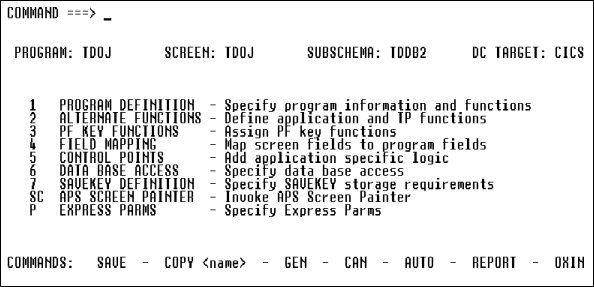
Figure 5-4: Online Express Menu
To specify the functions and fields above, complete the Program Definition screen fields as follows:
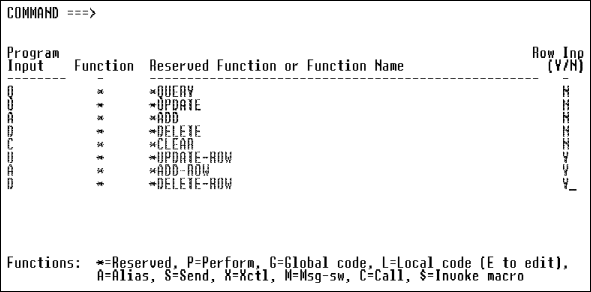
Figure 5-6: Alternate Functions Screen
Notes:
Note: The Enter key is the default function processing key. It causes your program to test the function code that the end user enters, and execute the function. To override the Enter key as the default function processing key, perform step 15.
Note: You can specify any combination of execution methods. For example, you can assign the E(xit) function to the F3 key, and other functions to function codes.
| Program Input |
Function |
Reserved
Function or Function Name |
|---|---|---|
|
The new code, up to eight characters |
A(lias) |
The function whose code you are renaming, such as *Query or s |
Note: If you defined trancodes for your MFS mapsets, do not assign functions to function keys.
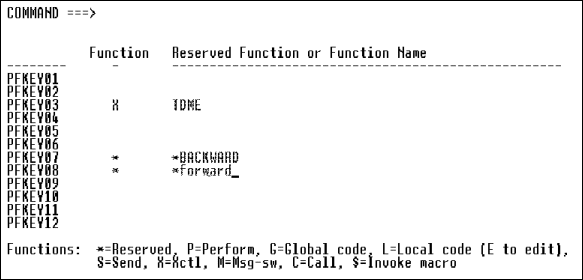
Figure 5-7: PF Key Functions Screen
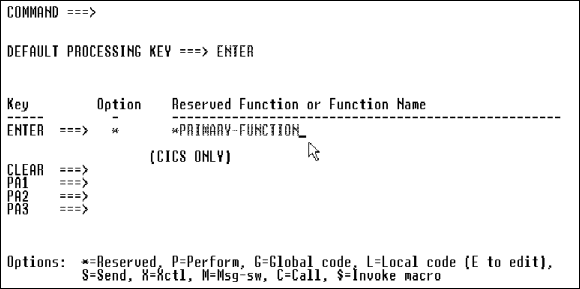
Figure 5-8: Special Key Definition
Screen
By default, the C(lear) function clears all I/O screen fields with spaces. Alternatively, you can clear repeated block row fields with low-values. To do so, display the Express Parms screen by entering p in the Command field of any Online Express screen, and change value of the Clear With Low-Values parameter to Yes.
Without leaving Online Express, you can write custom program functions to supplement the predefined functions provided by Online Express. End users can execute custom functions just as they execute any predefined function.
You can write functions specifically for one program, or for use throughout your application. A program-specific custom function is known as a local program stub; a custom function that you use throughout your application is known as a global program stub. Alternatively, you can write a function in a macro and invoke the macro in any program of any application. Stubs and macros are more fully described below:
|
Custom Function Component |
Description |
|---|---|
|
Local stub |
Procedure Division and Data Division source that you write and execute specifically in one program. You write a local stub using the Specification Painter, which you access from the Alternate Functions, PF Key Definitions, or Special Key Definitions screen. A local stub can consist of a main paragraph, other paragraphs that the main paragraph performs, and Data Division source code for the paragraphs. |
|
Global stub |
Procedure Division source that you can execute in any program of an application. You write a global stub using the Program Painter, which you access from the Application Painter. A global stub can consist of one or more paragraphs. |
|
Macro |
Any Customization Facility source that you can execute in any program of any application. You write a macro in the USERMACS data set in your user Project and Group. |
To define custom program functions for applications, follow these steps:
| Execution Method |
Online
Express Screen |
|---|---|
|
Entering a function execution code |
Alternate Functions |
|
Pressing a function key |
PF Key Functions |
|
Pressing the Clear key or a PA key |
Special Key Definitions |
|
Alternate Functions |
Complete the screen as follows:
|
|
PF Key Functions |
Complete this screen as follows:
|
|
Special Key Definition |
Complete this screen as follows:
|
For example:
-KYWD-  12-*----20---*----30---*----40---*----50---*--
        statement
        .
        .
        .
        perform sub-para-name

 para   sub-para-name
        statement
        .
        .
        .
 ws
 01     group-level-data-item
        05  elementary-data-item
        .
        .
        .
For example:
-KYWD-  12-*----20---*----30---*----40---*----50---*--
 para   para-1-name
        statement
        .
        .
        .
 para   para-2-name
        statement
        .
        .
        .
|
Alternate Functions |
Complete this screen as follows:
|
|
PF Key Functions |
Complete this screen as follows:
|
|
Special Key Definition |
Complete this screen as follows:
|
|
Alternate Functions |
Complete this screen as follows:
|
|
PF Key Functions |
Complete this screen as follows:
|
|
Special Key Definition |
Complete this screen as follows:
|
You must map your screen or screen fields to the appropriate fields in your database. To help you do so quickly, Online Express displays all fields that you defined when you painted your screen or screen. You simply specify each screen field's corresponding database field, and indicate whether the screen field is an input field, an output field, or both.
To map screen fields to your database fields, follow these steps:
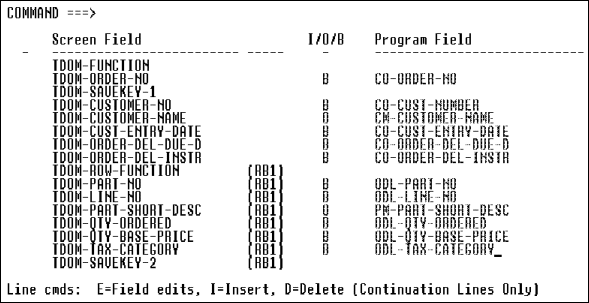
Figure 5-9: Field Mapping Screen
Alternatively, to save yourself some typing, copy all the screen field names to the Program Field column by entering an asterisk (*) in the Command field. Online Express copies all screen field names--except function, system message, and savekey fields--without their prefixes, to the Program Field column. In addition, Online Express enters the value b(oth) in the I/O/B column for all copied fields. Then, modify the names as necessary. To add a prefix to some or all fields simultaneously, use the prefix command.
Enter any of the following prefix command formats in the Command field:
|
pre fldprefix |
Adds fldprefix to fields on all lines |
|
pre fldprefix m n |
Adds fldprefix to fields from line m through line n |
|
pre fldprefix * n |
Adds fldprefix to fields from line 1 through line n |
|
pre fldprefix n * |
Adds fldprefix to fields from line n through the last line |
Screen Field          I/O/B     Program Field
--------------------    -       -------------------
CSINFO-ORDER-NO         B       CO-ORDER-NO
                                 OF SALES-REC
|
reset |
Clears values on all lines |
|
reset m n |
Clears values from line m through line n |
|
reset * n |
Clears values from line 1 through line n |
|
reset n * |
Clears values from line n through the last line |
Without leaving Online Express, you can write and execute custom processing logic to supplement or override the default logic that Online Express generates. You execute custom logic at any of several APS-provided locations in your program, known as program control points. Control points let you add logic at such locations in the processing logic as:
In addition, you can add processing logic before and after database calls. For information, seeCustom Logic at Database Call Control Points.
You can write local custom logic specifically for one or more control points in a program, or global custom logic for use throughout your application. You execute any local or global logic at any control point. You write local and global logic in any of the following components in your program or application:
|
Custom Logic Component |
Description |
|---|---|
|
Local stub |
Procedure Division and Data Division source that you write and execute specifically in one program. You write a local stub using the Specification Painter, which you access from the Control Points screen. A local stub can consist of a main paragraph, other paragraphs that the main paragraph performs, and Data Division source code for the paragraphs. |
|
Global stub |
Procedure Division source that you can execute in any program of an application. You write a global stub using the Program Painter, which you access from the Application Painter. A global stub can consist of one or more paragraphs. |
|
Paragraph |
A Procedure Division paragraph and Data Division source that you write specifically for one program and execute at one or more control points. You write a paragraph in the Specification Painter, which you access from the Control Points screen. |
|
Macro |
Customization Facility source that you can execute in any program of any application. You write a macro in the USERMACS data set in your user Project and Group. |
The set of control points that might appear in your program is shown below. Because programs vary, you will see a different subset of control points from program to program, depending on which functions you define for them. To view the control points in your program, you display the Control Points screen. In addition, you can look in your generated program source to see where the control points occur; APS generates comments that identify them that you can activate or deactivate. To activate these comments, set the value of the Control Points Comments field to yes on the Express Parms screen. To access the Express Parms screen, enter p in the Command field on the Online Express Menu. The complete set of control points is as follows:
|
Control Point |
Location in
Program |
|---|---|
|
After-Receive-Para |
After entering a program, regardless of invocation mode. |
|
Post-Screen-Read |
After a screen-invoked program receives its screen. |
|
Transid-Invoked-Para |
After a transid-invoked program is invoked. |
|
Program-Invoked-Para |
When APS displays the screen of a program invoked by the XCTL or MSG-SW function. |
|
Pre-Term |
Before APS terminates the program. |
|
After-Enter-Check |
After the end user presses the processing key (the Enter key is the default), and before the PRE-FUNCTION-TEST paragraph executes. |
|
Pre-Function-Test |
Before APS evaluates all functions except the Terminate, or Exit, function. |
|
Pre-Branch |
Before each MSG-SW, XCTL, or Call function executes. |
|
Ed-Error-Pre-Send |
Before APS send a screen whose field edits have failed. |
|
General-Pre-Send |
After APS checks all functions, and before the TP-SEND call executes, when invocation mode is screen-invoked. |
|
Before-Send-Para |
Before APS sends the screen, regardless of invocation mode. |
|
Pre-Screen-To-Rec |
Before APS performs the MOVE-SCREEN-TO-REC paragraph. |
|
Post-Screen-To-Rec |
After APS performs the MOVE-SCREEN-TO-REC paragraph, and the Update or Add function executes. |
|
Pre-Rec-To-Screen |
Before APS performs the MOVE-REC-TO-SCREEN paragraph. |
|
Post-Rec-To-Screen |
After APS performs the MOVE-REC-TO-SCREEN paragraph, and after the Query function executes. |
|
Pre-RB1-Row-To-Rec |
Before the Add or Update function executes for a repeated record block row, and before screen fields move to database fields. APS uses the subscript CTR to reference repeated block rows. |
|
Post-RB1-Row-To-Rec |
Before the Add or Update function executes for a repeated record block row, and after screen fields move to database fields. APS uses the subscript CTR to reference repeated block rows. |
|
Pre-Rec-To-RB1-Row |
After the Query or Forward function executes for a repeated record block row, and before database fields move to screen fields. APS uses the subscript CTR to reference repeated block rows. |
|
Post-Rec-To-RB1-Row |
After the Query or Forward function executes for a repeated record block row, and after database fields move to screen fields. APS uses the subscipt CTR to reference repeated block rows. |
|
Error-Send-And-Quit |
When a program terminates abnormally, such as when a database call fails when the Database Call Tailoring screen's Abort On Error parameter is set to y. |
|
Misc-User-Paragraphs |
A location where you can write and store any number of paragraphs that you can perform at any control point in your program. Write all your paragraphs in one file in this location. |
To insert your custom logic at control points, follow these steps:
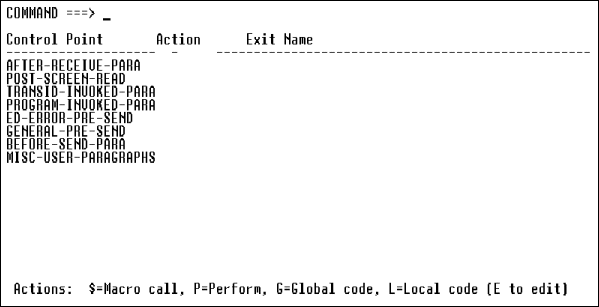
Figure 5-10: Control Points Screen
For example:
-KYWD-  12-*----20---*----30---*----40---*----50---*--
        statement
        .
        .
        .
        perform sub-para-name

 para   sub-para-name
        statement
        .
        .
        .
 ws
 01     group-level-data-item
        05  elementary-data-item
        .
        .
        .
For example:
-KYWD-  12-*----20---*----30---*----40---*----50---*--
 para   para-1-name
        statement
        .
        .
        .
 para   para-2-name
        statement
        .
        .
        .
For example:
-KYWD-  12-*----20---*----30---*----40---*----50---*--
 para   para-name
        statement
        .
        .
        .
        perform sub-para-name

 para   sub-para-name
        statement
        .
        .
        .
 ws
 01     group-level-data-item
        05  elementary-data-item
        .
        .
        .
paraname arg1 arg2 arg3
For more information, see the "TP-PERFORM" topic in the APS Reference.
Copyright © 2002 Micro Focus International Limited. All rights reserved.
This document and the proprietary marks and names
used herein are protected by international law.