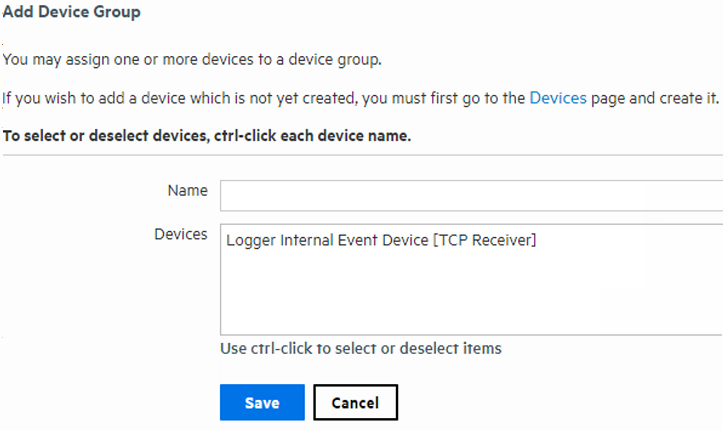
Click Add. A display similar to that shown next appears.
Device groups allow you to categorize named source IP addresses called devices. The Device Groups page lists all device groups with edit and delete icons and includes the ability to create new device groups.
Tip: You can associate Device groups with storage rules. Storage rules specify the storage groups in which events from specific sources are stored. Doing so enables you to retain event data from different sources for different lengths of times (because you can define different retention policies on different storage groups). For more information about storage rules, see Storage Rules.
Tip: There is no maximum number of device groups that can be created on Logger.
To create a device group:
Click Add. A display similar to that shown next appears.
To edit a device group:
 ) on that row.
To delete a device group:
 ) on that row. Deleting a device group does not affect the set of devices.