The Live Event Viewer provides a real-time view of the incoming events that match the criteria you specify. This functionality is useful in environments where the need to view an event quickly is important; for example, a financial institution might be interested in viewing a specific transaction type as soon as it occurs. Because the latency between the events arriving at Logger and the display time is short, events might not have been indexed on Logger before being displayed.
The Live Event Viewer is composed of two tabs—Search Composer and Search Results. The Search Composer defines the search criteria and the Search Results tab displays the matching events in real time.
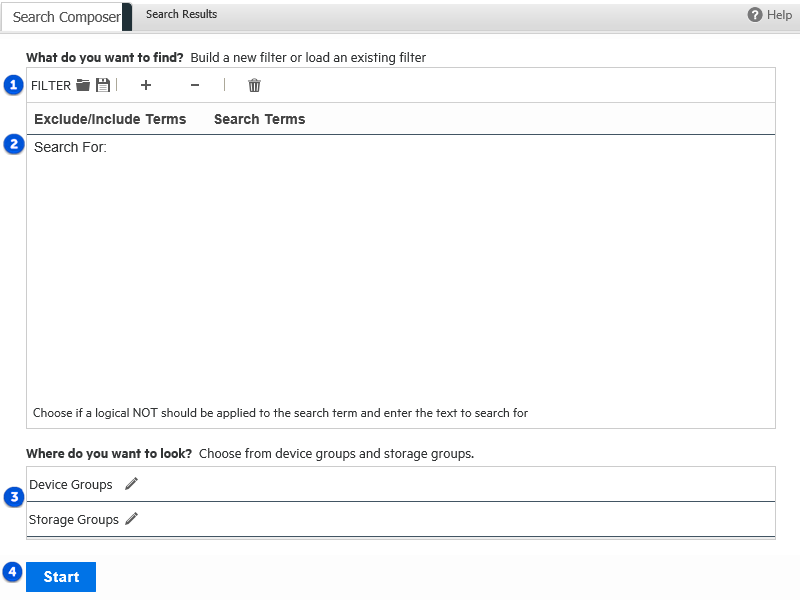
The following figure shows the Search Composer. If you specify more than one search term, the resulting query uses the AND operator to combine them. For example, if the first search term searches for “failure” and the second one excludes “admin,” the resulting query is “failure AND NOT admin.”
Search Composer
Search Composer Legend
| Feature | Description | Feature | Description |
|---|---|---|---|

|
Load a saved filter |

|
Specify device groups |

|
Enter search criteria |

|
Start or Stop Live Event Viewer |
The Search Results tab provides the Play, Pause, Stop, Clear, and Export buttons that enable you to control the display in a manner similar to any electronic device, as shown in the following figure.
Search Results Tab
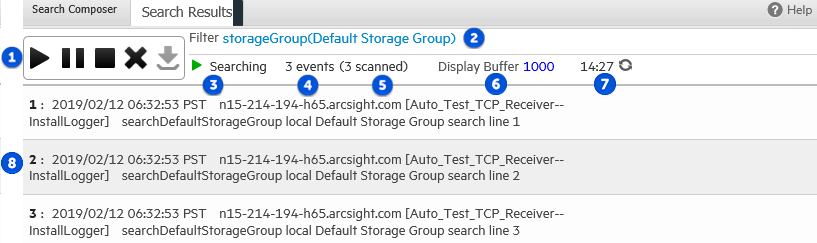
Search Results Legend
| Feature | Description | Feature | Description |
|---|---|---|---|
|
|
Play / Pause / Stop / Delete / Export |

|
Events scanned so far |
|
|
Filter specified in Search Composer |

|
Events display maximum |
|
|
Current state |

|
Search timer |
|
|
Events found so far |
|
Matching event number |
The following list highlights the features of Search Results display:
 icon next to the countdown timer to reset the timer to 15 minutes.
To launch a Live Event Viewer:
Note: Live Event Viewer is a resource-intensive application that can impact the overall performance of your Logger if run for a long period of time. Therefore, use this feature selectively and for short periods of time.
In the Search Composer tab, enter the search terms or click the ( ) icon to select a saved filter.
You can enter search terms that the event must contain (Search For:) or terms that the events must not contain (Exclude From Search:). Click the “Search For:” field to display a drop-down list from which you can select “Exclude From Search:”.
If you specify more than one search term, Logger uses the AND operator to combine them in the resulting search query.
 ) icon.
 ) icon.
 ) icon.
 ) icon to display a list from which you can choose the constraints.
To update the Live Event Viewer query:
To export Search Results display:
 ) icon in the Search Results display window.
 ) icon to open the Export Options window.