icon.
icon. |
Saving Option |
Description |
Details Required |
|---|---|---|
|
Filter |
Saves queries without the time range.
|
|
|
Search |
Saves queries with a start and end time parameter and local only flag. You can later update your saved search to become a Schedule Alert or Schedule Search.
|
|
|
Dashboard Panel |
Saves dashboards using a search query (with top, rare, or chart operators) that generates a chart.
|
|
|
Search Result |
Saves the results of a large search. For more information, see Persisting Search Results
|
|
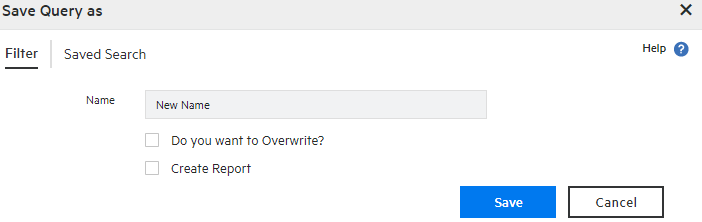
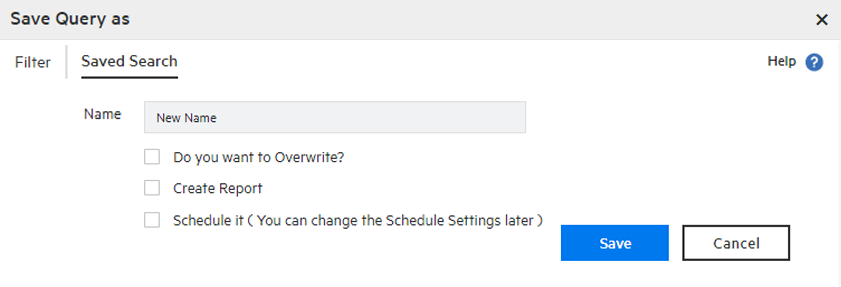
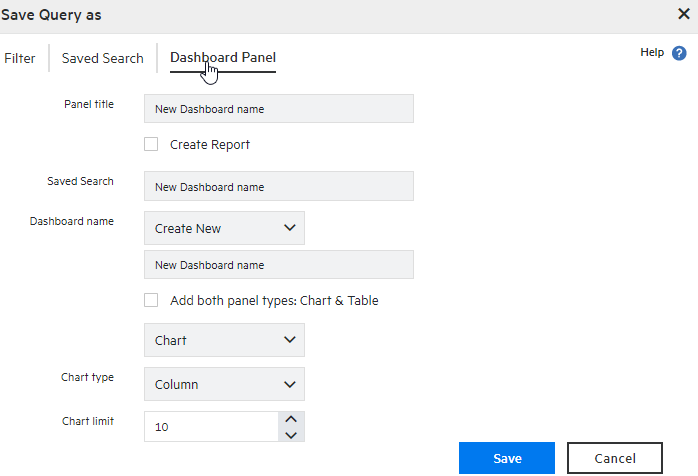
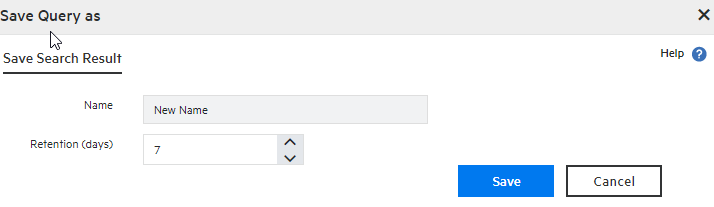
You will need to select or add the parameters below based on the saving option you selected:
|
Parameter |
Action required |
|---|---|
|
Name |
Type a name. |
|
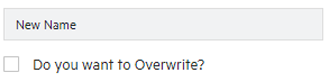
Overwrite name |
To overwrite the name, check the following box.
Note: This option is not available for search results.
|
|
Schedule it |
Select Schedule Search to add any existent saved search. OR Select Schedule Alert to add only the saved searches you have created.
Note: To include a scheduled alert with a TH destination, refer to Adding a Scheduled Search or Scheduled Alert.
|
|
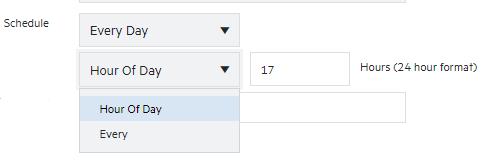
Schedule |
Set an appropriate time to execute your search/ alert. Schedule your saved search Every Day or a specific Days of Week / Month. You can also specify an hour or every certain hour.
|
|
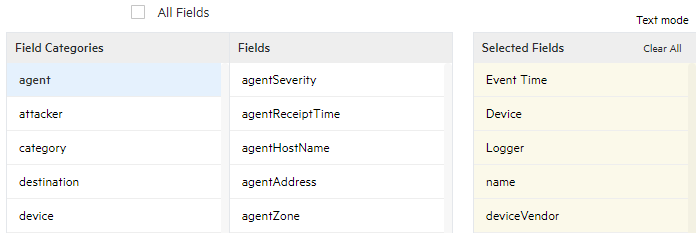
All Fields |
By default, the save option includes all event fields. Click the All Fields box to drag and drop only the event fields needed in the selected fields column. You can also write the specific event fields in the saved search by clicking the Text mode link.
Tip: The All Fields option is disabled when selecting a single saved search.
|
|
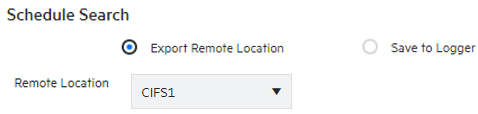
Export Options |
Select Export Remote Location to store the file in a remote location. OR Select Save to Logger to store the file in Logger's local system.
|
|
Dashboard name |
Select Create New and add the new Dashboard name OR Select a saved dashboard from the drop down list. |
|
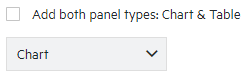
Panel Types |
Select Chart OR Select Table To add both panel types, check the correspondent box:
|
|
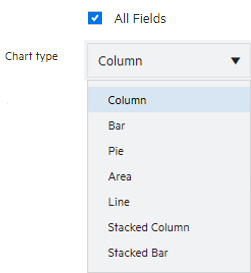
Chart Type |
Select the type of chart to include in the PDF file. Options available: Column, Bar, Donut, Area, Line, Stacked Column, Stacked Bar.
|
|
Chart Result Limit |
Specify the number of unique values to plot. Default value is 10. Use the If the Chart Result Limit is less than the number of unique values for a query, the top value will adhere to the limit plotted. |
|
File Format |
Select CSV to generate a comma-separated value file and create the Export Directory in your Logger. OR Select PDF to generate a report-style that contains the search results in tables and charts. Charts are only included if the search query contains an operator that creates charts. Once this option is selected, you need to add the directory name, PDF’s title name, Fields, Chart type, and Chart Result Limit before saving the schedule search. |
|
Export Directory Name |
Add the export directory name. |
|
Include Event Total |
Include the total number of events in the exported search results. |
|
Include only CEF Events |
Include the CEF events in the exported search results. |
|
Retention period |
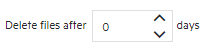
Determine the retention period for the saved search or saved search result in Logger. After the period expires, the file is no longer available. Saved search: Saved search result: |

 to set the limit as needed.