This section provides information on the following:
To begin with the installation of the Forwarder, download the following files on the specified machines:
Download on Windows:
pe_prerequisite.zip
DotNet_Runtime_5.0.17
cha_prerequisite.zip
ArcMC_3.1
ArcMC_3.1.2
Connector_8.3.0P2
osupgrade_rhel79_202205
Production License Key
CG-licfile.xml
Copy to Forwarder:
NOTE:To copy the downloaded files to Forwarder, ensure that you have enabled SSH. To know more, see Enable SSH Configuration.
change_guardian_installer_6211.zip
change_guardian_prerequisite_configuration_6211
change_guardian_prerequisite_configuration_6211.sh
change_guardian-6.2.1.1.tgz
Once you have downloaded all the prerequisite files in the appropriate machines, perform the following steps in each of the forwarder boxes for the installation of Forwarder:
NOTE:The following steps are to configure a single CHA box. To configure more boxes, apply the same steps to the other CHA boxes as well.
Login to Change Guardian Management Center using the following URL:
https://<hostname or IPaddress>:<configured_port>. The default port is 443.
To login for the first time, use the following default credentials:
Username: admin
Password: password
When prompted, change the default password to a new password.
From the Change Guardian Management Center home page, click Administration > System Admin.
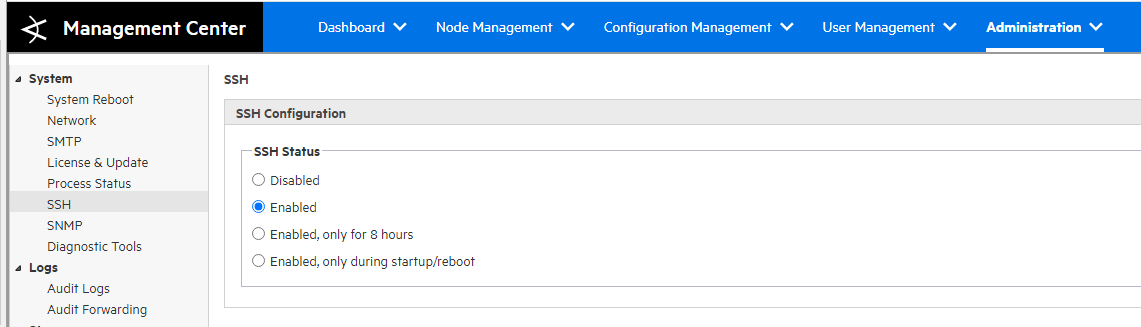
Select SSH from the System list.
Set the SSH Status to Enabled.
Click Administration > System Admin from top-level menu bar.
Click License & Update in the System section.
Click Browse and locate the extracted folder
osupgrade_rhel79_202207.
Select the file <Extract location>\cha_prerequisite\osupgrade_rhel79_202205\osupgrade-arcmc-rhel79_202207_202208012306.enc.
Click Upload Update. The Update In Progress page displays the update progress.
Once the update has completed, the Update Results page displays the result as success or failure and whether the update requires a reboot. If the update requires a reboot, the Arcsight Management Center reboots automatically.
Upgrading CHA 3.0.0 to 3.1.0:
Click Administration > System Admin > License & Update.
Click Browse. Locate the extracted folder ArcMC_3.1 and select the file <Extract location>\cha_prerequisite\ArcMC_3.1\arcmc-2266.enc
Click Upload Update. An Update In Progress page displays the update progress.
Once the upgrade is finished, restart ArcMC.
Upgrading CHA 3.1.0 to 3.1.2:
Click Administration > System Admin > License & Update.
Click Browse. Locate the extracted folder CG_3.1.2 and select the file <Extract location>\cha_prerequisite\ArcMC_3.1.2\arcmc-2288.enc
Click Upload Update. An Update In Progress page displays the update progress.
Once the upgrade is finished, restart CHA.
To upgrade the connector, upload the version file to repositories and then upgrade all the connectors in a container.
Select CHA repository by clicking Administration > Repositories.
Select Upgrade Files from the navigation tree.
Click Upload in the management panel.
Click Choose File and browse to your connector AUP file <Extract location>\cha_prerequisite_installers\Connector_8.3.0P2\ArcSight-8.3.0.8731.2-Connectors.aup.
Click Submit. The version file is uploaded.
Click Node Management.
In the navigation tree, navigate to the host on which the container resides and click the Containers tab.
On the Containers tab, select one or more containers to upgrade and click Upgrade.
Select Framework upgrade under Select Upgrade Type on the upgrade page.
Select version 8.3.0.8731.2 from the Select Upgrade Version drop-down list to upgrade the selected containers.
NOTE:For a parser upgrade, if the selected parser version is from the Marketplace and not the local repository, save your Marketplace credentials in CHA. This is a one-time task unless you wish to update these credentials.
Click Upgrade. The upgrade is performed on all containers.
Perform the following steps to install Change Guardian server:
Copy the following zip file to the forwarder machine:
change_guardian_installer_6211.zip. Extract the zip file.
Navigate to change_guardian_installer_6211/. Select the folder change_guardian_prerequisite_configuration_6211/ and run the following command:
chmod +x change_guardian_prerequisite_configuration_6211.sh
Run the following script:
change_guardian_prerequisite_configuration_6211.sh
NOTE:Post installation, if you change the IP address of the Connector Host Appliance server, there is a breakdown of communication between the Change Guardian server and agent. This requires reconfiguration of the server to restore communication. Therefore, consider using static IP addresses in your Connector Host Appliance.
On the Connector Host Appliance server command line prompt, log in as root user and type the following command to extract the installation file:
tar zxvf change_guardian-<version>.tgz
Create a Change Guardian directory in /opt/arcsight/connectors path
mkdir /opt/arcsight/connectors/changeguardian
chmod 0755 /opt/arcsight/connectors/changeguardian
Navigate to the extracted folder change_guardian_installer_6211/ in the forwarder machine.
To install from a custom path, specify the following command:
./install-changeguardian.sh --location=/opt/arcsight/connectors/changeguardian
NOTE:This custom path must have 0755 permissions. Ensure that you allocate the recommended disk space in / and /home.
(Conditional) If NTP could not synchronize your computer time with the network time, make the required changes to the computer.
(Conditional) If your system does not meet the recommended disk space, make the required changes to the computer.
Specify the language as English, then press Enter. The end user license agreement is displayed in the selected language.
Read the license agreement completely before you accept it. You may press the space bar to scroll through the complete agreement.
When prompted, select the standard configuration.
Create an admin account password for global system administration.
NOTE:While setting the admin password, all non-alphanumeric characters are allowed to be used to set the password.
When prompted Do you want the Change Guardian agents to locate this system by IP address or by host name?, Select default choice [1] if the Connector Host Appliance is configured with static IP Address .
When prompted Please enter your Sentinel admin password, enter the password created for admin account in step 10.
Create a password for the cgadmin user.
Select ‘n', when prompted Configure a default email destination.
After the completion of Change Guardian server installation, it might take a few minutes for all services to start. Wait until the installation finishes and starts all services before you log in to the server.
NOTE:You can also configure email servers by using the server command prompt. For more information, see Configurations using the Server Command Prompt.