Clients and Matters Legal Structure
The feature Client/Matter Legal Structure was specifically designed for customers dealing with legal matters.
Content Manager enables you to manage your legal clients and matters, the people involved in them and their records by using specifically designed Record Types.
As a result, for example, when users create a new matter record in Content Manager, it can automatically and without any further user action create all subfolders that are required for the new matter record, for example:
- Invoices
- Billing
- Documents
- Budgets
Additionally, you can record all the people involved in your matters, like your in-house counsel staff, as well as the people belonging to outside legal and other organisations or legal service providers, like expert witnesses, copy services, court reporters, claimants or defendants.
This enables you to carry out searches in Content Manager to identify conflicts of interest, for example.
Content Manager uses three levels of records by default, a client record, matter records under the client record, and contained in a matter record, folder (container) records or standard records. You would apply retention schedules to these records according to your organisation's requirements. You can use more levels in your structure, if needed.
NOTE: Because Client and Matter records provide an alternate hierarchy to the typical records management hierarchy, Client and Matter records cannot act as containers, nor can they be enclosed in containers either.
- Clients and Matters Legal Structure functionality becomes available when the feature Client/Matter Legal Structure is selected in the System Options Features page
- This enables the Content Manager administrator to create client and matter Record Types, as well as Record Types to use for creating folders under matter records. See Setting up the Record Types in Content Manager below.
- Using these client Record Types, users can create a client record, which represents your client in Content Manager, and whose name will usually be an individual or an organisation. See Working with client and matter records.
- Using the client record, users can now create a matter record. If necessary, client records can have many matter records, just like a real life client can have many matters that you are representing them in. For each matter record, you can have a multitude of standard records that may be email message, letters, invoices, conversations, meeting minutes etc. See Working with client and matter records.
It is recommended to use three levels under the client level at a minimum:
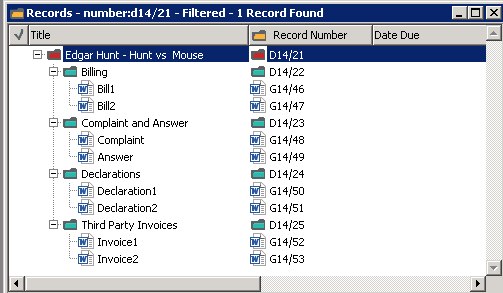
The image shows the matter record at the top of the hierarchy, with its title constructed of client and matter names: Edgar Hunt - Hunt vs Mouse.
It contains the four folders Billing, Complaint and Answer, Declarations, and Third Party Invoices, which in turn contain the records with attached electronic documents.
You can expand this model to include more levels if you need to, manually or automatically. See Record Type Automatic Sub Folders page.
- If you have not done so yet, select the feature Client/Matter Legal Structure in the System Options Features page, click OK, and then restart Content Manager
- Create a client Record Type, which users will use to create new client records:
- On the File menu, click New.
The Content Manager - New dialogue box appears. - On the Record Type page, select Client Record, and click OK.
The New Record Type - General dialogue box appears with the Record Type Name and Behaviour fields already filled in. - For Titling Method, select Client
- Select your required options and then click Next, setting all the Record Type properties as you would for any other new Record Type.
See Creating Record Types.
- On the File menu, click New.
- Create a matter Record Type as described in the previous step. However:
- In the Record Type page, select Matter Record
- For Titling Method, select From Client or Matter
- When setting the other matter Record Type properties for the matter, in the Numbering dialogue, it is recommended you choose Based on Client Record
Users will use this Record Type to create matter records. While you do not need to create more than one matter Record Type, you may find it useful for one of these reasons:
- You want to use different matter records for different types of cases - for example, you may want to create two Record Types, one for criminal and one for civil matters. You can then attach different Retention Schedules to them to administer their retention and disposal.
- You will need different default owners for the different matter records - for example, the criminal law section of your organisation does not want the commercial law section to update their records. In that case, you may want to protect the records by using a referenced Access Control from the Record Type.
- You want to collect different Additional Field metadata for the records. This would mean that you need more Record Types, as this is where you specify the Additional Fields that the records should use.
- Create new Record Types for folder records that belong to matters, as described in the previous steps. However:
- In the Record Type page, select the behaviour Folder, which enables users to create any kind of regular container record within matter records.
- In the New Record Type - General dialogue box, select the option Records should be related to a matter. This makes this Record Type available for records that belong to matters.
Users will use these Record Types to create required folders under matter records, which may be:
- Complaint and Answer
- Declarations
- Witness Statements
- Third Party Invoices
- Billing
It is likely your organisation will need to use more than one folder Record Type, for example to be able to automatically apply different retention schedules to different records, like witness statements or invoices, for example.
- Whenever you create a matter for a client record, if the client record has a Classification, the matter record gets the same Classification.
- Whenever you create a record that belongs to a matter, if the owning matter record has a Classification, the record belonging to a matter gets the same Classification.
- A client record or a matter record never gets a schedule, so they don't inherit a Retention Schedule from the Classification.
- Optional - specify folders that Content Manager should create automatically when users create new matter records using the matter Record Type, or also the Folder Record Types.
This can save users a lot of time setting up new matter records, and make sure that your matter records contain all required folders.
See Record Type Automatic Sub Folders page.Your Clients and Matters Legal Structure setup is complete.
Next, your users can start creating client and then matter records. See Working with client and matter records.
NOTE: A Classification can be specified for matter and client Record Types.
Regarding Classifications, client and matter records operate like other Record Types, except:
 Related information