Installing File System Agents
A File System Agent can be installed on a Windows Server machine that meets the following minimum requirements:
- Microsoft Windows Server 2025 (Member Server)
- Microsoft Windows Server 2022 (Member Server)
- Microsoft Windows Server 2019 (Member Server)
- Microsoft Windows Server 2016 (Member Server)
- At least 4 GB RAM
- For quota management, Microsoft File System Resource Manager (FSRM) must be installed
- See File Server Resource Manager in the File Dynamics 24.4 Administration Guide.
Other notable information about File System Agents:
- A File System Agent runs as a service that is configured to start by using the Local System account
- The default File System Agent port is 3011
- A firewall inbound rule for the File System Agent is created during the installation
- On the Windows server that will host the File System Agent, copy to a directory the
FileDynamics-24.4.iso. - Mount the
FileDynamics-24.4.isofile. - At the root of the
FileDynamics-24.4.isoimage, double-clickFileDynamics-Agent-24.4-xx.exe. - When you are asked if you want to run this file, click Run.
- Agree to the licensing terms and conditions and click Install.
- When notified that the setup was successful, click Run Configuration Utility.
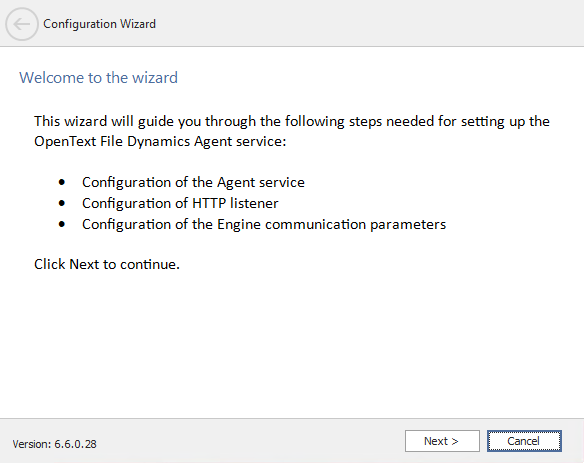
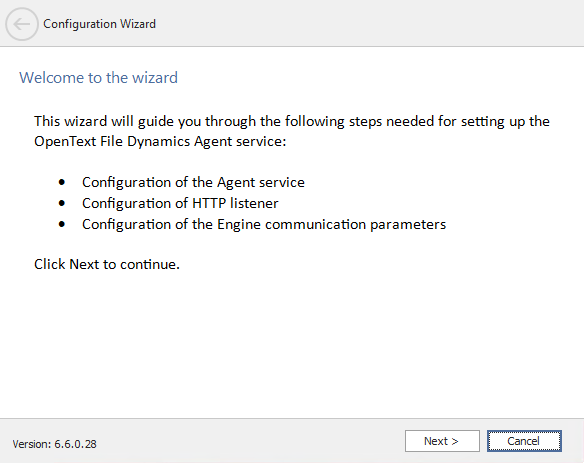
- From the wizard page, read the overview of the setup steps and click Next.
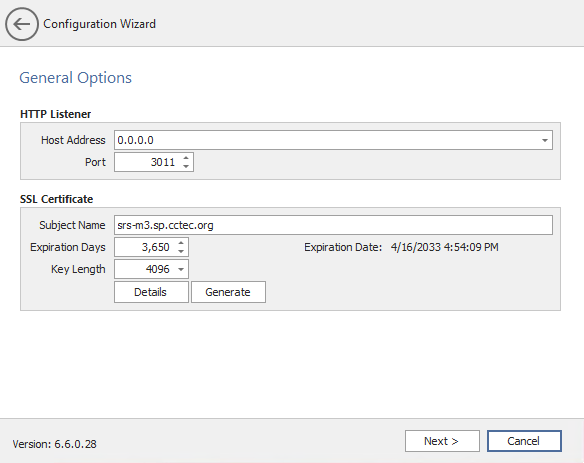
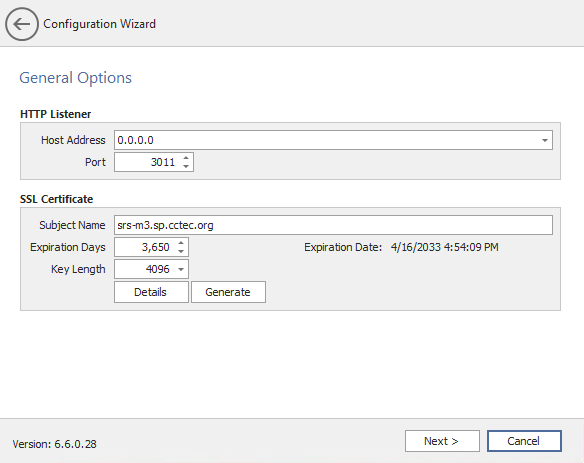
- This page lets you confirm or change basic File System Agent configuration settings.
- HTTP Listener: Communication parameters for the File System Agent.
- Host Address: To listen to all addresses, leave the setting at 0.0.0.0. To limit listening to a specific address, enter the address here.
- Port: The default port is 3011.
- SSL Certificate: Details for an SSL certificate that will be generated.
- Subject Name: The name of the certificate that will be generated. The server name is listed by default.
- Expiration Days: The life span of the security certificate, which is set at 10 years by default.
- Key Length: The SSL certificate encryption setting, which is set at 2048 by default.
- Details: Click the button to view the certificate data.
- Generate: If you modify any of the settings in the SSL Certificate region, click this button to generate a new certificate.
- Edit any needed parameters settings and click Next.
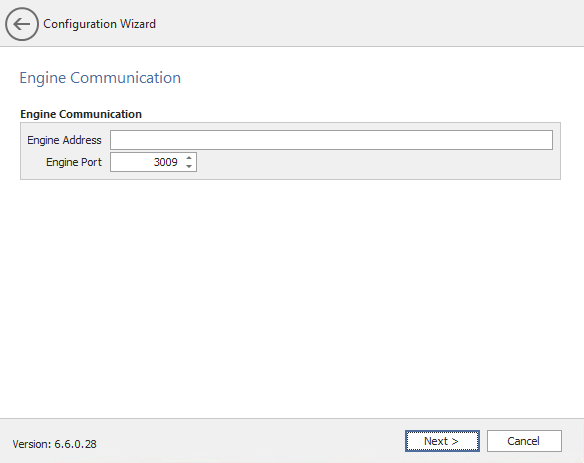
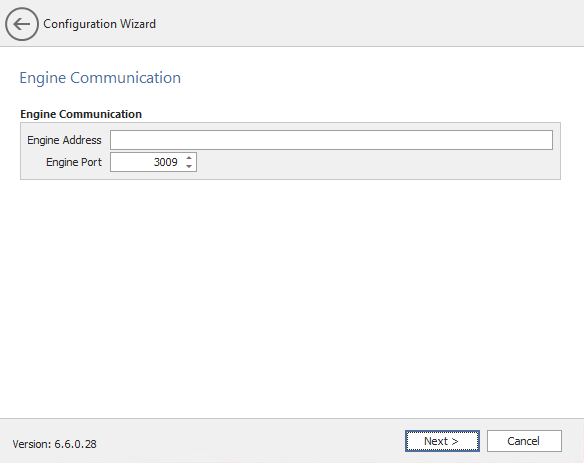
- This page lets you set parameters for the File System Agent to communicate with the Engine.
- Engine Address: Specify the DNS name or IP address to the server hosting the Engine here.
- Engine SSL Port: Specify the SSL port for the Engine here.
- Enter the Engine connection settings and click Next.
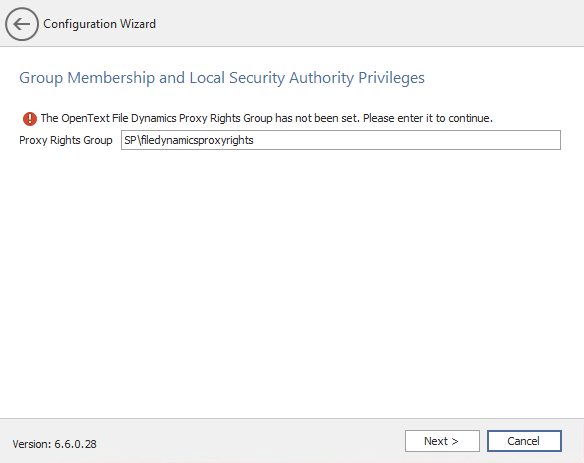
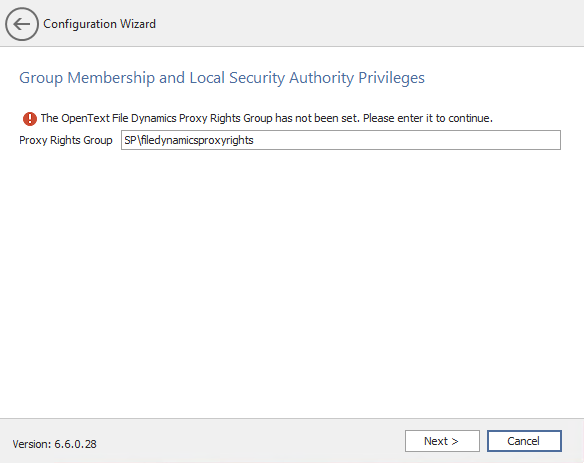
- (Conditional) If you chose a name that was not the default name for the File Dynamics Proxy Rights group, enter the name in the Proxy Rights Group field.
- Click Next.
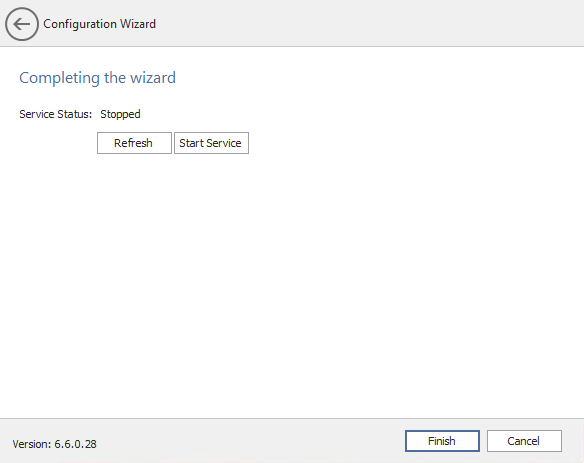
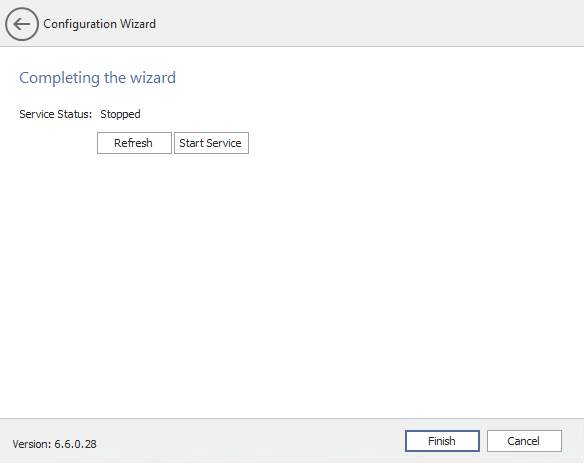
- Click Finish.
- The File System Agent is now installed, configured, and running. You must still authorize it using the Admin Client. For procedures, see Authorizing the Agents.