Setting Provisioning Options
The Provisioning Options page is where you indicate home folder permissions, the network drive letter for the home folder, the location of a template for provisioning folder structure and content in a home folder when it is created, and more.
- In the left pane, click Provisioning Options.
The following page appears: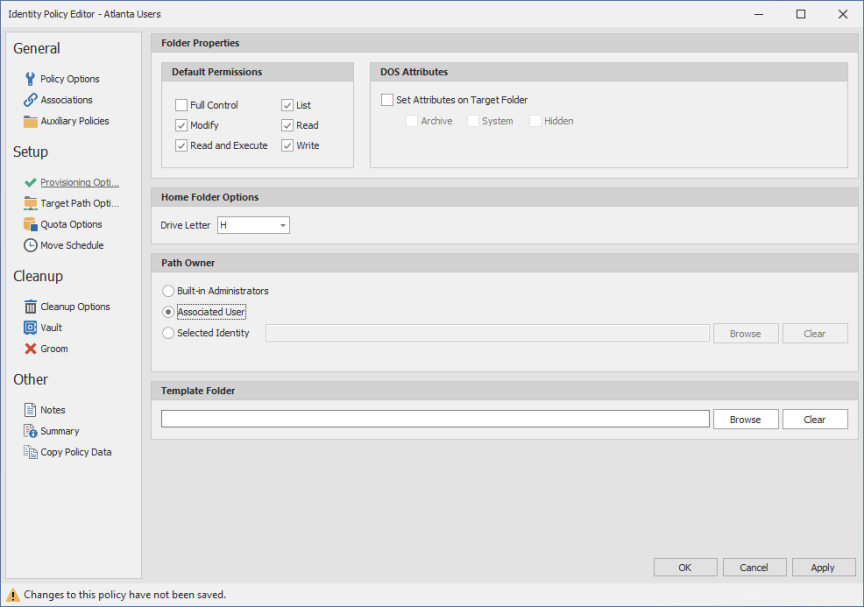
- In the Folder Properties region, specify the following settings:
Default Permissions: By default, File Dynamics grants the user all file permissions to the home folder except for Full Control. Granting Full Control is not recommended because it provides administrator rights to the home folder and enables the user to rename and delete the folder.
Set Attributes on Target Folder: Select this check box to enable the Archive, System, and Hidden check boxes. If you wanted home folders to be hidden from view, you could enable the Hidden attribute by selecting the Hidden check box.
By default, File Dynamics assigns the user for whom a home folder is created as the home folder owner. Because this essentially provides the owner administrative rights to the home folder, you might want to provide ownership to a network administrator instead. To override the ownership and indicate a new owner, click the Override Path Owner check box, then browse to and select the User object you want to establish as the owner.
The home folder user still has all permissions—with the exception of administrative permissions—to the home folder. - (Optional) To have subfolders and documents provisioned in the home folder when it is created, use an existing file path as a template.
For example, if you wanted each home folder to have an HR subfolder with some HR documents inside, click Browse to locate and select the HR folder in the file system.
Everything beneath the selected folder is copied into the user’s home folder. - In the Home Folder Options region, indicate the network drive letter that users associated with this policy will use to access their home folders.
You can select an empty drive letter. In this scenario, the user's home drive property will not be set. This results in Windows clients not mounting the network home folder when a user logs in. - In the Path Owner region, select one of the following options:
- Built-in Administrator: If you want the owner of the storage to be the Built-in Administrator, select this option.
- Associated User: The associated user is the user whose home folder you are creating. If you want the associated user to own their own home folder, select this option.
- Selected Identity: If you want another owner to be the owner of the home folder, browse and select the user or group object.
- Click Apply to save your settings.
- Proceed with Setting Target Paths.
