Identity Objects
The Identity Objects page lets you manage the associations between File Dynamics Identity-Driven policies and Active Directory objects such as organizational units, groups and users. This management includes creating organizational units, setting context, viewing properties, performing Management Actions, and assigning policies.
Identity Objects
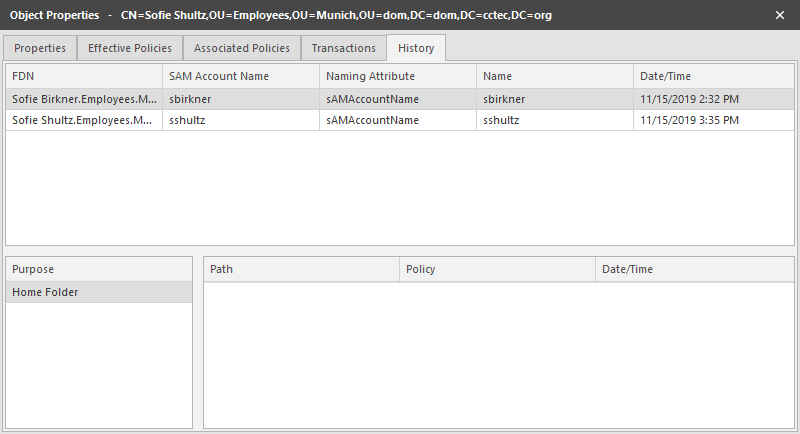
Left Pane
Use the left pane to browse and select organizational units in the directory. Right-clicking an organizational unit in the left pane lets you take additional actions:
- Create an organizational unit (OU)
- Set the directory context in the left pane to display the hierarchy from the root or from the selected organizational unit
Right Pane
Use the right pane to view the objects within a selected organizational unit as well as view properties, perform Management Actions, and assign policies. The right pane displays containers (organizational units), groups, and users, according to what you have selected in the Filter check boxes.
When you perform actions in the right pane, it is important that you know whether you are performing management specific to users, groups, or organizational units (containers).
Assign Policy
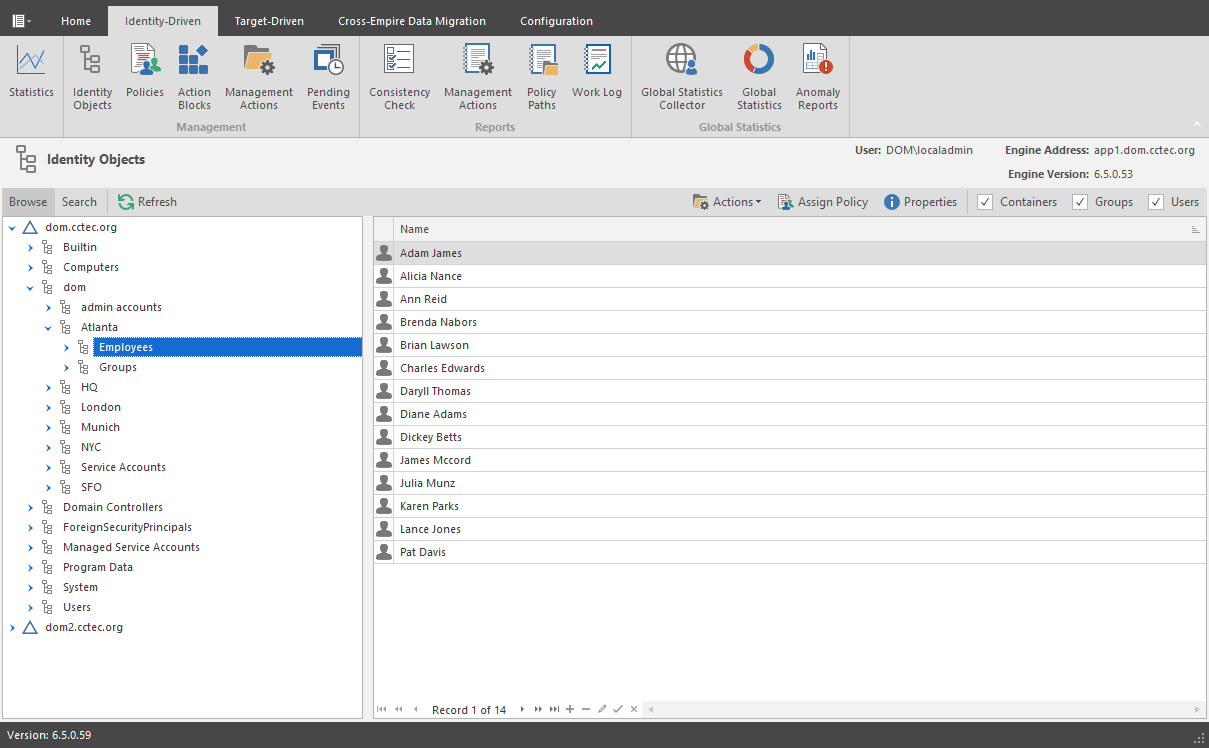
Right-clicking a User, Group, or Organizational Unit object and selecting Assign Policy lets you easily assign any of these objects a policy while you are in the Objects page. If an effective policy is already assigned to one of these objects, you can assign a new policy, replacing the effective policy with an assigned policy.
Policy Selector Dialog Box
Properties
You can easily view an expanded set of object properties in the Objects page by right-clicking an object in the right pane and selecting Object Properties.
The five tabs display the following information:
Properties: Displays Active Directory values and Engine database values. If you are working with a OpenText Support representative to resolve a problem, you might need to provide information from this page.
Effective Policies: Lists all of the effective policies for the selected object. An effective policy is a policy that affects a user either directly through association or inheritance by membership in a domain, container, or group.
Associated Policies: Lists all of the associated policies for an object. An associated policy is an explicitly assigned policy associated with a domain, container, group, or user.
Transactions: Shows pending events for the selected object. If there are many pending events, but you only want to see those pertaining to a particular user, you can see the pending events for the User object.
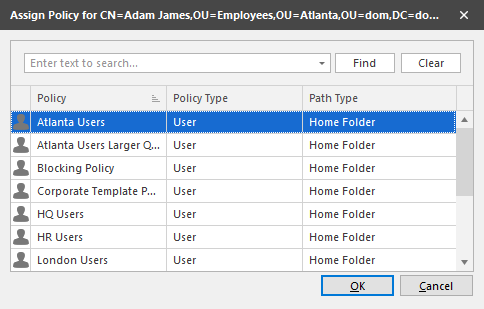
History: The GSR Collector maintains multiple histories for an object in Active Directory.
The FDN History records the FDN and SAM Account name of an object, when applicable (e.g. organization unit objects do not have a sAMAccount attribute). When an object gets renamed or moved, on the next run, it will catalog the new location or new name and the corresponding timestamp when the change was recorded.
The Path History records the location of paths that are commonly associated to users. When the Active Directory schema is extended to support user auxiliary storage and collaborative storage, the managed path attributes for user auxiliary, groups, and containers can be cataloged as well. The Path History consists of path types that are managed by File Dynamics. The possible recorded path types are:
- User Home folder
- User Profile path
- User Remote Desktop Services Home Folder
- User Remote Desktop Services Profile Path
- User Auxiliary (ccx-FSFAuxiliaryStorage)
- Collaborative – Groups (ccx-FSFManagedPath)
- Collaborative – Container (ccx-FSFManagedPath)
The granularity of the historical data is only as fine as the frequency at which you schedule the GSR Collector to run. For more information, see Global Statistics Collector.
If you schedule it to run once a week and you have objects that move several times over the course of a week between the runs, you’ll lose the interim historical move data.
The GSR Collector's historical data can be especially useful when managed paths are moved based on policy.
To view the history of an object, from the Objects page, display a User object in the right pane and then double-click it.
In the Object Properties dialog box, click the History tab.
The example below shows an unmanaged user without a cataloged path.
Example of an Unmanaged User without a Cataloged Path
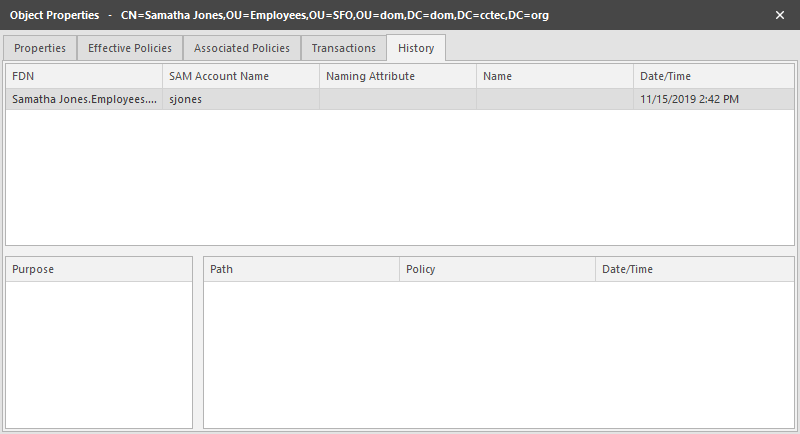
The FDN column is the LDAP formatted location of the object. The SAM Account Name column is the sAMAccount attribute value. The Date/Time column is based on the local time of the Engine when the history record was cataloged.
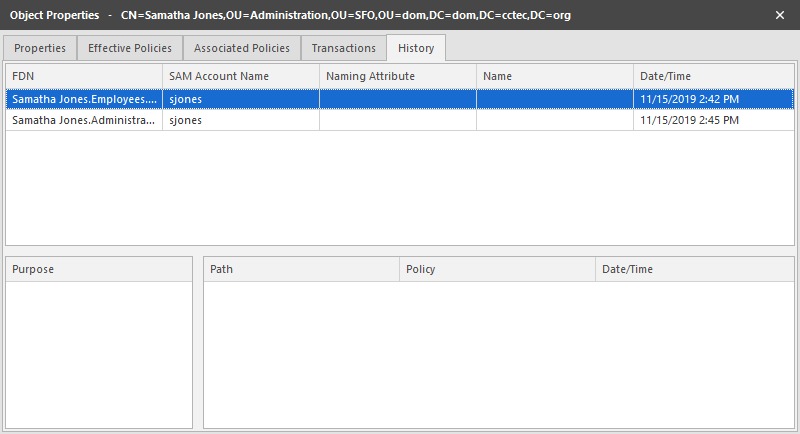
The example below shows the same unmanaged user that was moved from one organizational unit to another. This example demonstrates a change in the FDN and the date when the new value was cataloged by the GSR Collector when it was run.
Example of a Moved Unmanaged User
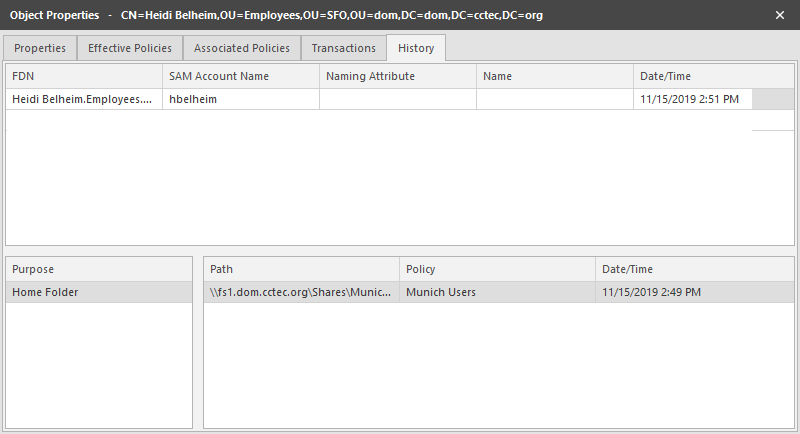
The example below shows an unmanaged user that has a home folder. The Policy column is empty because this user has not been managed. The Date/Time column for the path indicates the time at which the GSR Collector recorded the path.
Example of an Unmanaged User with a Home Folder
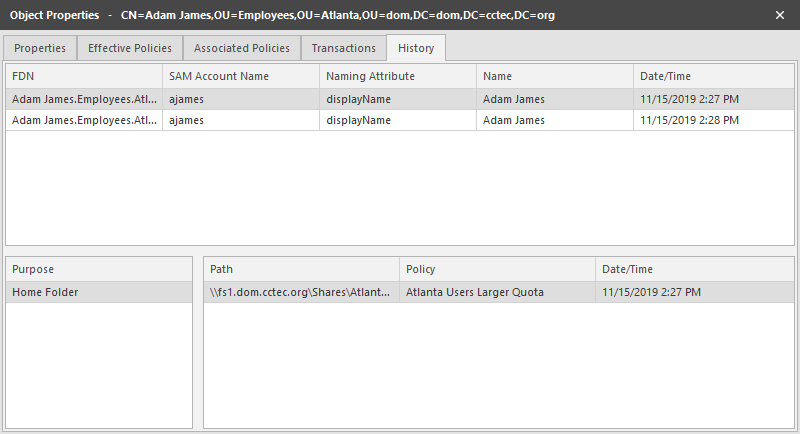
The example below shows the same user that has now been managed. The path now contains two entries. The first path reflects when the user was originally cataloged. The second path reflects that the user is now managed and the policy that is managing it. This is useful because the Date/Time for Policy “History” indicates when the object became managed.
Example of a Managed User
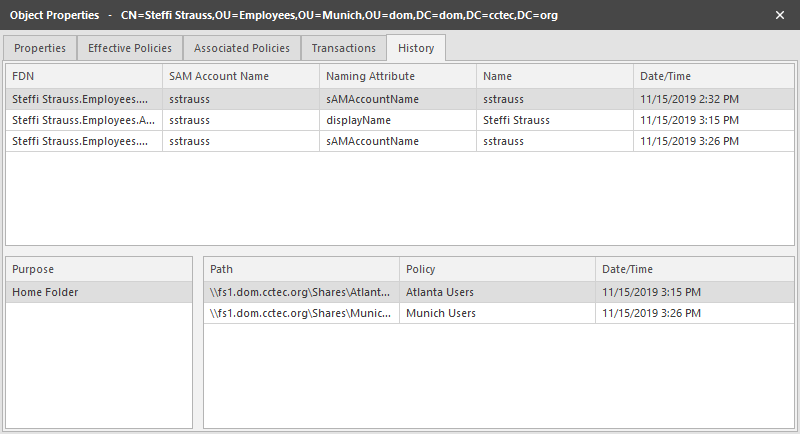
The example below shows the same user has now been moved from one container to another that is managed by a different policy. The user’s new FDN has been recorded as well as the new location of the path.
Example of a Moved Managed User
The example below shows the same user has now been moved to a container that is not managed by policy. The Policy column now shows that the path is no longer managed by an effective policy.
Example of a Moved User to a Container Not Managed by a Policy
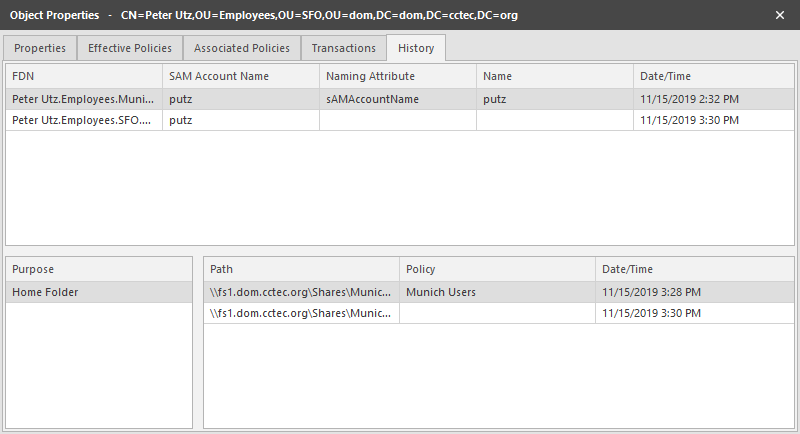
The History data also tracks the rename of objects and the relevant paths. The example below shows a managed user before it has been renamed.
Example of a Managed User Before Being Renamed
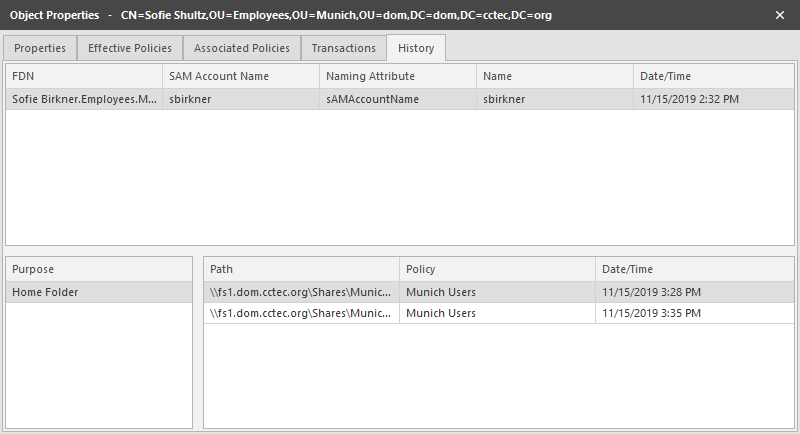
The example below shows the new FDN, SAM Account Name, and Path after having been renamed.
Example of a Managed User After Being Renamed