File System Paths Selector
Overview
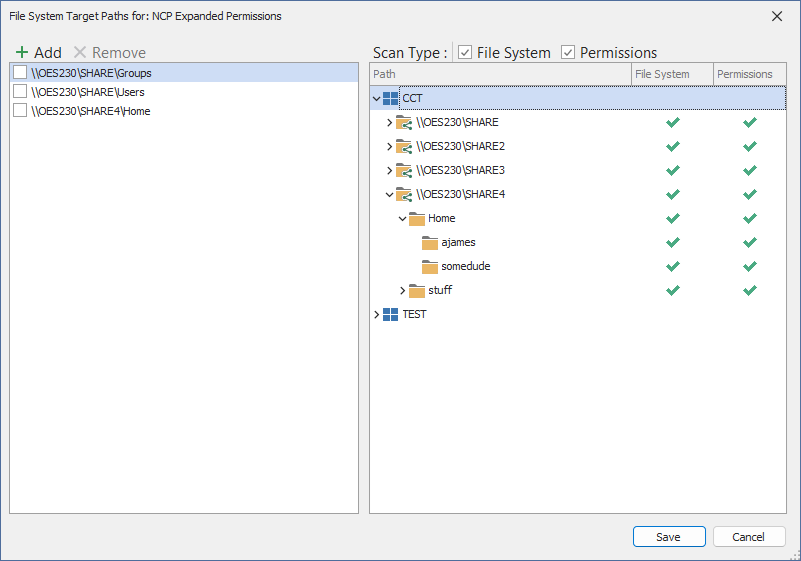
File Reporter OES includes a File System Paths selector for use with Custom Query reports. This feature provides:
-
An easy-to-use approach to changing target paths for complex Custom Queries.
-
A convenient interface to add or change target paths for existing Custom Queries without modifying any SQL text.
-
A powerful interface that enables advanced report users to create manageable report templates for Data Owners.
-
Add the selected path to the target paths list from the tree list.
-
Remove the selected path from the target paths list.
-
File System: Select to include File System scan paths in the tree list.
-
Permissions: Select to include Permissions scan paths in the tree list.
-
Save changes made to the target paths list.
-
Cancel any current edits.
Assigning Paths to a Report Definition
To assign one or more file system paths to a Custom Query report definition:
-
Click the File System Paths ribbon item
 to open the File System Target Paths dialog. This ribbon item may be found in the following locations:
 -
The Edit ribbon page group of the Main form containing the Custom Query reports list;
-
The Parameters ribbon page group of the Query Editor form; and
The Report Data ribbon page group of the Report Layout Designer form.
-
Select one or more target paths by using one of the following methods:
-
Double-click a path entry in the tree list on the right.
-
Select (highlight) one or more path entries in the tree list on the right then click Add in the toolbar on the left.
-
Drag-and-drop one or more selected path entries from the tree list on the right into the selected paths list on the left.
-
-
Click Save.

Removing Paths from a Report Definition
To remove one or more assigned File System paths from a Custom Query report definition:
-
Open the File System Target Paths dialog. (See Step 1 from Assigning Paths to a Report Definition.)
-
Select the paths to remove in the selected path list on the left.
To select a path to remove, select (highlight) the entries for selection then click an associated check box.
-
Click Remove to remove the selected items from the paths list.
-
Click Save.
Scan Types
Understanding Scan Type
The File System and Permissions columns in the paths tree list indicate whether the associated path is available currently as a File System metadata scan entry and/or a Permissions scan entry.
The paths tree list is populated by data obtained from the most recent File System or Permissions scans. If a share or path is not visible in the tree list, a new File System or Permissions scan must be performed before that path will appear.
The path indicator does not determine the type of Custom Query; rather, it indicates which scan data is available. Depending on the nature of the Custom Query, one or both scan types may be desired.
Filter by Scan Type
If a particular Custom Query is defined around data collected solely from either a File System scan or a Permissions scan, it may be useful to filter the paths tree list by that scan type.
Both scan types are enabled by default, displaying paths from the latest scans of both types.
To filter the list by a specific scan type, deselect the scan type you want to exclude. For example, to only display paths from current Permissions scans:
-
Uncheck the File System box at the top of the paths tree list.
-
Verify that the Permissions box remains checked.
Understanding the Relation to Custom Queries
File System Target Paths lists the target paths for the associated Custom Query. How the Custom Query uses these paths is determined by the associated SQL queries.
While executing a Custom Query, File Reporter OES injects a temporary table into the SQL session that provides the select paths along with metadata the SQL query can use to shape the query results based on those paths — see File System Target Paths in the File Reporter OES 24.4 Custom Query Guide for details.