File System Target Paths
You can define and manage a Custom Query report's selected target paths via the report definition itself, separate from any associated SQL queries.
This is accomplished via a temporary table that is injected into the SQL query session at runtime when using any of the File Reporter OES tools such as Report Designer or the SQL query editor in the File Reporter OES Web Application for Custom Query reports.
Newer report templates available on the File Query Cookbook site (https://filequerycookbook.com) make use of this feature, which provides a more hands-off approach to modifying SQL queries directly, but with the flexibility to define and change a report's file system target paths.
Example Query
The following example illustrates a custom query that reports on file system permissions for one or more target paths selected with the File System Target Paths dialog in Report Designer.
IMPORTANT: SQL Server requires a hash '#' prefix to reference temporary tables. When using SQL Server as the backend database, be sure that any references to tmp_cq_fs_paths in your SQL queries are changed to #tmp_cq_fs_paths instead.
Conversely, PostgreSQL can't use hash marks '#' as part of the table name, so be sure that this prefix does not exist in your SQL queries when using PostgreSQL as the backend database.
-
Launch the File Reporter OES Report Designer application and create a new empty report — see Creating a Report in the File Reporter OES Client Tools Guide for details.
-
Enter one of the following SQL queries into the SQL query editor dialog, depending on the database in use.
CopyExample (PostgreSQL)SELECT
*
FROM srs.current_ncp_trustees AS ncp
JOIN tmp_cq_fs_paths AS cq
ON cq.target_path_hash = ncp.fullpath_hash
AND cq.is_current = 'true'
AND cq.is_permission_scan = 'true';CopyExample (SQL Server)SELECT
*
FROM srs.current_ncp_trustees AS ncp
JOIN #tmp_cq_fs_paths AS cq
ON cq.target_path_hash = ncp.fullpath_hash
AND cq.is_current = 'true'
AND cq.is_permission_scan = 'true'; -
Click Save to save the SQL query.
-
Click File System Paths to open the File System Target Paths dialog.
-
Select one or more paths to report on, then save the selection. Be sure to select paths marked as having Permissions scan data available, as seen in the File System Target Paths dialog.
-
Click Execute Query to run the SQL query and view the results.
Using Alternate SQL Query Editors
You can choose to develop a SQL query for a Custom Query report in a query editor of your choice, such as PgAdmin for PostgreSQL or SQL Server Management Studio (SSMS).
In these development environments, however, the injected temporary table is not available by default. Use the following procedures to stage the temporary table.
IMPORTANT: Although any existing report definition may be used as a reference, you should create a new Report Definition and use its associated ID. Doing so gives you the flexibility to change the selected target paths during the query design phase without impacting other report definitions.
-
Create a new Custom Query report — see Creating a Report in the File Reporter OES 24.4 Client Tools Guide for details.
-
Assign one or more File System target paths to the report definition — see File System Paths Selector in the File Reporter OES 24.4 Client Tools Guide for details.
-
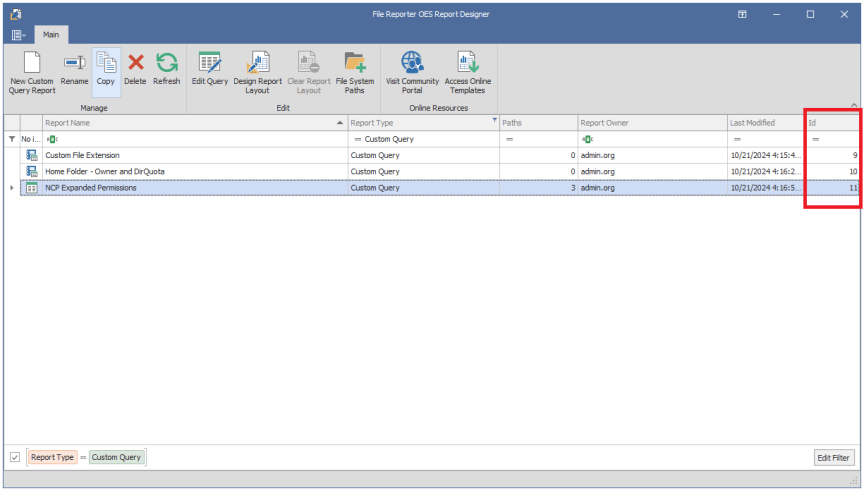
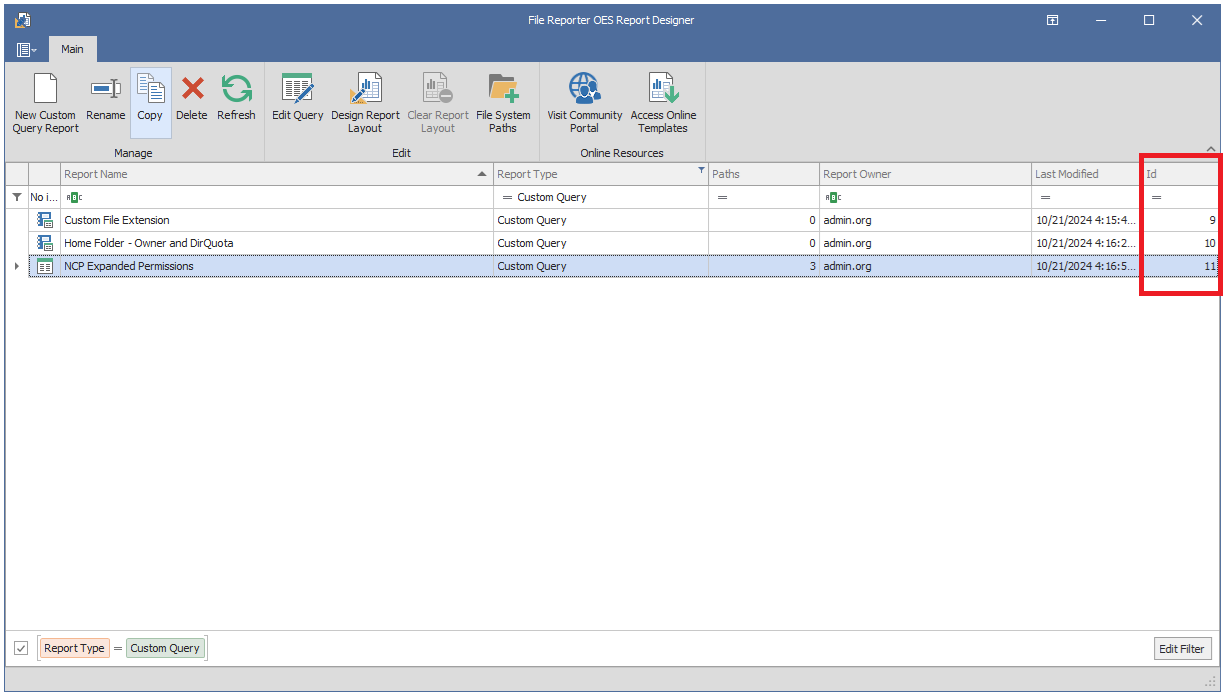
Find the report ID for the newly-created report.
-
Find the name of the newly-created report definition in the Main window of the Report Designer.
-
The column at the far right of the grid indicates each report's ID. Make note of the new report definition's ID number.
-
-
Insert the following SQL code at the start of the query:
CopyExample (PostgreSQL)CREATE TEMP TABLE IF NOT EXISTS tmp_cq_fs_paths
AS
SELECT * FROM srs.cq_fs_paths_by_report_id(17);CopyExample (SQL Server)IF OBJECT_ID('#tmp_cq_fs_paths', 'U') IS NULL
SELECT * INTO #tmp_cq_fs_paths
FROM srs.cq_fs_paths_by_report_id(17); -
Change the example's report ID of "17" to the report ID identified from the previous step.
-
Add SQL statements as needed to complete the query.
-
When the SQL query development is complete, copy all the SQL statements into the Custom Query report definition, except for the initial lines used to stage the temporary table .
Using the earlier example query, a complete query using a staged temporary table with an alternate SQL query editor looks like this:
CREATE TEMP TABLE IF NOT EXISTS tmp_cq_fs_paths AS
SELECT * FROM srs.cq_fs_paths_by_report_id(17);
SELECT
*
FROM srs.current_ncp_trustees AS ncp
JOIN tmp_cq_fs_paths AS cq
ON cq.target_path_hash = ncp.fullpath_hash
AND cq.is_current = 'true'
AND cq.is_permission_scan = 'true';IF OBJECT_ID('#tmp_cq_fs_paths', 'U') IS NULL
SELECT * INTO #tmp_cq_fs_paths
FROM srs.cq_fs_paths_by_report_id(17);
SELECT
*
FROM srs.current_ncp_trustees AS ncp
JOIN #tmp_cq_fs_paths AS cq
ON cq.target_path_hash = ncp.fullpath_hash
AND cq.is_current = 'true'
AND cq.is_permission_scan = 'true';