Configuring the Engine
-
If not already running, select File Reporter OES Config Dashboard in the Start menu.
-
Click Configure Engine.
-
Review what is to be configured and click Next.
-
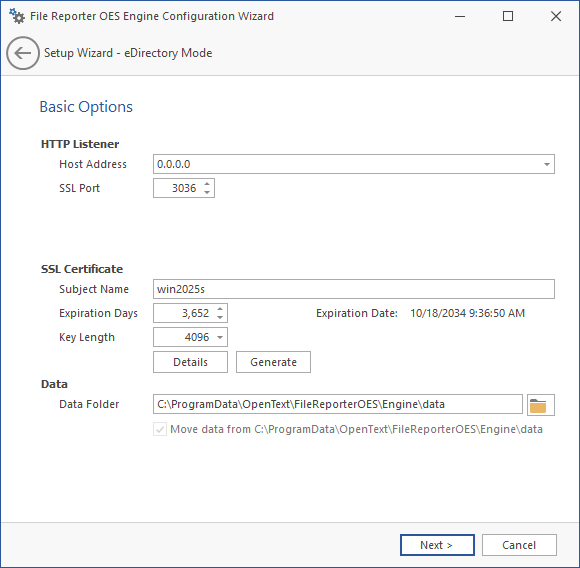
Confirm or change the basic Engine configuration settings in this window.
-
HTTP Listener: Displays the communication parameters for the Engine.
-
Host Address: Leave this setting unchanged unless you want the Engine to only listen on a certain IP address.
-
SSL Port: Leave the setting at the default value unless there is a port conflict.
-
-
SSL Certificate: Displays details for the SSL certificate that will be generated.
-
Subject Name: The name of the certificate that will be generated (the server name is listed by default).
-
Expiration Days: The certificate life span.
-
Key Length: The certificate bit length.
-
Details: Click to view the certificate data.
-
Generate: Click to generate a new certificate if you modify any of the settings in the SSL Certificate section.
-
-
Data Folder: The default location of the data folder, which is used for a variety of tasks, including the storage of agent configuration and discovered storage resources data, as a temporary repository for scans, and mail spooling.
-
Move data from: (enabled only during an upgrade)
-
If this box is checked, then content from the Engine’s data folder for the previous version of File Reporter OES will be moved to the path specified in the Data Folder field and the original path will be removed.
-
If the box is unchecked, the Engine will use the path specified in the Data Folder field, including the original path.
-
-
-
Edit any necessary parameter settings and click Next.
-
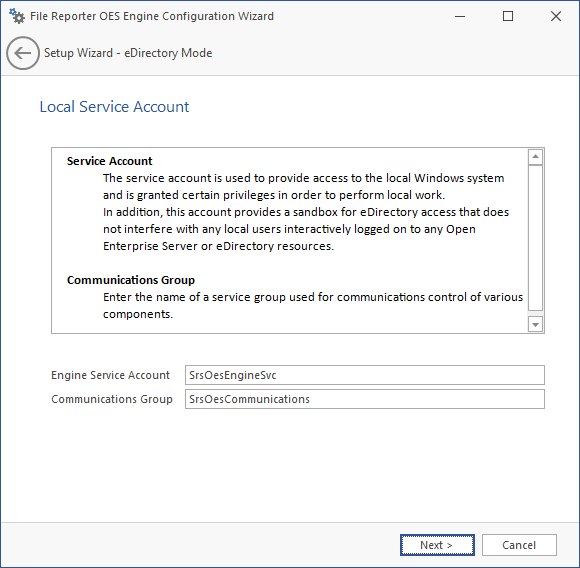
Establish names for the Engine Service Account and the Communications Group.
-
The Scan Processor uses the Communications group to secure who can access its service.
-
The configuration wizard establishes default account and group name, which you can modify.
Click Next.
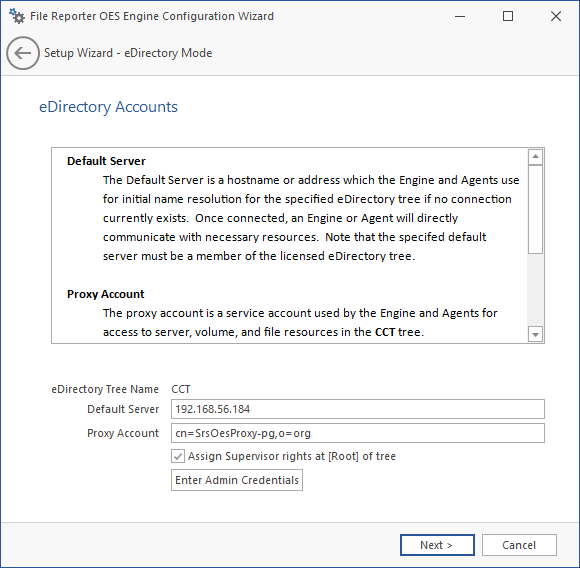
Default Server Address: Specify an IP address or DNS name to any server belonging to the eDirectory tree.
LDAP Proxy Account: Modify the typeful naming to correspond to your organizational structure.
For example,
cn=srsproxy,o=systemAssign Supervisor rights at [Root] of tree: By default, the proxy account has Supervisor rights at the [Root] of the directory tree and can therefore report on any network volume.
If this option is not selected, File Reporter OES can only report on volumes where the proxy account is assigned rights.
Enter Admin Credentials: Click this button to access the following dialog box:
-
-
Click Enter Admin Credentials.
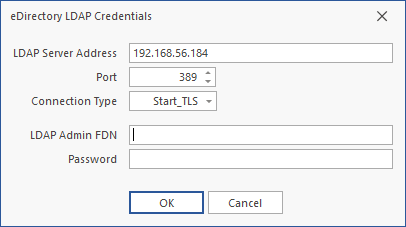
LDAP Server Address: Specify an IP address to any server belonging to the eDirectory tree.
Port: Specify the appropriate port for LDAP access depending on connection type and server.
Connection Type: Verify that the setting is SSL.
LDAP Admin FDN: Specify the fully distinguished LDAP name for an eDirectory administrator.
For example:
cn=admin,o=systemPassword: Specify the password for the administrator.
-
Click OK.
-
Click Next.
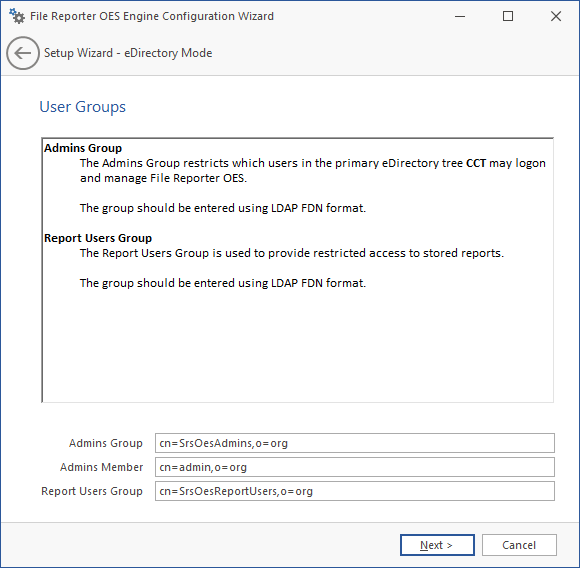
Specify the LDAP distinguished name for the Admins Group and Report Users Group or use the default names.
-
Click Next to create the two groups.
-
Click Finish. The Engine and Scan Processor are now configured and running.
-
(Conditional) See Configuring the Web Application for next steps.