Installing or Updating the License
Installing a New License
- Launch the File Reporter OES Configuration Dashboard from the Start menu.
- Click Install or Update License in the Configuration Dashboard to open the License dialog.
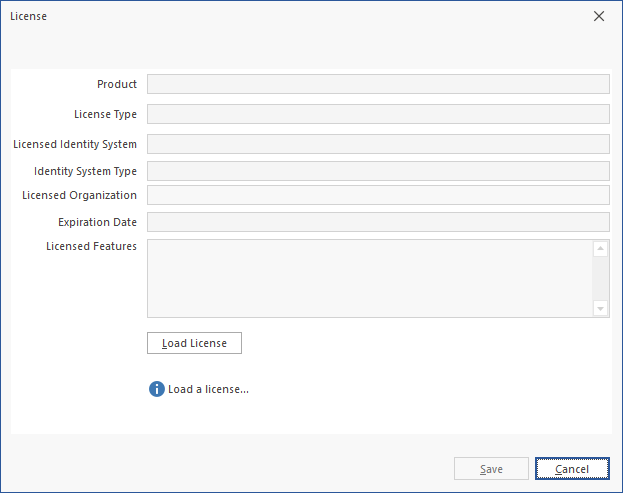
- Click Load License, then browse to locate and select the license file.
- Click Yes to confirm.
- Examine the license properties to ensure that the license is valid.
- Click Close.
- (Conditional) See Configuring the Engine for next steps.
IMPORTANT: License expiration checks are performed every 24 hours at midnight. When the license expires, you won't be able to log in through the Web Application until the license is replaced through the File Reporter OES Engine Configuration utility.
Updating the License
After installing File Reporter OES, you can update your evaluation license or production license by simply replacing the old license with the new one – see Installing a New License for details.