Using Report Designer
NOTE: You must be a member of the SrsAdmins* group to use Report Designer. (*This is the default name of the File Reporter administrators group created during installation of the Engine, which you can change.)
-
Launch the File Reporter 24.4 Report Designer in the Start menu.
-
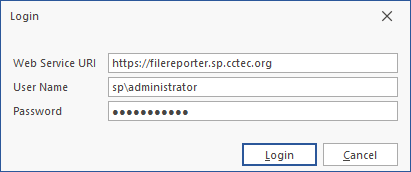
Enter your login credentials and click Login.
-
Familiarize yourself with the Report Designer interface.
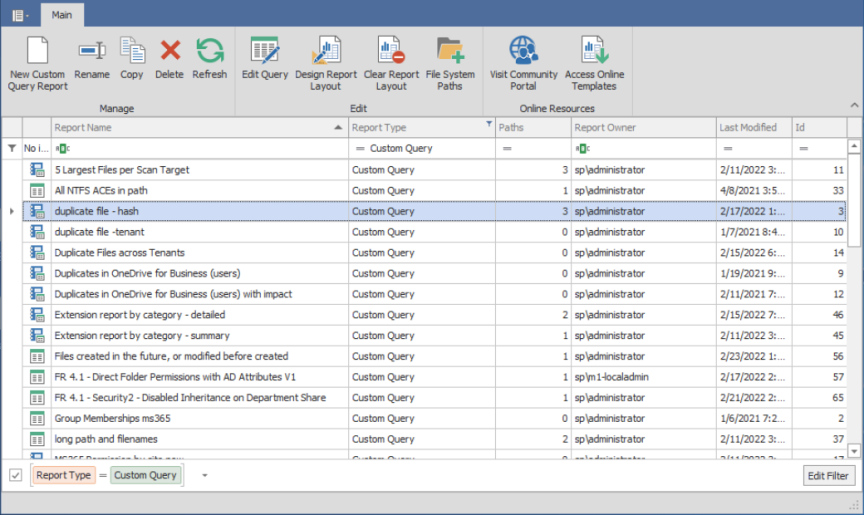
All Custom Query reports are listed. Those not designed with the Report Designer Layout interface have a green-banner text icon, while those designed using Report Designer have a blue notebook icon.
-
Right-click a report to access all toolbar options for that report.
-
New Custom Query Report: Launch the Query Editor to create a new Custom Query report.
-
Rename: Change the selected report’s name.
-
Copy: Create a copy of the selected report's definition.
-
Delete: Delete the selected report.
-
Refresh: Reload the list of saved reports.
-
Edit Query: Launch the Query Editor to make changes to the SQL query for the selected report.
-
Design Report Layout: Launch the Report Designer Layout interface — see Custom Query Report Layouts for details.
-
Clear Report Layout: Delete the custom design settings created for the selected report using the Report Designer Layout interface (NOTE: Use caution — this procedure is irreversible).
-
Visit Community Portal: Access the File Query Cookbook, a community website for sharing Custom Query reports and layouts created through the Report Designer.
-
Access Online Templates: Open the list of all available Custom Query reports shared on the File Query Cookbook website. From the Custom Query Recipes page, you can filter your search by category, database host, and more. Simply copy or download the SQL query from a shared Custom Query report recipe to use it.
-
Filter: The cell directly below the Report Name column heading is a filter that lists saved reports according to one or more words you enter (e.g., enter the word access to display only reports with that word in the file name).
-
[Report Type]: This box is checked by default to display only Custom Query reports, which are the only reports that can be designed using the Design Editor. Uncheck the box to view all of your reports.
-
Edit Filter: Further refine your filtering with Boolean operators.