Creating Local User Accounts
Fortify Software Security Center Administrator-level users can add new local user accounts to the list of Fortify Software Security Center users.
To create a Fortify Software Security Center user account:
-
Log in to Fortify Software Security Center as an Administrator, and then, in the Fortify header, click ADMINISTRATION.
-
In the left panel of the ADMINISTRATION view, select Users, and then select Local.
The Local page opens and lists local users.
-
In the Local toolbar, click +ADD.
The CREATE NEW USER dialog box opens.
-
Provide the information listed in the following table.
Field or Check Box Description Username
Username for Fortify Software Security Center logon.
First Name
First name of user.
Last Name
Last name of user.
Email
Email address of user.
Password
Password for the new user.
The Password Strength indicator displays the relative strength of the password you entered. You can save the user account information only if the password is evaluated as strong or better.
Confirm Password
Password for the new user.
User must change password at next login
Leave this check box selected to require the user to change the password at the next login to Fortify Software Security Center.
Password never expires
Select this check box to allow the user to use the originally assigned password until he or she wants to change it.
To require the user to change his or her password every thirty days, leave this check box cleared.
Suspended
Select this check box to suspend user access to Fortify Software Security Center.
- To assign roles to the user, in the Roles section, select the check boxes for the role to assign the user.
-
To specify the applications that the new user can access:
-
In the Access section, click ADD.
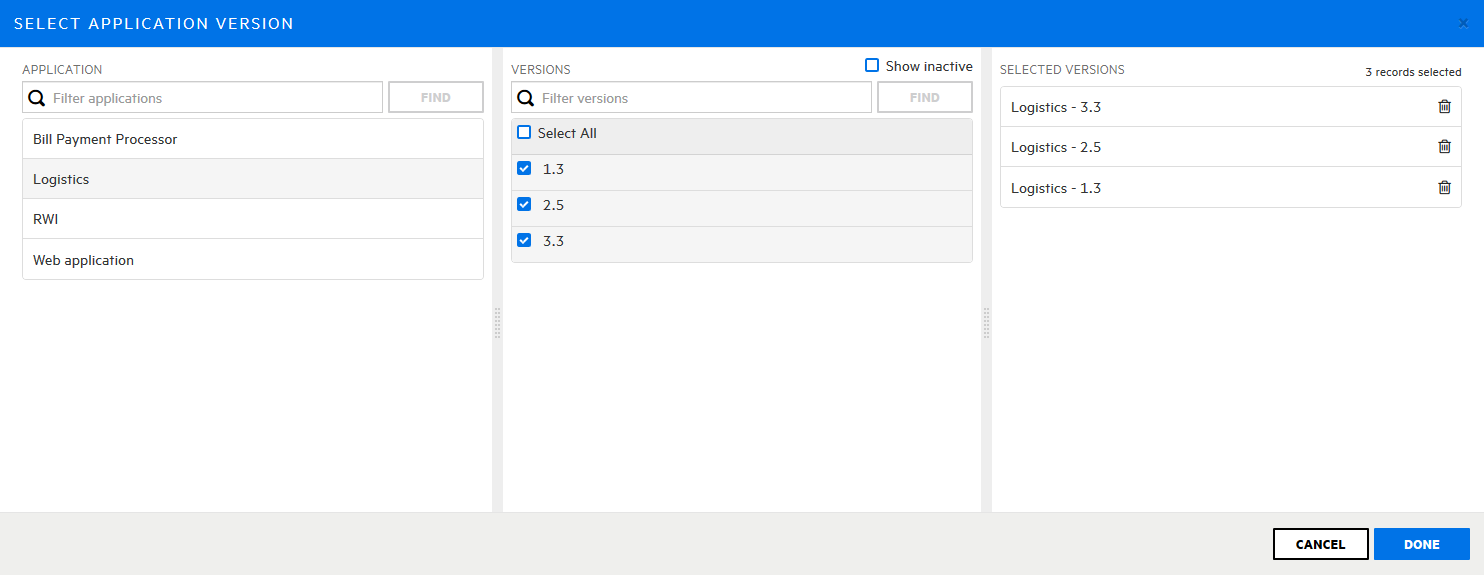
The SELECT APPLICATION VERSION dialog box opens.

-
From the APPLICATION list, select the application
 A customer codebase evaluated by Fortify software. The top-level container for one or more application versions. When you work with a new codebase, the application and first application version are automatically created. An application includes one or more application versions that users create and configure. to which you want the user to have access.
The VERSIONS list in the center panel displays all active versions of the selected application.
-
To select all versions, select the Select All check box. Otherwise select the check boxes for the versions to which you want to give the user access.
On the right, the SELECTED VERSIONS panel lists the versions you selected.
-
Click DONE.
-
To add another application version
A particular iteration of the analysis of a codebase as it applies to Fortify Software Security Center. An application always begins with a first version. An administrator adds new versions, as needed. or versions, repeat steps a through d.The Access section lists the application versions you selected.
-
-
Do one of the following:
-
To save your settings and exit the CREATE NEW USER dialog box, click SAVE.
-
To save your settings and create another new user, click SAVE AND ADD ANOTHER.
-
Fortify Software Security Center adds the user account to the list of users.
See Also