Filtering Issues for Display on the OVERVIEW and AUDIT Pages
Use the following steps to filter issues for display for an application version A particular iteration of the analysis of a codebase as it applies to Fortify Software Security Center. An application always begins with a first version. An administrator adds new versions, as needed. from either the OVERVIEW page or from the AUDIT page.
Note: You can also select a filter set to change the issues displayed on the OVERVIEW and AUDIT pages. For information and instructions, see Changing Displayed Issues Using Filter Sets.
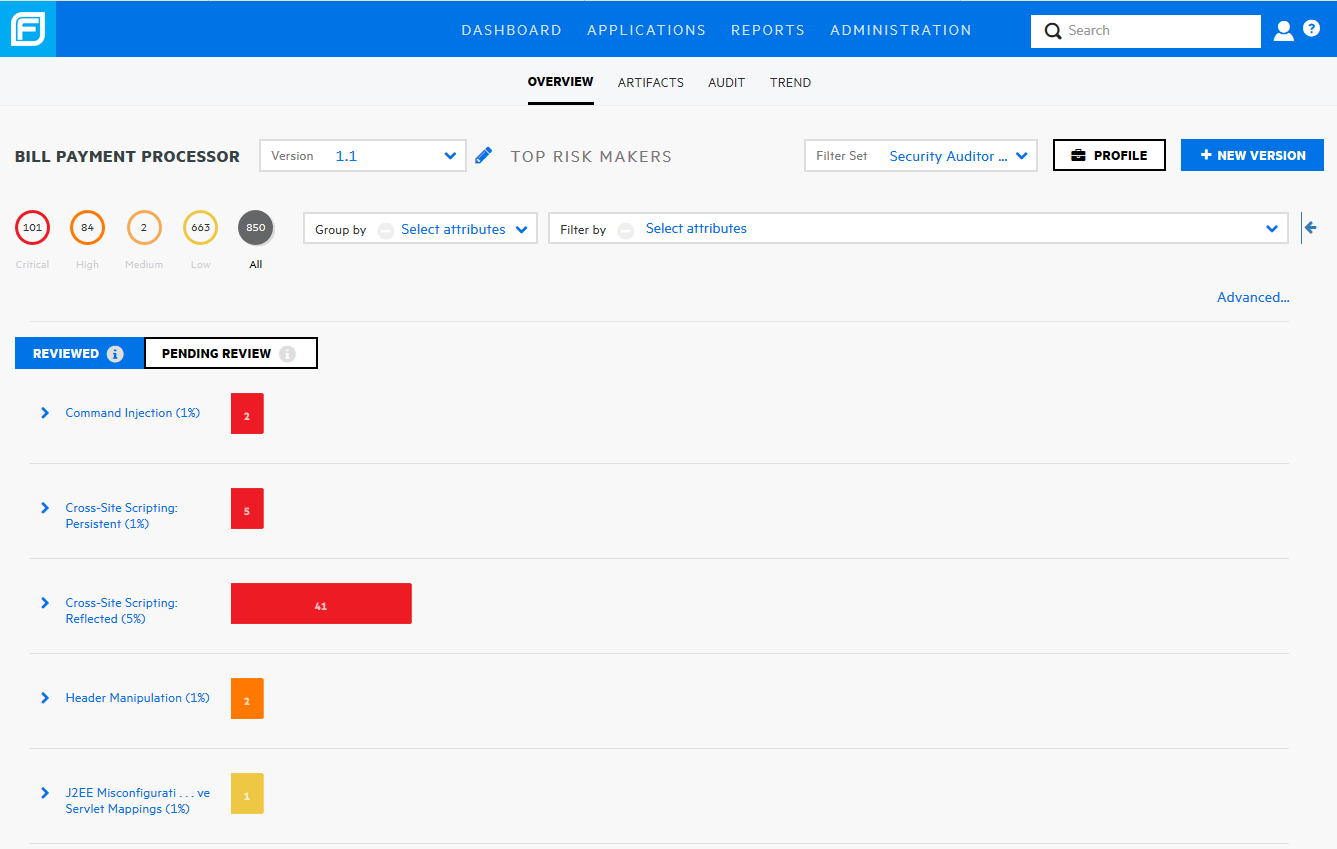
To filter issues for display on the OVERVIEW (shown) or AUDIT page:
-
From the Group by list, select the attribute to use to group the issues in the issues table.
-
From the Filter by list, select the attributes to use to filter the issues for display in the issues table. You can select multiple attributes from this list. However, you must select them one at a time.
-
To filter issues based on values for a custom tag
During audits, users assign values to custom tags to indicate which issues to address and in what order. The system supplies the default Analysis tag. Administrators and security leads can add custom tags to the system. To be considered audited, an issue must have a value assigned to its primary custom tag. other than Analysis, or based on risks related to OWASP, WASC, or other security threat classifications:-
Click the Advanced link.
The ADVANCED ISSUE FILTERS window opens.
-
From the Select filter category list, select a category.
The Select filters list is populated with the filters available for the selected category.
-
To refine the list further, type a text string in the Select filter box.
The Select filters list displays the filters that contain the text that matches the text you typed.
- In the Select filters list, click each of the filters you want to add to the Selected filters list to the right.
- To add filters for another filter category, repeat these steps.
-
Click APPLY.

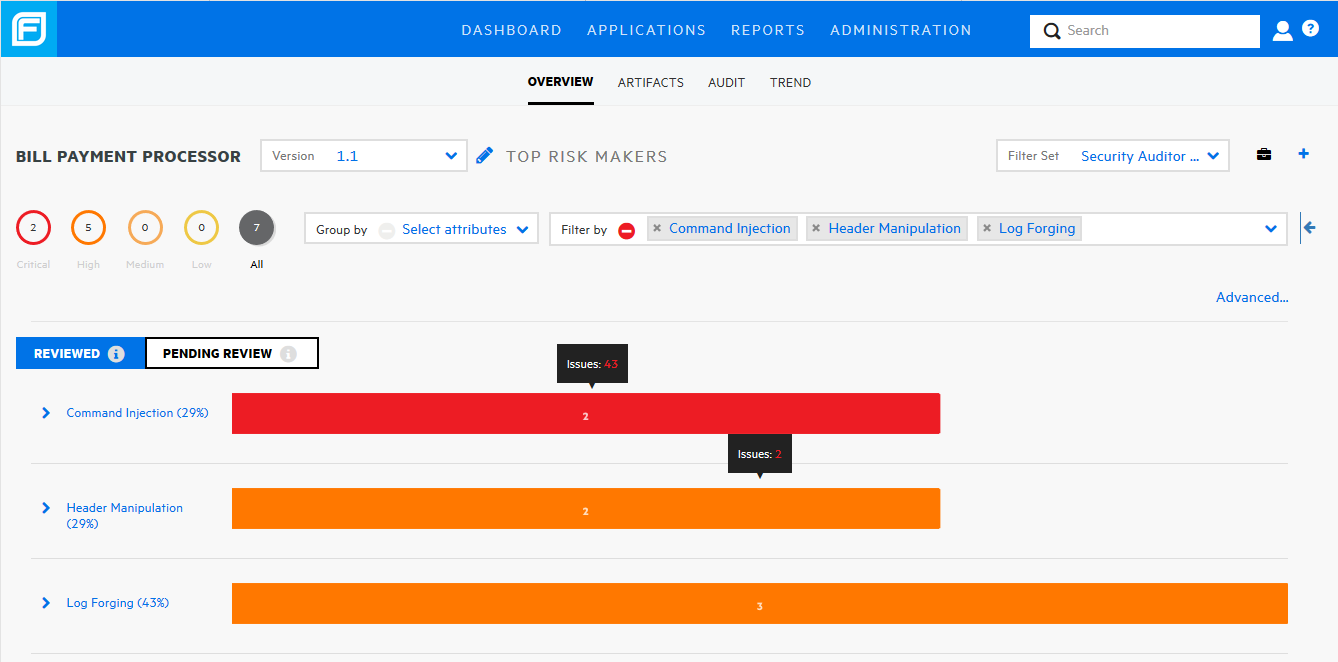
The Filter by box now displays all of the filters you have selected.
-
-
To remove one of the filters, click the close symbol to its left.
- To clear all selected filters, click the Clear all icon.
See Also