Viewing application versions
To view the application versions:
On the header, select Applications.
The first time you access the Applications view, the applications are displayed in the Legacy View.
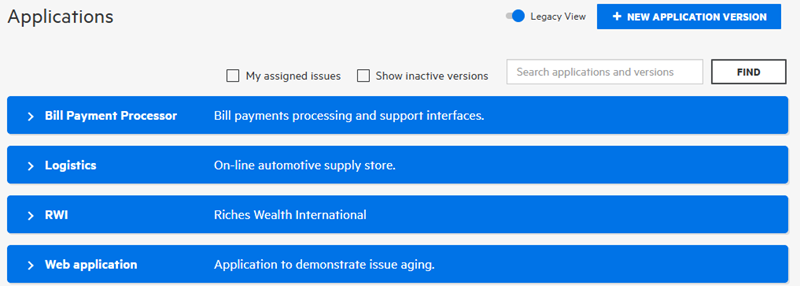
To view the versions for an application in the Legacy View, click an application row.
To view the applications in the modern Applications view, turn off the Legacy View switch.
The Your Applications page shows the application name, number of versions, and the application description.
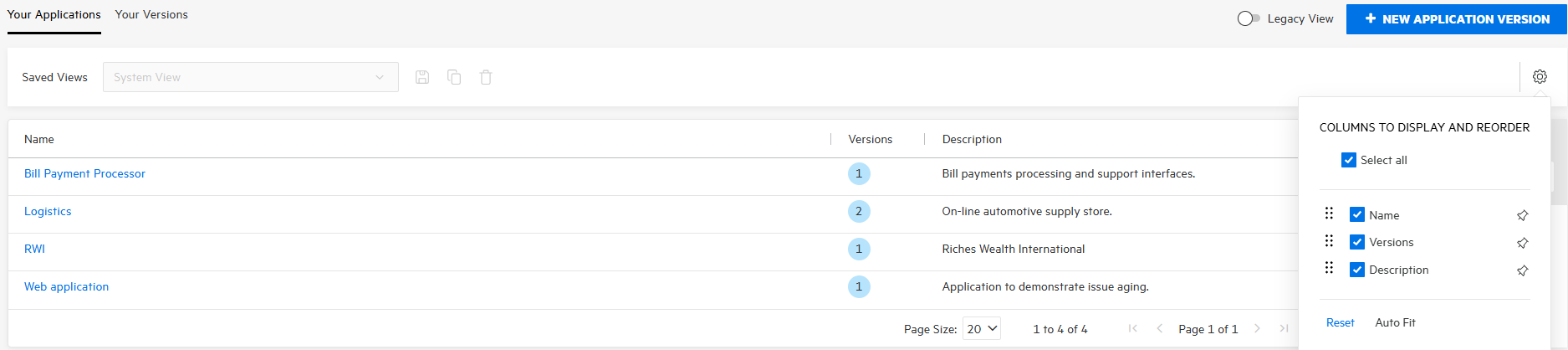
To view the versions for an application, click the application name.
The Your Versions page shows the application version name, version description, application name, rating (visual of the Fortify Security Rating performance indicator), scan type and status, and the date and time of the most recent scan.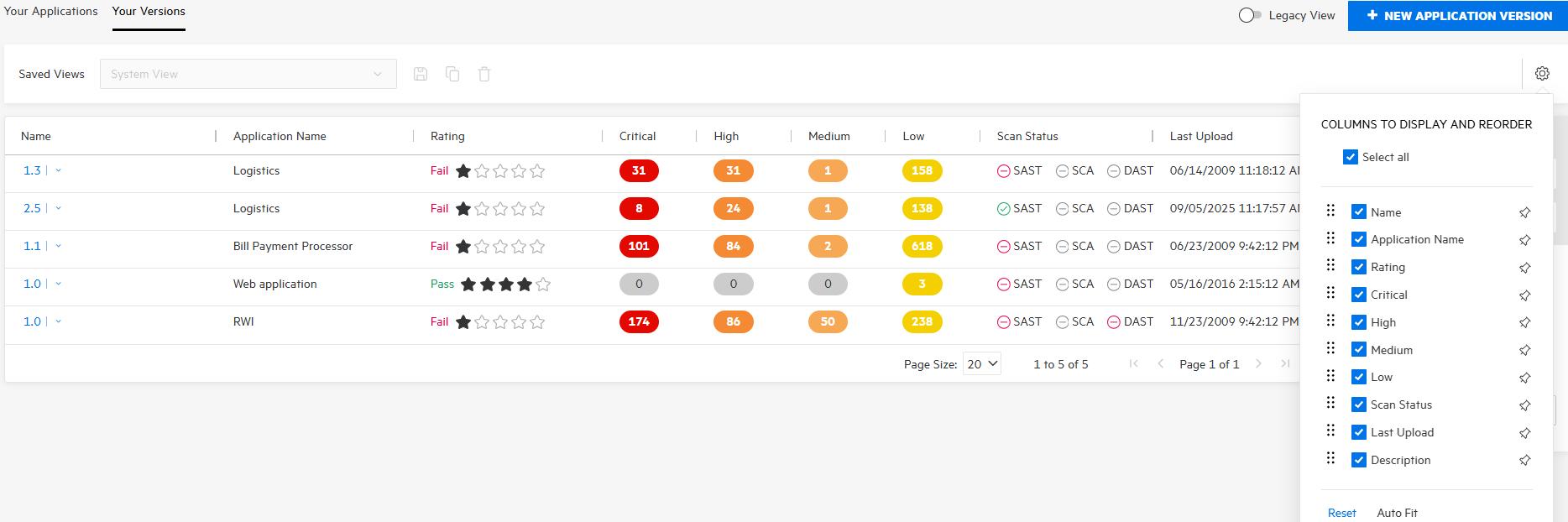
To view all the columns displayed in Your Applications or Your versions page, click Columns to Display and Reorder. By default, the Select all check box is selected.
You can either clear the Select all check box and select the required columns or clear the check box next to the column name that you do not require. To remove the column from Your Applications or Your versions page, you can drag the column out of the table.
If you drag all the columns out, click Columns to Display and Reorder and select the required columns to view.
To adjust the column width, click Reset or Auto Fit.
You can drag and drop the column names to arrange the columns based on your requirement.
See Also
Searching applications and application versions from the Applications view