Viewing Fortify ScanCentral SAST scan request details
For information about how to install, configure, and use Fortify ScanCentral SAST to streamline the static code analysis process, see the OpenText™ Fortify ScanCentral SAST Installation, Configuration, and Usage Guide.
To view details about scan requests:
On the header, select ScanCentral, and then select SAST.
The Scan Requests page lists all scan requests and the details for each scan.
(Optional) To filter the displayed scan requests, click a column heading and select from a list, select a date and time, or type a search string depending on the selected column type.
For example, to filter the results by application name, click the Application column heading and type the first few letters of the name. To filter by job status, click the Status column heading and select a status from the list.
To clear any applied filtering, click RESET.
- (Optional) To modify the display such as clearing sorting, or selecting the columns to display, click the Display options button
 .
. To expand a row and see more details about a scan, click the Show scan details button
 .
.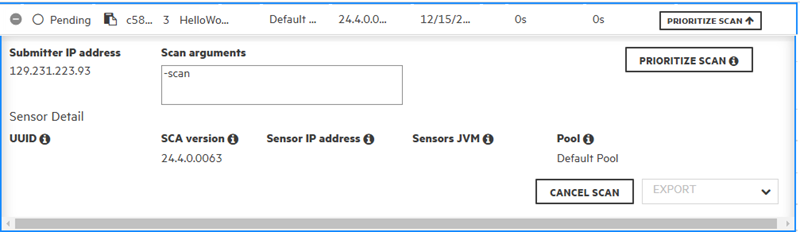
To export the scan request details, from the EXPORT list, select either FPR to export an FPR file with vulnerabilities uncovered by the scan, or Log to export the log file from the scan.
- To update the data displayed, click REFRESH.
See Also
Prioritizing a Fortify ScanCentral SAST scan request
Canceling Fortify ScanCentral SAST scan requests