Folders (tabs)
The color-coded Critical, High, Medium, Low, and All tabs on the Issues view are called folders. You can customize the folders and their settings. The number of folders, names, colors, and the issue list can vary between filter sets and projects.
In Fortify Audit Workbench the term folder does not refer to the folder in the issues list.
Within each color-coded folder, issues are grouped into subfolders. At the end of each folder name, enclosed in brackets, is the number of audited issues and the total number of issues in the folder. For example, Command Injection - [1 / 3] indicates that one out of three issues categorized as Command Injection has been audited.
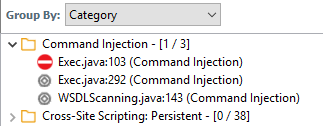
The filter set you select from the Filter Set list determines which folders are visible in the Issues view. The following table describes the folders that are visible when the Security Auditor View filter set is selected.
| Folder | Description |
|---|---|
| Critical | This folder contains issues that have a high impact and a high likelihood of occurring. Issues at this risk level are easy to discover and to exploit and represent the highest security risk to a program. Remediate critical issues immediately. |
| High | This folder contains issues that have a high impact and a low likelihood of occurring. High‑priority issues are often difficult to discover and exploit, but can result in much asset damage. They represent a significant security risk to a program. Remediate these issues with the next patch release. |
| Medium | This folder contains issues that have a low impact and a high likelihood of exploitation. Medium‑priority issues are easy to discover and exploit but often result in little asset damage. These issues represent a moderate security risk to a program. Remediate these issues as time permits. |
| Low |
This folder contains issues that have a low impact and a low likelihood of exploitation. Low‑priority issues are potentially difficult to discover and to exploit and typically result in little asset damage. These issues represent a minor security risk to the program. Remediate these issues as time permits. |
| All |
This folder contains all the issues. |
An issue is listed in a folder if the folder filter conditions match the issue attributes. Each filter set has a default folder, indicated by (default) next to the folder name. If an issue does not match any of the folder filters, the issue is listed in the default folder.
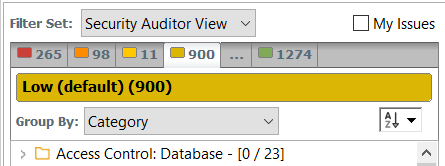
You can create your own folders as you need them. For example, you might group all hot issues for a project into a Hot folder and group all warning issues for the same project into a Warning folder. For instructions on how to create your own folders, see Creating Folders.
Each folder contains a list of all the issues with attributes that match the folder filter conditions. One folder in each filter set is the default folder, indicated by (default) in the folder name.
To show or hide suppressed, hidden, and removed issues, set the user interface preferences from the Options dialog box (see Customizing the View).