Searching for issues
You can use the search box below the issues list to search for issues. After you perform a search, the label next to the folder name changes to indicate the number of issues that match the search as a subset of the total.
To perform a simple search, do one of the following:
Type a search query in the search box and press Enter.

- To select a search query that you used before, click the arrow in the search box, and then select a search query from the list.
To get assistance with composing a search query, do the following:
Click in the search box, and then press Ctrl+ Space.
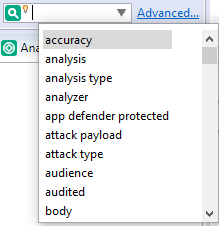
- From the displayed list, double‑click a search modifier to begin your search query.
For assistance to specify the comparison, with your cursor placed after the modifier in the search box, press Ctrl+ Space.
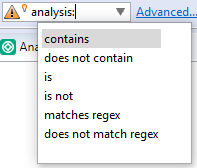
- From the displayed list, double‑click a comparison to add it to your search query.
- Type the rest of the search query, and then press Enter to perform the search.
The Issues view lists all the issues that match your search string.
Creating complex search strings can involve several steps. If you type an invalid search query, the magnifying glass in the search box changes to a warning to notify you of the error. Click the warning sign to view information about the search query error.
The advanced search feature makes it easier to build complex search strings. For a description of this feature and instructions on how to use it, see Performing Advanced Searches.
See Also