Running an advanced analysis
Use advanced analysis to scan Eclipse projects that have source code in multiple directories, special translation or build conditions, or that have files that you want to exclude from the project. With advanced analysis, you can scan Java projects, JavaScript projects, PHP projects, C/C++ projects, and all other types of projects that you can create in Eclipse.
Before you use advanced analysis with ScanCentral SAST, make sure you configure the ScanCentral SAST options (see Configuring ScanCentral SAST Options) and you have a properly configured ScanCentral SAST installation. For more information, see the OpenText™ ScanCentral SAST Installation, Configuration, and Usage Guide.
The Fortify Eclipse Complete Plugin filters out unsupported files within the selected source code directories.
To perform an advanced analysis:
-
From Eclipse, select one or more projects.
If no projects are selected, then the advanced analysis wizard includes all projects. You can remove projects from advanced analysis as necessary in the wizard (see the following step).
-
Select Fortify > Advanced Analysis.
The Advanced Static Analysis wizard opens.
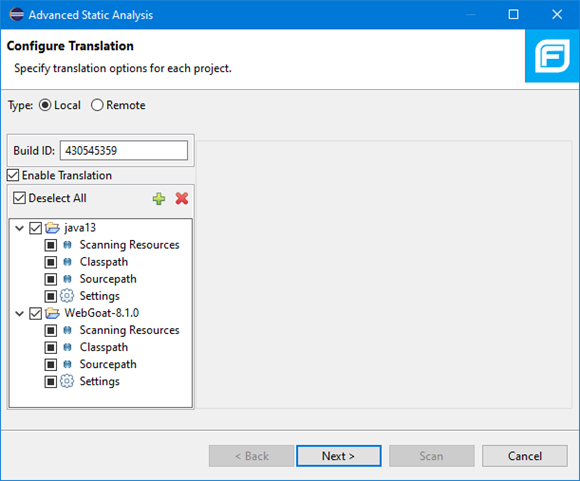
The selected Eclipse projects to be scanned are listed in the left pane. To exclude a project from the advanced analysis, clear the check box for the project.
-
Under Type, specify where you want to run the translation phase of the analysis. Do one of the following:
-
To run the translation phase using a locally installed instance of OpenText SAST, select Local.
On the next page in the wizard, you can select whether to run the scan phase locally or remotely with ScanCentral SAST.
-
To run the entire analysis with ScanCentral SAST, select Remote.
When ScanCentral SAST performs the translation phase, it will automatically run the scan phase as well.
-
-
In the Build ID box, type the build ID.
If you selected only one project for the advanced analysis, the root directory name is the default build ID. Otherwise, the wizard creates a unique number for the build ID, which you can change.
-
To disable translation, clear the Enable Translation check box.
For example, if the security content has changed but the source code has not, you might want to disable the translate phase so that the project is scanned without retranslating.
Selection of the Enable Translation option directs the wizard to perform the OpenText SAST clean phase for the build ID in addition to the source code translation. During the clean phase, OpenText SAST removes temporary files from previous translation of the project. If translation is disabled, the clean phase is also not performed.
-
To add additional Eclipse projects for analysis, click Add Project
 above the Eclipse projects list on the left.
The wizard automatically includes all supported files in the translation as determined by the project type. For Java projects, the wizard uses Eclipse logic to resolve source paths. For non-Java projects, the wizard includes all files under the project root.
-
Scanning Resources—Source files for translation.
Make sure only the files or directories that you want to translate are selected. To add additional folders for translation, click the Add Folders button
 .
. -
Classpath—(Java projects only) The class path to use for the Java source code. Include all JAR dependencies normally used to build the project.
Make sure to select only the files or directories that you want to translate. To add additional files for translation, click the Add Folders button
. To add JAR files, click the Add JAR button  .
. -
Sourcepath—(Java projects only) Folders that contain source code of dependent projects.
To add additional files for translation, click the Add Folders button
.
-
-
Click Settings for each Eclipse project to specify additional OpenText SAST translation options.
The translation setting options available depend on the Eclipse project type. The following image shows the options for a Java project.
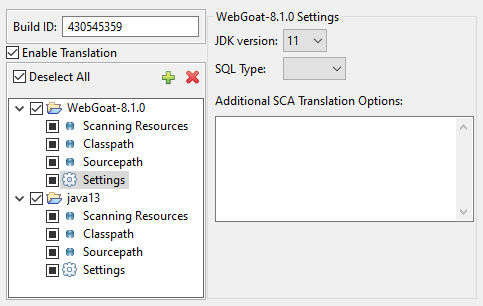
- From the JDK version list, select the Java version of the code in the project.
-
By default, OpenText SAST treats SQL files as T‑SQL on Windows (and Linux for .NET projects only). To specify the SQL type, from the SQL Type list, select TSQL or PLSQL.
-
Specify any additional translation options in the Additional SCA Translation Options box.
For information about the available OpenText SAST command-line options, see the OpenText™ Static Application Security Testing User Guide.
-
Click Next to configure the scan options.
-
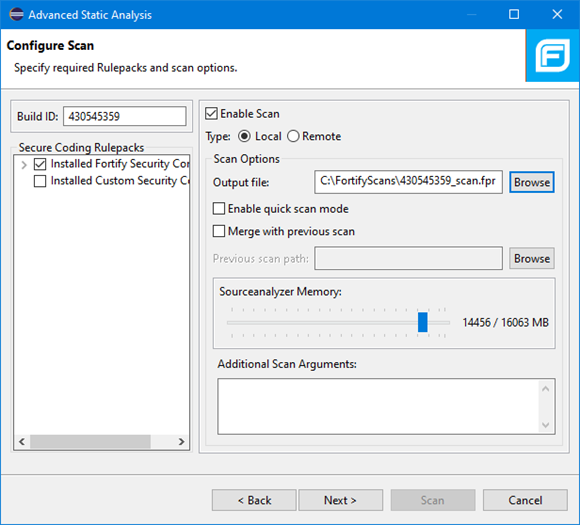
For Type, select where to run the scan phase of the analysis by selecting one of the following:
-
Local—Run the scan phase on the local system. You can adjust any of the following scan options for a local scan:
-
To skip the scan phase, clear the Enable Scan check box.
For example, to offload the scan phase to a different machine, skip the scan phase, use the command line to create a mobile build session (MBS) file, and import the MBS to the scan machine. See the OpenText™ Static Application Security Testing User Guide for instructions on how to use mobile build sessions.
-
To specify a different output file path than the default, in the Output file box, type the path and file name for the FPR file that OpenText SAST is to generate.
-
To perform a quick scan, select the Enable quick scan mode check box.
For information about quick scans, see Quick Scan Mode.
- To merge these results with a previous scan, select the Merge with previous scan check box, and then click Browse to navigate to and select the previous FPR file.
-
To specify the amount of memory OpenText SAST uses for scanning, adjust the slider to the amount of memory as needed.
The Fortify Plugin for Eclipse displays the amount of memory specified for OpenText SAST followed by the amount of memory on your system.
-
-
Remote—Run the scan phase with ScanCentral SAST.
-
-
(Optional) Specify any additional scan options in the Additional Scan Arguments box.
For information about the available OpenText SAST command-line scan options, see the OpenText™ Static Application Security Testing User Guide.
-
(Optional) To scan the code with a custom selection of OpenText Secure Coding Rulepacks, do the following:
-
In the Secure Coding Rulepacks list in the left pane, expand the Installed Fortify Security Content node and display the installed Rulepacks.
-
In the Installed Fortify Security Content list, clear the check boxes that correspond to any Rulepacks you want to disable for the scan.
For instructions on how to add custom security content, see Importing Custom Security Content.
-
-
Click Next.
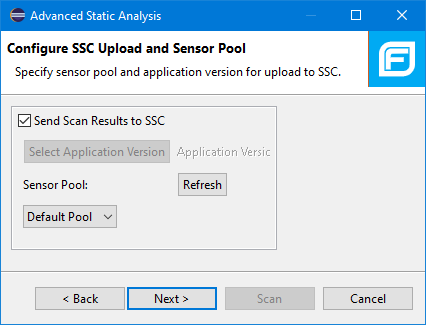
(Remote analysis only) The Configure SSC Upload and Sensor Pool page displays options to upload the analysis results to Application Security and to select the sensor pool.
-
To upload the analysis results to Application Security:
-
Select Send Scan Results to SSC.
-
Click Select Application Version.
-
In the Choose Application and Version Mapping for Upload results dialog box, select an application version.
-
Click OK.
-
-
(Optional) Select a sensor pool from the Sensor Pool list, and then click Next.
The default sensor pool is selected by default.
If ScanCentral SAST has SSC lockdown mode enabled, then you must select the default sensor pool.
You can click Refresh to update the sensor pool list if necessary.
The Preview SCA Commands page displays a preview of the OpenText SAST or ScanCentral SAST commands to be used for the analysis.
-
-
(Optional) On the Preview SCA Commands page, you can review and change the OpenText SAST translation and scan commands.
You cannot edit a ScanCentral SAST command.
-
For a local analysis only, click Next to proceed to the Audit guide page, where you can select additional scan settings.
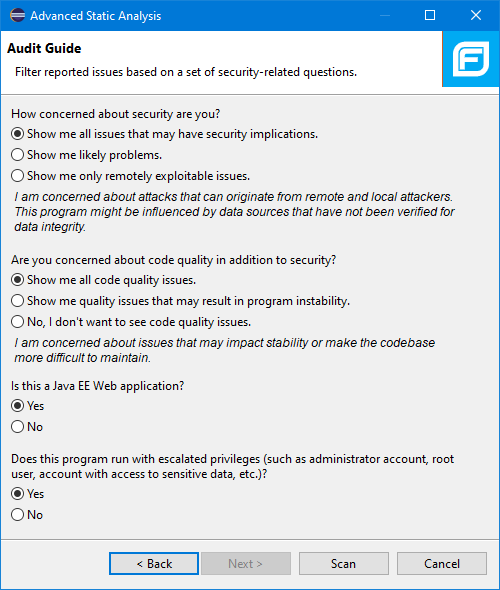
- Click Scan to run the analysis.
The scan starts and progress information is displayed throughout the process. If OpenText SAST encounters any problems scanning the source code, it displays a warning.
For a local analysis (both translation and scan), after the scan completes successfully, the analysis results are displayed in the Fortify Audit perspective.
To view the analysis results from a ScanCentral SAST analysis, do one of the following:
-
Copy the provided job token and use it in the ScanCentral SAST command-line interface to check the status and retrieve the analysis results (see the OpenText™ ScanCentral SAST Installation, Configuration, and Usage Guide). You can then open the analysis results in Eclipse (see Opening an Audit Project).
If you need to retrieve the job token, you can find it in the ScanCentral SAST log file. The default log file locations are listed in Locating Log Files.
-
If you uploaded the analysis results to Application Security, you can check the status of the job (and view the results) on the Application Security server. After the scan is complete, you can open the results in Eclipse using the Fortify Remediation Plugin for Eclipse.