Auditing analysis results
After you select and review an issue, you can assign audit information on the Audit tab. To audit multiple selected issues in batch, see Auditing Multiple Issues. To see any updates to the audit information made in Application Security, click the Refresh button  .
.
To audit an issue:
- From a folder in the Fortify Remediation window, click an issue.
To assign a user to the issue, do one of the following:
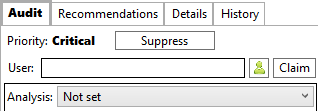
Click the Assign Issue to User button
 , select a user name from the Select User dialog box, and then click OK.
Click Claim to assign the issue to yourself.
To remove an assigned user, click the Unassign Issue button
 .
.From the Analysis list, select a value that reflects your assessment of this issue.
This is the primary tag defined in Application Security. The default name of this tag is Analysis, but it might be different for your organization.
If the priority override capability is enabled on Application Security, you can override the priority value for the issue as follows:
The issue is not automatically visible in the newly assigned priority folder until the application metrics are refreshed on Fortify Software Security Center.
From the Priority Override list, select the preferred priority value.
Explain why you changed the value in the Add Comment for Issue dialog box.
Click OK.
The Priority changes to the value you selected. A warning symbol indicates that the Fortify-determined priority value was changed.

If additional custom tags are associated with the application version, specify values for those tags.
The Fortify Extension for Visual Studio displays all custom tags assigned to the application; however, you can only provide values for tags that your Application Security user account has permission to edit. Use the following instructions to provide values for custom tags:
For text- and decimal-type custom tags, type the value in the box, and then click the Save button
 .
.Text-type custom tags accept up to 500 characters (HTML/XML tags and newlines are not allowed).
For date-type custom tags, type a date or click the Select Date button
 to select a date from a calendar.
For an extensible list-type custom tag, you can add a new value to the tag by clicking Add Value. You can then assign this new value to the custom tag by selecting it from the list.
If any tag requires a comment, then after you provide a value for the tag, the Add Comment for Issue dialog box opens. In the Comment box, type a comment to describe the value you specified for the tag, and then click OK.
To add a comment for the issue audit:
Click the Add Comment button
 .
.In the Add Comment for Issue dialog box, type a comment, and then click OK.
The Fortify Extension for Visual Studio makes the updates to the application version on Application Security.
See Also