Navigation pane
When conducting or viewing a scan, the navigation pane is on the left side of the OpenText DAST window. It includes the Site, Sequence, SPA Coverage, Search, and Step Mode buttons, which determine the contents (or "view") presented in the navigation pane.
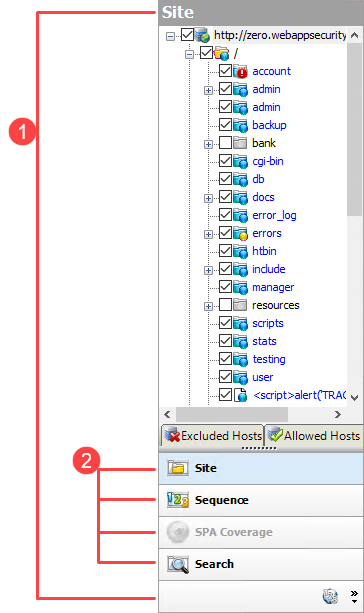
| Item | Description |
|---|---|
| 1 | Navigation pane |
| 2 | Buttons for changing the view |
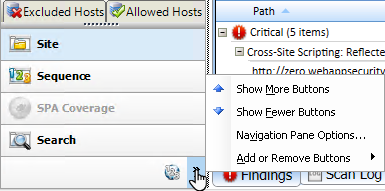
If all buttons are not displayed, click the drop-down arrow at the bottom of the button list and select Show More Buttons.
Site view
OpenText DAST displays in the navigation pane only the hierarchical structure of the website or web service, plus those sessions in which a vulnerability was discovered. During the crawl of the site, OpenText DAST selects the check box next to each session (by default) to indicate that the session will also be audited. When conducting a sequential crawl and audit (where the site is completely crawled and then audited), you can exclude a session from the audit by clearing its associated check box before the audit begins.
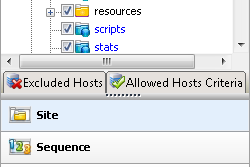
Site view also contains two pop-up tabs: Excluded Hosts and Allowed Hosts Criteria.
Excluded hosts
If you click the Excluded Hosts tab (or hover your pointer over it), the tab displays a list of all disallowed hosts. These are hosts that may be referenced anywhere within the target site, but cannot be scanned because they are not specified in the Allowed Hosts setting (Default/Current Scan Settings > Scan Settings > Allowed Hosts).
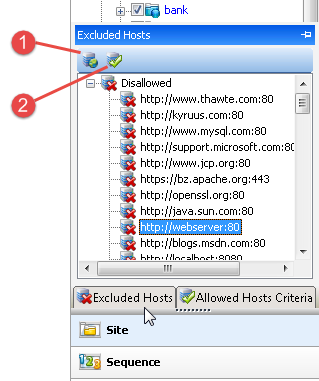
Using the Excluded Hosts tab, you can select an excluded host and click either Add to scan or Add allowed host criteria.
| Item | Description |
|---|---|
| 1 | Add to scan – Adding a host to the scan creates a node in the site tree representing the host root directory. OpenText DAST will scan that session. |
| 2 | Add to Allowed Host Criteria – Adding a host to the allowed host criteria adds the URL to the list of allowed hosts in the Current Scan Settings. OpenText DAST will include in the scan any subsequent links to that host. However, if you add a host to the allowed host criteria after OpenText DAST has already scanned the only resource containing a link to that host, the added host will not be scanned. |
Allowed hosts criteria
If you click the Allowed Hosts Criteria tab (or hover your pointer over it), the tab displays the URLs (or regular expressions) specified in the OpenText DAST scan settings (under Allowed Hosts). If you click either Delete or Add allowed host criteria, OpenText DAST opens the Current Settings dialog box, where you can add, edit, or delete allowed host criteria (a literal URL or a regular expression representing a URL).
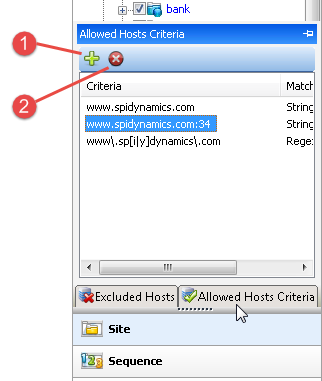
| Item | Description |
|---|---|
| 1 | Add Allowed Host Criteria – If you add an entry, OpenText DAST will include in the scan any subsequent links it encounters to hosts that match the criteria. However, if you specify a host after OpenText DAST has already scanned the only resource containing a link to that host, the added host will not be scanned. |
| 2 | Delete – If you delete an entry from the allowed host list, the scan will still include any resources that OpenText DAST already encountered. |
To save these settings for a future scan, select Save settings as (at the bottom of the left pane of the Settings window).
You must pause the scan before you can modify the excluded hosts or allowed hosts criteria. Furthermore, the scanning of added or deleted hosts may not occur as expected, depending on the point at which you paused the scan. For example, if you add an allowed host after OpenText DAST has already scanned the only resource containing a link to the added host, the added host will not be scanned.
Sequence View
The Sequence view displays server resources in the order they were encountered by OpenText DAST during a scan.
Note: In both Site view and Sequence view, blue text denotes a directory or file that was "guessed" by OpenText DAST, rather than a resource that was discovered through a link. For example, OpenText DAST always submits the request "GET /backup/ HTTP/1.1" in an attempt to discover if the target website contains a directory named "backup."
SPA coverage
The SPA Coverage view is available only if SPA support is enabled for a scan. This view displays the elements in the page that the crawler interacted with during the crawl.
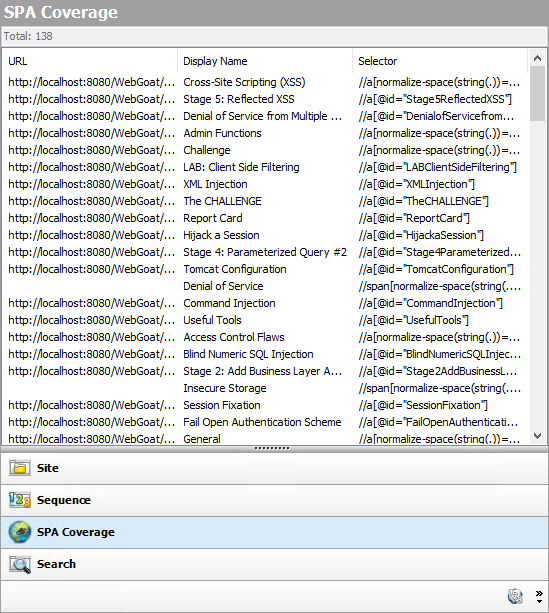
The SPA Coverage view lists the URLs where the elements were discovered, along with the following additional information:
-
Display Name – The visible text, symbol, link, HTML tag name, or other UI information related to the element discovered.
-
Selector – The XPath location of the element in the page. This is used to find and perform operations on the element.
For more information, see About single-page application scans.
Search view
The Search view enables you to search across all sessions for various HTTP message components. For example, if you select Request Method from the drop-down list and specify POST as the search string, OpenText DAST lists every session whose HTTP request uses the POST method.
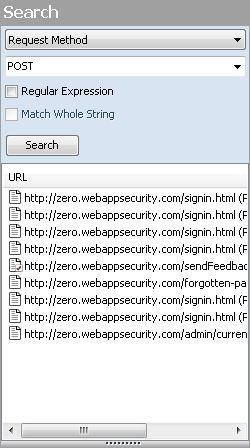
To use the Search view:
-
In the navigation pane, click Search (at the bottom of the pane).
If all buttons are not displayed, click the Configure Buttons drop-down at the bottom of the button list and select Show More Buttons.
-
From the top-most list, select an area to search.
-
In the combo box, type or select the string you want to locate.
-
If the string represents a regular expression, select the Regular Expression check box. For more information, see Regular expressions.
-
To find an entire string in the HTTP message that exactly matches the search string, select the Match Whole String check box. The exact match is not case-sensitive.
Note: This option is not available for certain search targets.
-
Click Search.
Step Mode view
Use Step Mode to navigate manually through the site, beginning with a session you select from either the site view or the sequence view.
Follow the steps below to step through the site:
-
In the site or sequence view, select a session.
-
Click the Step Mode button.
If the button is not visible, click the Configure Buttons drop-down and select Show More Buttons.
-
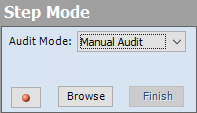
When Step Mode appears in the navigation pane, select either Audit as you browse or Manual Audit from the Audit Mode list. Manual Audit is recommended.
-
Click Record
 .
. -
Click Browse.
The selected browser opens and displays the response associated with the selected session. Continue browsing to as many pages as you like.
-
When done, return to OpenText DAST and click Finish.
The new sessions are added to the navigation pane.
-
If you selected Manual Audit in step 3, click
 . OpenText DAST will audit all unaudited sessions, including those you added (or replaced) through Step Mode.
Navigation pane icons
Use the following table to identify resources displayed in the navigation pane.
| Icon | Description |
|---|---|
|
|
Server/host: Represents the top level of your site's tree structure. |
|
|
Blue folder: A folder discovered by "guessing" and not by crawling. |
|
|
Yellow folder: A folder whose contents are available over your website. |
|
|
Grey folder: A folder indicating the discovery of an item via path truncation. Once the parent is found, the folder will display in either blue or yellow, depending on its properties. |
|
|
File. |
|
|
Query or post. |

|
DOM event. |


| Icon | Description |
|---|---|
|
|
A red dot with an exclamation point indicates the object contains a critical vulnerability. An attacker might have the ability to execute commands on the server or retrieve and modify private information. |
|
|
A red dot indicates the object contains a high vulnerability. Generally, the ability to view source code, files out of the web root, and sensitive error messages. |
|
|
A gold dot indicates the object contains a medium vulnerability. These are generally non-HTML errors or issues that could be sensitive. |
|
|
A blue dot indicates the object contains a low vulnerability. These are generally interesting issues, or issues that could potentially become higher ones. |
|
|
An "i" in a blue circle indicates an informational item. These are interesting points in the site, or certain applications or web servers. |

|
A red check mark indicates a "best practice" violation. |


Navigation pane shortcut menu
If you right-click an item in the navigation pane while using the Site or Sequence view, a shortcut menu presents the following options:
-
Expand Children* - (Site View only) Expands branching nodes in the site tree.
-
Collapse Children* - (Site View only) Contracts branching nodes into the superior node.
-
Check All* - (Site View only) Marks the check box the parent node and all children.
-
Uncheck All* - (Site View only) Removes the check mark from the parent node and all children.
-
Generate Session Report* - (Site View only) Creates a report showing summary information, the attack request and attack response, links to and from the URL, comments, forms, e-mail addresses, and check descriptions for the selected session.
-
Export Site Tree* - (Site View only) Saves the site tree in XML format to a location you specify.
-
Copy URL - Copies the URL to the Windows clipboard.
-
View in Browser - Renders the HTTP response in a browser.
- Links - (Site View only) Lists all resources at the target site that contain links to the selected resource. The links may be rendered by HTML tags, scripts, or HTML forms. It also lists (under Linked To) all resources that are referenced by links within the HTTP response for the selected session. If you double-click a listed link, OpenText DAST shifts focus in the navigation pane to the referenced session. Alternatively, you can browse to the linked resource by viewing the session in the web browser (click Web Browser).
-
Add - Enables you to add locations discovered by means other than an OpenText DAST scan (manual inspection, other tools, etc) for information purposes. You can then add any discovered vulnerabilities to those locations so that a more complete picture of the site is archived for analysis.
-
Page - A distinct URL (resource).
-
Directory - A folder containing a collection of pages.
Choosing either Page or Directory invokes a dialog box that enables you to name the directory or page and edit the HTTP request and response.
-
Variation - A subnode of a location that lists particular attributes for that location. For example, the login.asp location might have the variation: “(Query) Username=12345&Password=12345&Action=Login”. Variations are like any other location in that they can have vulnerabilities attached to them, as well as subnodes.
Choosing Variation invokes the Add Variation dialog box, allowing you to edit the variation attributes, specify Post or Query, and edit the HTTP request and response.
-
Vulnerability - A specific security threat.
Choosing Vulnerability invokes the Edit Vulnerabilities dialog box, allowing you to edit the variation attributes, specify Post or Query, and edit the HTTP request and response. For more information, see Editing vulnerabilities.
-
-
Edit Vulnerabilities - Enables you to edit a location that was added manually or edit a vulnerability. For more information, see Editing vulnerabilities.
-
Remove Location - Removes the selected session from the navigation pane (both Site and Sequence views) and also removes any associated vulnerabilities.
Note: You can recover removed locations (sessions) and their associated vulnerabilities. See Recovering deleted sessions for details.
-
Mark as - Flags the vulnerability as a false positive and enables you to add a description. The vulnerability is removed from the list. You can view a list of all false positive and ignored vulnerabilities by selecting Suppressed Findings in the Scan Info panel.
Note: You can change a suppressed finding back to a vulnerability. See Suppressed findings for details.
-
Send to - Enables you convert the selected vulnerability to a defect and assign it to OpenText Application Lifecycle Management (ALM), using the profile specified in the OpenText DAST application settings.
-
Remove Server - Deletes the server from the navigation pane and does not include the server in any remaining scan activity. This command appears only when you right-click a server.
- Crawl - Recrawls the selected URL.
-
Attachments - Enables you to create a note associated with the selected session, flag the session for follow-up, add a vulnerability note, or add a vulnerability snapshot.
-
Tools - Presents a submenu of available tools.
-
Filter by Current Session - Restricts the display of items in the Summary pane to those having the SummaryDataID of the selected session.
* Command appears on shortcut menu only when the Navigation pane is using the Site view.
See also