Running a manual scan
A manual scan (also referred to as Step Mode) is a Basic Scan option that enables you to navigate manually to whatever sections of your application you choose to visit, using TruClient with Firefox. It does not crawl the entire site, but records information only about those resources that you encounter while manually navigating the site. This feature is used most often to enter a site through a web form logon page or to define a discrete subset or portion of the application that you want to investigate. Once you finish navigating through the site, you can audit the results to assess the security vulnerabilities related to that portion of the site that you recorded.
To conduct a manual scan:
-
On the OpenText DAST Start Page, select Start A Basic Scan.
-
Follow the instructions for configuring a Basic Scan as described in Basic Scan Wizard, selecting Manual as the scan method. For more information, see Running a Basic Scan (website scan).
-
Click Scan.
-
When the browser opens, use it to navigate through the site, visiting the areas you want to record.
Tip: If you want to visit certain areas of the application without recording the sessions, return to OpenText DAST and click the Pause button
 displayed in the Step Mode view of the Navigation pane. To resume recording sessions, click the Record button
  . For more information, see Navigation pane.
 -
When done, close the browser.
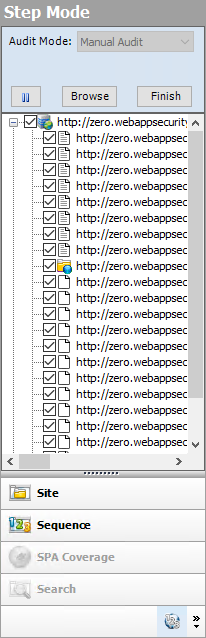
OpenText DAST displays the Step Mode view in the Navigation pane.
-
Do one of the following:
-
To resume browsing the application, select a session and click Browse.
-
To import the sessions into the scan, click Finish. You can exclude an individual session from the import by clearing its associated check box.
-
-
To audit the recorded sessions, click
 (on the toolbar).