3.3 Editing a Form
You can edit a form as follows:
3.3.1 Editing a Form Using the Form Builder User Interface
Each component in Form Builder includes edit, copy, move, paste, and remove functionality. The supporting icons appear when the cursor is positioned over the selected component.
Perform the following actions to edit a component in the form:
-
Click
 next to the component that you want to edit.
 -
Make the necessary edits in the modal window. You can preview the changes in the area on the right side of the window.
-
Click .
-
Click
 on the Home screen.
NOTE:You can move the components across the workspace in a form. Select  next to the component you want to move, drag and drop it to the desired location.
3.3.2 Editing a Form in the JSON Editor
All forms rendered within Form Builder use a JSON schema. When you add new components to a form, you are defining a JSON schema in the background. Form Builder uses this schema to invoke the REST APIs needed to support the form. This section provides an explanation of the structure of the JSON schema and the components that can be rendered within a form.
HINT:Do not directly edit the form in the JSON editor unless you are very comfortable using the editor. You must make a backup of the form before editing it.
The example form described in the Example of Creating a Form can be designed using the JSON editor as well.
Figure 3-1 JSON Editor - Sample form
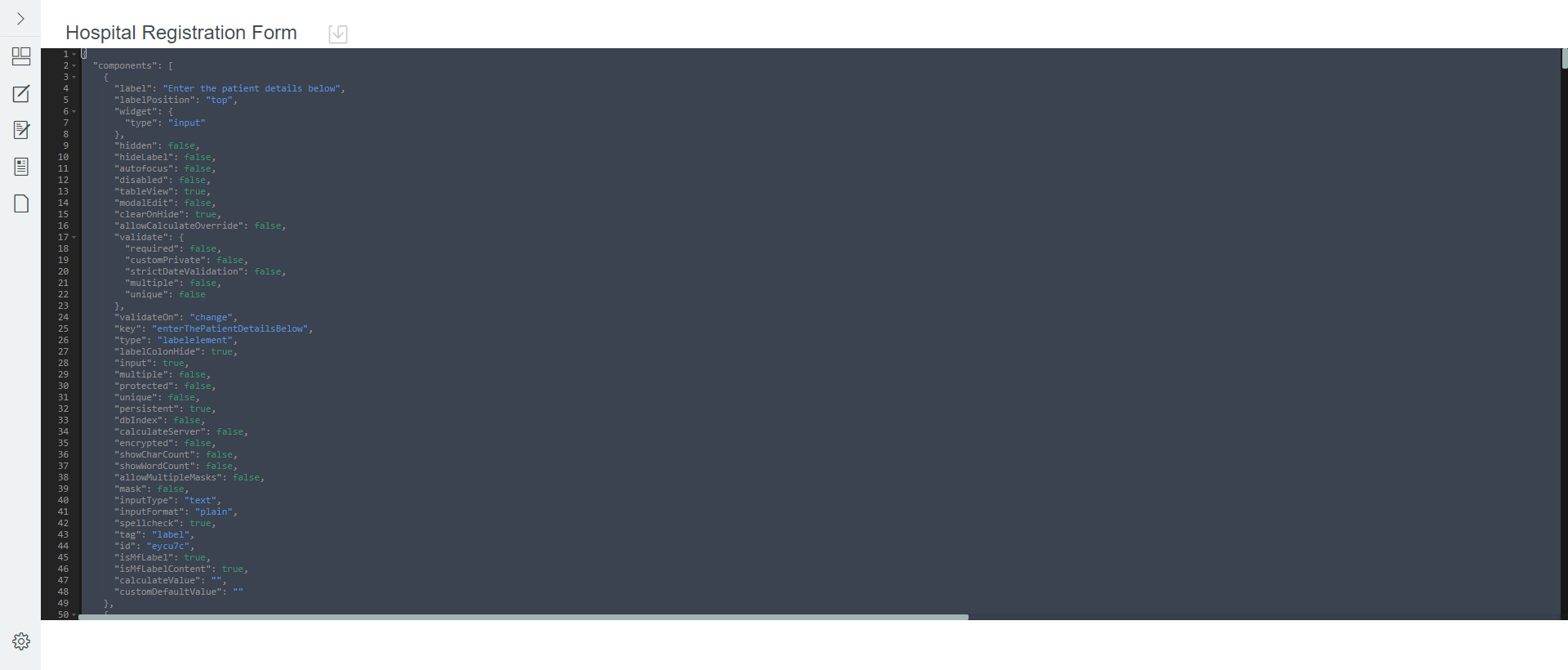
You can use the same JSON schema to duplicate the form. You can make edits to the form using the JSON editor directly.
3.3.3 Editing a Form in the JS Editor
Form Builder provides a global JS Editor which enables you to add or modify the JavaScript methods for all the form fields in one place. From this page, you can add or modify (invoke the API) the required HTTP method (GET or POST) and apply the value to the required field.
The JS Editor automatically populates the method to set and for all the configured fields in the form. You must use this editor to write your own JavaScript logic for these methods.
For example, while setting the for a field, the value variable is used by default. However, if you use asynchronous JavaScript, you must use the instance.setFieldValue(data) value. The instance.setFieldValue(value)function and its parameters are described as follows:
instance.setFieldValue (response,valueProperty,labelProperty,defaultValueToSet), where:
-
response {Array}: is an array of objects or strings to be set.
-
valueProperty {String}: is the value for each option to be set. It is expected that each object in the response array has this property.
-
labelProperty {String}: displays label for the options. It is expected that each object in response array has this property.
-
defaultValueToSet {String}: when set as string, it selects the corresponding item in the response array that has same valueProperty as the <string>. This parameter is optional.
The following example shows how to set options or values dynamically for component:
function selectForApi_CustomDefaultValue () {
    utils.get('','/api/dcs/schema/GROUP', '', '',
function(response) {
    console.log(response);
    instance.setFieldValue(response.attributes,'attributeKey','displayName');
}, function(err) {
console.log(err);
});
}
Using IG Request Attributes
The JS Editor provides an option to include Identity Governance attributes in the form. These attributes are passed as RequestItems between Form Builder and Identity Governance. Click the option to display the list of supported Identity Governance attributes. You can select the required attribute to design the form accordingly.
A snippet of the supported attributes is shown in the following figure:
Figure 3-2 IG Request Attributes

The following section discusses different ways to use the attributes:
Using Flowdata Attribute to Pass Data from Request to Approval Form
The flowdata attribute is used to map a field data in the request form to the corresponding field in the approval form. It facilitates the flow of information from the request to the approval form.
When you add a new field to the request form, you may also need to add the corresponding controls to the approval form to facilitate the data flow. For more information, see Creating a Custom Approval Form.
Requesting Resource from Identity Governance REST API
The option in the JS Editor includes a sample method that shows how to retrieve a resource from Identity Governance REST API. The sample method shows how to fetch information about the logged in user by requesting the /api/whoami endpoint.
var url = '/api/whoami';
   // get(serviceId, APIUri, body, options, successCallback, errorCallback)
   // serviceId should be left as ''
utils.get('',url, '', {},

  function(response) {

   instance.setFieldValue(response.principal);

  },

  function(err) {

   console.log(err);

});
You can edit the endpoint and response in this sample method to retrieve the desired resource from the Identity Governance REST API. For example, if you want to create a drop-down list using the component in the Form Builder, the options in this list should be fetched dynamically from the Identity Governance REST API. To accomplish this requirement, perform the following actions:
-
In Form Builder, go to , then drag and drop the component into the workspace.
-
On the tab, type Group Attributes in the field.
-
On the tab, select as .
-
Click .
-
Open the JS Editor and look for the following function:
function laptop_CustomDefaultValue () {} function laptop_CalculateValue () {} -
Configure the custom default value as:
function laptop_CustomDefaultValue () { utils.get('','/api/dcs/schema/GROUP', '', '', function(response) { console.log(response); instance.setFieldValue(response.attributes,'attributeKey','displayName'); }, function(err) { console.log(err); }); }NOTE:The request made to the Identity Governance REST API server will add the OAuth header automatically.
-
Click
. -
Click
 and verify that the options are listed under the drop-down list.
Requesting a Resource From an External API
Form components automatically add OAuth headers while making API calls to the REST servers or while invoking the URL method to return a JSON array of data to a form field from an external source. Based on your requirement, you may want to create a drop-down list where the options are fetched from an external resource without adding the OAuth header. You can accomplish this requirement in the JS Editor. The method available under the provides a sample on how to retrieve a resource from an external API.
You want to create a drop-down list using the component, where the options in the list are fetched from a file <filename>.json which is hosted on AWS. While requesting the file, you want to ensure that the component does not add an OAuth header in the URL. To accomplish this requirement, perform the following actions:
-
In Form Builder, go to , then drag and drop the component into the workspace.
-
On the tab, type Laptop in the field.
-
On the tab, select Asynchronous API as .
-
Click .
-
Open the JS Editor and look for the following function:
function laptop_CustomDefaultValue () {} function laptop_CalculateValue () {} -
Configure the custom default value as:
function laptop_CustomDefaultValue () { var url = 'https://iga-demo.s3.us-east-2.amazonaws.com/api/laptops.json'; $.get(url, function(response) { instance.setFieldValue(response.laptops, 'value', 'label'); // let us assume this is on an approval form, and context.flowdata.laptop contains the value from the request screen if (context.flowdata && context.flowdata.laptop) { instance.setValue(context.flowdata.laptop); } }); } function laptop_CalculateValue () {} -
Click
. -
Click
and verify that the options are listed correctly under the drop-down list.