Configuring Object Caching
The best way to enable object caching is to install and configure MPX components in a specific order. The diagram below provides an overview of the MPX components, emphasizing items that can be configured, and the order in which they should be configured.
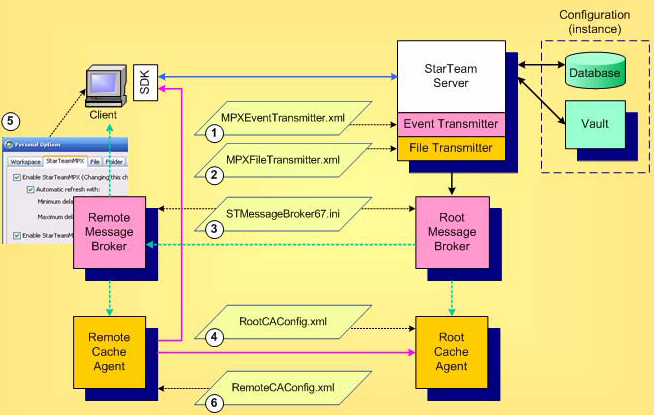
Each of these configuration items are discussed in the following sections.
1, 2 Configuring the MPX Transmitters
When you install the StarTeam Server, two included components are the MPX transmitters. Basic MPX services are provided by the MPX Event Transmitter. To enabled it, create a suitable MPXEventTransmitter.xml file and place it in the folder <configuration repository path>/EventServices for each StarTeam configuration that you want MPX-enabled.
Next, enable the MPX File Transmitter for each configuration for which you want to use MPX caching functionality by creating a file called MPXFileTransmitter.xml in the same directory as the MPX Event Transmitter’s configuration file. The file transmitter’s configuration file does not typically require any customization.
There are no specific options in these configuration files to enable object caching. These files must simply be present when the StarTeam Server starts so that the appropriate transmitters are initialized, causing events to be broadcast through the MPX framework.
When you create a new StarTeam configuration via the StarTeam Server administration tool, the “template” files located in the EventServices directory are automatically copied to the appropriate <configuration repository path>/EventServices directory.
If you upgrade an existing StarTeam configuration to this release, your existing XML configuration files are automatically copied to the new location for the StarTeam release. However, be sure to start the StarTeam Server for a given configuration at least once before starting the root MPX Cache Agent for the same configuration. This is required to convert the old CacheJournal.dat file to a new format used for this release.
3 Configuring the Message Brokers
For each Message Broker, configure the corresponding STMessageBroker68.ini file. There are no specific options related to object caching for Message Brokers. The same configuration considerations apply as in previous releases. See the StarTeam Cross-Platform Client Help for more information.
4 Configuring the Root MPX Cache Agent
There are several configuration options for enabling object caching for root MPX Cache Agents. As before, a single root MPX Cache Agent process services one StarTeam configuration. If multiple MPX Cache Agent processes are configured to operate on the same machine, each requires its own configuration file, TCP/IP port, and local cache folder. If multiple MPX Cache Agent processes are to run as Windows services on the same machine, each service must be configured by running “CacheAgentService.exe -register” in a console window. See the StarTeam Cross-Platform Client Help for more information.
A root MPX Cache Agent is designated by creating an XML configuration file (RootCAConfig.xml in the figure above) that contains a <RootCacheAgent> group element. Without object caching, this group typically contains a single element called <RootRepositoryPath> that defines the root folder of the corresponding StarTeam configuration’s “repository path”. To support object caching, the root MPX Cache Agent requires two alternate elements that provide it with more information about the StarTeam configuration that it services.
<?xml version="1.0" ?>
 <MPXCacheAgent version="2.0">
  <RootCacheAgent>
   <ServerConfigsFile>C:\Program Files\Micro Focus\StarTeam Server <version>\starteam-server-configs.xml</ServerConfigsFile>
   <ConfigName>Sample Server Configuration</ConfigName>
   <Precharge>TipsOnly</Recharge>
  </RootCacheAgent>
  <Message broker>
  <Name>ActiveMQ MPX Transmitter</Name>
  <server_names>tcp:12.35.58.71:5101</server_names>
    <enable_control_msgs>echo</enable_control_msgs>
    <start_server_delay>10</start_server_delay>
    <socket_connect_timeout>10</socket_connect_timeout>
  </Message broker>
  <RequestPort>5201</Requestor>
  <MaxConnections>100</MaxConnections>
  <Cache types>
  <Object types>
    <ObjectType>Change</ObjectType>
    <ObjectType>Requirement</ObjectType>
    <ObjectType>Task</ObjectType>
    <ObjectType>$CustomComponents$</ObjectType>
  </Object types>
  </Cache types>
  <ListenAddresses>12.34.56.78, 21.43.65.87</Listen addresses>
  <InboundAddresses>12.34.56.78, 21.43.65.87</Inbound addresses>
  <MaxCatchupSize>100000000</MaxCatchupSize>
  <SharePolicy>Public</Share policy>
  <CachePath>C:\.MPXCacheAgent\Cache</Cyclepath>
  <MaxCacheSize>1000000000</MaxCacheSize>
  <MemoryCacheMaxSize>100000000</MemoryCacheMaxSize>
  <MemoryCacheMaxObjectSize>10000</MemoryCacheMaxObjectSize>
 </MPXCacheAgent>
The <ServerConfigsFile> element specifies the full path name of the StarTeam Server configuration file. The <ConfigName> option defines the StarTeam configuration name that the root MPX Cache Agent will service. From these two parameters, the root MPX Cache Agent determines how to access the configuration’s database, and it also determines the configuration’s repository path.
At start-up, the root MPX Cache Agent will open the database and “pre-charge” its local cache with any missing object revisions of configured types. By default, the root MPX Cache Agent only pre-charges with “tip” object revisions. You can specify that the pre-charge should include all object revisions by changing <PreCharge> to All instead of TipsOnly. (TipsOnly is the default value if <PreCharge> is not specified.) Keep in mind that pre-charging All object revisions requires significantly more local cache space. Alternatively, you can disable object revision pre-charging completely by setting <PreCharge> to None.
The <ServerConfigsFile> and <ConfigName> options are usually sufficient when the root MPX Cache Agent operates on the same machine as the StarTeam Server that it services. When the root MPX Cache Agent operates on a different machine, the following configuration points apply:
- The
<ServerConfigsFile> option should use a UNC path that specifies the full path name of the server configuration file. Example:
<ServerConfigsFile>\\ProdServer\ST<version>\starteam-serverconfigs.xml</ServerConfigsFile>
The root MPX Cache Agent only reads the configuration file, therefore write access is not required.
- The machine on which root MPX Cache Agent operates must be able to access the configuration's database through the same database definition as the StarTeam Server. The root MPX Cache Agent fetches the database connection information from the StarTeam Server configuration file.
- You should define the
<RootRepositoryPath> option to refer to the
StarTeam configuration’s repository path using a UNC path. Example:
<RootRepositoryPath>\\ProdServer\SampleServerConfiguration_SSE2012</RootRepositoryPath>
Finally, to enable object caching, the MPX Cache Agent supports a <CacheTypes> option group, which currently only allows a child element group called <ObjectTypes>. This option group is common to both root and remote MPX Cache Agents, hence it is specified as a child element of the outer-most <MPXCacheAgent> group. There are two basic ways to specific which object types to cache. The most common way to enumerate each object type within a <ObjectType> element. Example:
<?xml version="1.0" ?>
<MPXCacheAgent>
   ...
   <Cache types>
   <Object types>
     <ObjectType>Change</ObjectType>
     <ObjectType>Requirement</ObjectType>
     <ObjectType>Task</ObjectType>
     <ObjectType>$CustomComponents$</ObjectType>
   </Object types>
   </Cache types>
   ...
</MPXCacheAgent>
In this example, the MPX Cache Agent is configured to cache change request, requirement, and task objects. (Note that the “internal” object name is used – Change not ChangeRequest. These names correspond to <type>.ssc modules installed in the StarTeam Server’s install directory.) Currently, there are six possible object types that can be cached: Change, File, Folder, Requirement, Task, and Topic. For each configured <ObjectType>, the root MPX Cache Agent will perform start-up pre-charging (as discussed above), catch-up and forwarding operations for upstream remote MPX Cache Agents, and object fetching for StarTeam clients.
Alternatively, you can specify that all cacheable object types are to be supported by setting the AllTypes attribute to "True" within the <ObjectTypes> group. Example:
<?xml version="1.0" ?>
<MPXCacheAgent>
  ...
  <Cache types>
    <ObjectTypes AllTypes="True"/>
  </Cache types>
  ...
</MPXCacheAgent>
Cached objects are stored in the MPX Cache Agent’s local cache as individual files. Because their contents are compressed, cached object files are typically small. Because of the large number of cached objects that are typically requested from a MPX Cache Agent at one time, it is not efficient to read each file directly from disk. Instead, MPX Cache Agent performance benefits greatly by caching object cache files in memory. Fortunately, due to their small size, a large number of cached objects will fit in memory at one time. Because of this performance benefit, memory caching is enabled by default.
Memory caching can also be explicitly controlled with two new configuration options shown below:
<?xml version="1.0" ?>
<MPXCacheAgent>
  ...
  <MemoryCacheMaxSize>100000000</MemoryCacheMaxSize>
  <MemoryCacheMaxObjectSize>10000</MemoryCacheMaxObjectSize>
  ...
</MPXCacheAgent>
The option <MemoryCacheMaxSize> controls the maximum amount of memory in bytes that the MPX Cache Agent uses for memory caching. When the MPX Cache Agent starts, the most-recently-used objects in its local cache are automatically loaded into memory. When the memory cache size is reached, new objects are added to the memory cache, but least-recently-used objects are removed from memory so that the memory cache size is not exceeded. If <MemoryCacheMaxSize> is not specified, it defaults to 100MB. Increasing this value results in the ability to cache more objects in memory at a cost of greater memory usage by the MPX Cache Agent process.
The option <MemoryCacheMaxObjectSize> defines the maximum size in bytes of an object that will be cached in memory. Regardless of whether they represent file contents or object properties, cache files larger than this size are not cached in memory. If <MemoryCacheMaxObjectSize> is not specified, it defaults to 10KB. Increasing this value allows larger objects to be cached in memory. However, fewer objects can be memory cached when the <MemoryCacheMaxSize> has been reached.
5 Configuring Remote MPX Cache Agents
To enable support object caching in a remote MPX Cache Agent, add the <CacheTypes> and <ObjectTypes> options defined above to the corresponding configuration file. The effect of the <ObjectTypes> option is slightly different for remote MPX Cache Agents as summarized below:
- When a remote MPX Cache Agent is configured with an <ObjectTypes> option, all upstream MPX Cache Agents (as defined by <Content source> groups) must minimally cache the same object types. When the remote MPX Cache Agent first starts, it “pings” each upstream MPX Cache Agent to determine the object types that it supports. If any upstream MPX Cache Agent is not configured to cache every <ObjectType> defined for the remote MPX Cache Agent, the remote MPX Cache Agent will report an error and terminate.
- If the configuration option <ObjectTypes AllTypes="True"/> is used, the remote MPX Cache Agent caches the “intersection” of object types being cached by all upstream MPX Cache Agents. If any upstream MPX Cache Agent is not enabled for object caching, or if there isn’t at least one object type commonly cached by all upstream MPX Cache Agents, the remote MPX Cache Agent will report an error and terminate.
6 Enabling Object Caching for the StarTeam Cross-Platform Client
Several StarTeam clients support the use of MPX Cache Agents for file check-out operations, including the StarTeam Cross-Platform Client (CPC), command-line (stcmd), and bulk check-out utility (BCO). Any client that performs bulk “fetch item” or “refresh item” operations via the StarTeam SDK can use a MPX Cache Agent to fetch object properties.
To enable object caching for the StarTeam Cross-Platform Client:
- Start the StarTeam Cross-Platform Client.
- Click . The Personal Options dialog box opens.
- Select the MPX tab.
- Check the Enable MPX Cache Agent check box.
- You can specify a specific
MPX Cache Agent to use or allow the client to locate the nearest
MPX Cache Agent. Do one of the following:
- Select the Use MPX Cache Agent At option button, providing both an address and port. The address can be the computer name or an IP address.
- Select the Automatically Locate the Closest MPX Cache Agent for Each MPX option button and let the client do the work.
- You can change the number of threads in the Maximum Request Threads field, but the default should be adequate for most users needs.
- Under Use MPX Cache Agent for, ensure that the Item properties check box is selected in addition to the File content check box.
- Click OK.