Setting Up Credentials for Your ArcSight Tenant Administrator Account
As the ArcSight Tenant Administrator, you must configure your credentials before you can perform administrative tasks, such as creating other user accounts. In an email from OpenText, we confirm the email address that you will use to log in to your ArcSight Tenant Administrator account.
Before you set up your credentials, the default method for authenticating your account is Email One-Time Password (OTP), which sends an (OTP) code to your specified email address. When you log in, after you have configured additional credentials, you will be prompted to , which relates to the authentication method that you wish to use for that login session. The following steps show how to configure the authentication service to use the Password method instead of the OTP method for verifying your credentials.
Your username is the email address specified by OpenText for the ArcSight Tenant Administrator account. To set up the credentials for this account, complete the following steps.
-
Log in to the Advanced Authentication service as the ArcSight Tenant Administrator to configure your credentials.
-
Check your email for a one-time password (OTP) code sent by the authentication service.
-
Enter the OTP sent to the email address for your ArcSight Tenant Administrator account, then click .
You will continue to be prompted to enter the Email OTP Code until you create a password and specify the Password method to authenticate your account. -
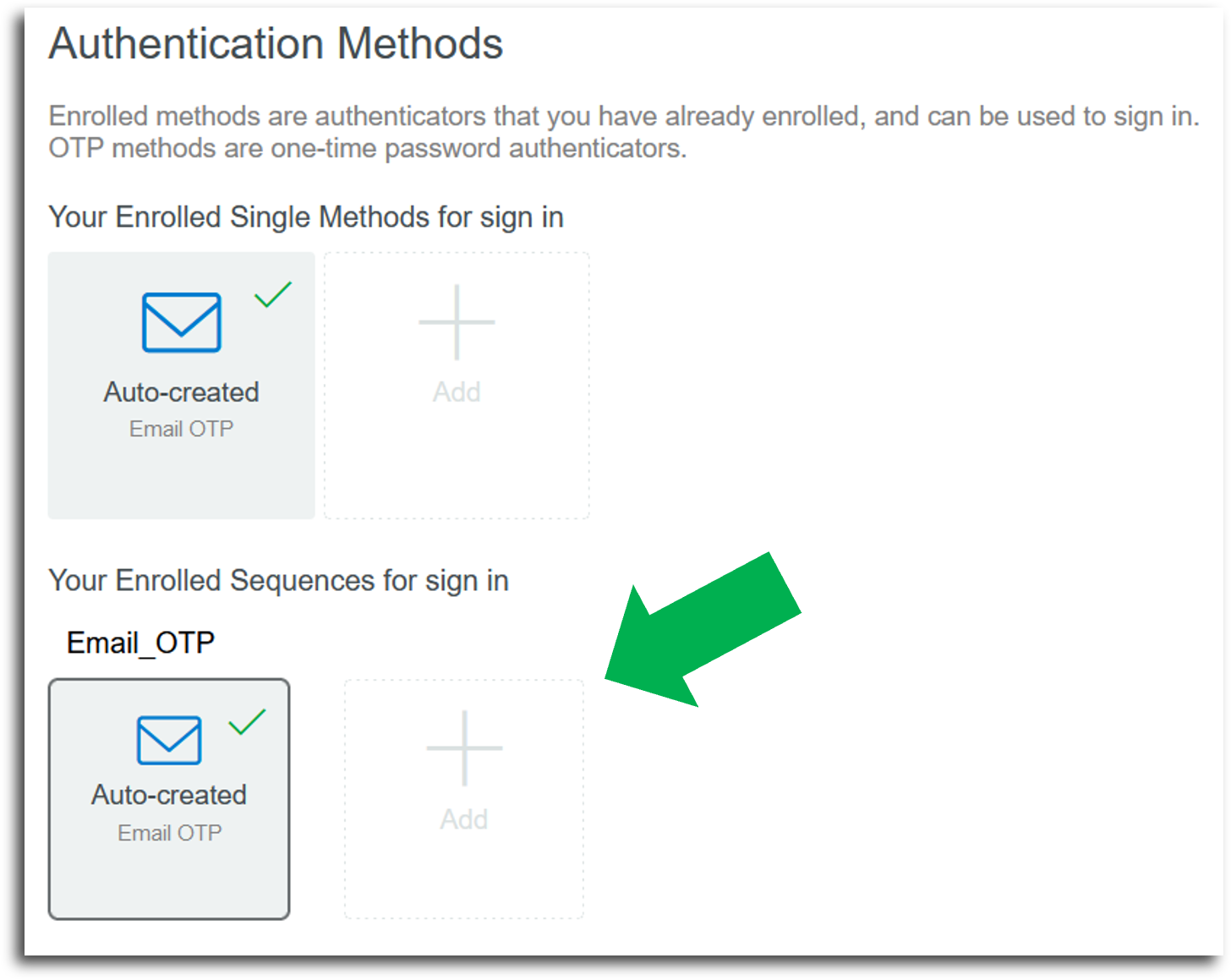
Under Your Enrolled Sequences for sign in on the Authentication Methods page, click .
Figure 1. The green arrow indicates the appropriate option that you should select
-
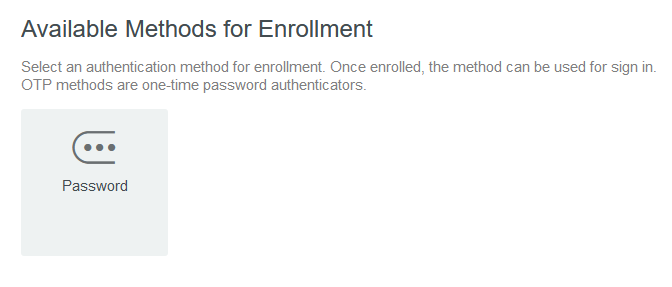
Click the option.
Figure 2. Password Enrollment Method
-
Specify the password that you want to use for your ArcSight Tenant Administrator account, then click .
-
Sign out of the Advanced Authentication service.