Custom Query Reports
File Reporterenables you to generate reports from SQL queries that you enter, and create optional report layouts for displaying the resulting data. These queries allow you to collect specific details in reports that are not available through the Built-in Report types in File Reporter.
The SQL queries must be specific to the database (PostgreSQL or Microsoft SQL Server) that your deployment of File Reporter uses.
NOTE: Refer to the File Reporter 24.4 Custom Query Guide for details and examples of the supported database functions, tables, and views you can generate using Custom Query reports.
You enter SQL queries through report editors available from File Reporter's browser-based administrative interface and the Report Designer client tool.
NOTE: See Custom Query Report Layouts in the File Reporter 24.4 Client Tools Guide for details on using the report editor in the Report Designer.
IMPORTANT: Use the File Query Cookbook to obtain SQL queries and sample report layouts. The SQL queries and report layouts can both be customized as needed. You can access the File Query Cookbook directly through the Report Designer interface or at https://filequerycookbook.com.
-
Select Report Definitions in the Reports menu.
-
Click Add.
-
Enter a descriptive name Name for the report definition in the text field.
-
Select Custom Query Report.
-
Click OK.

-
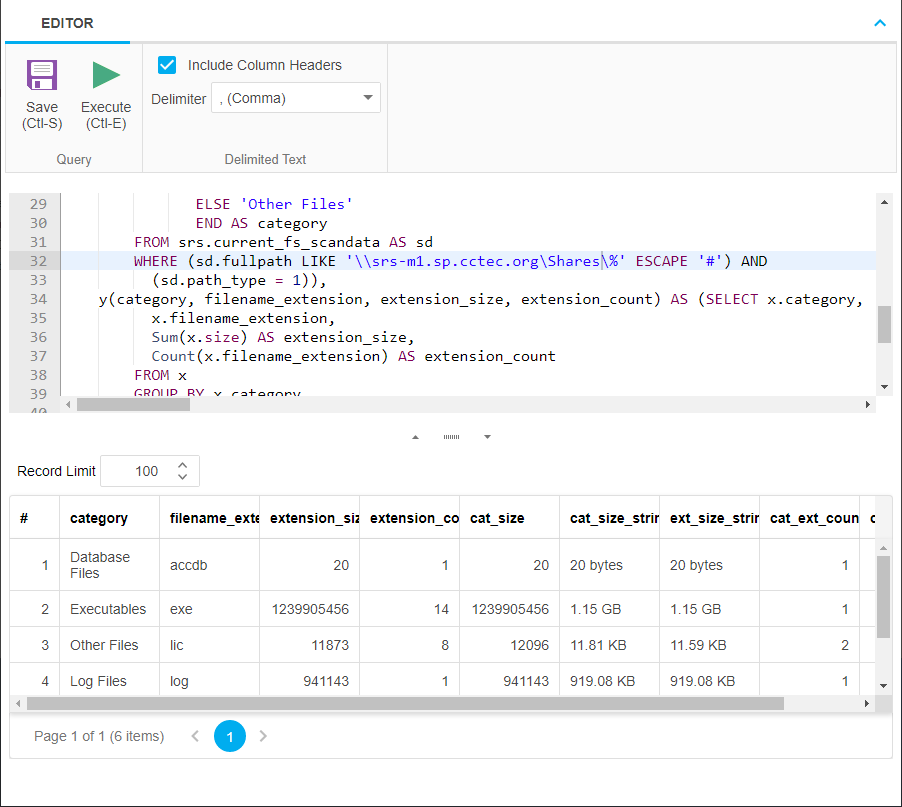
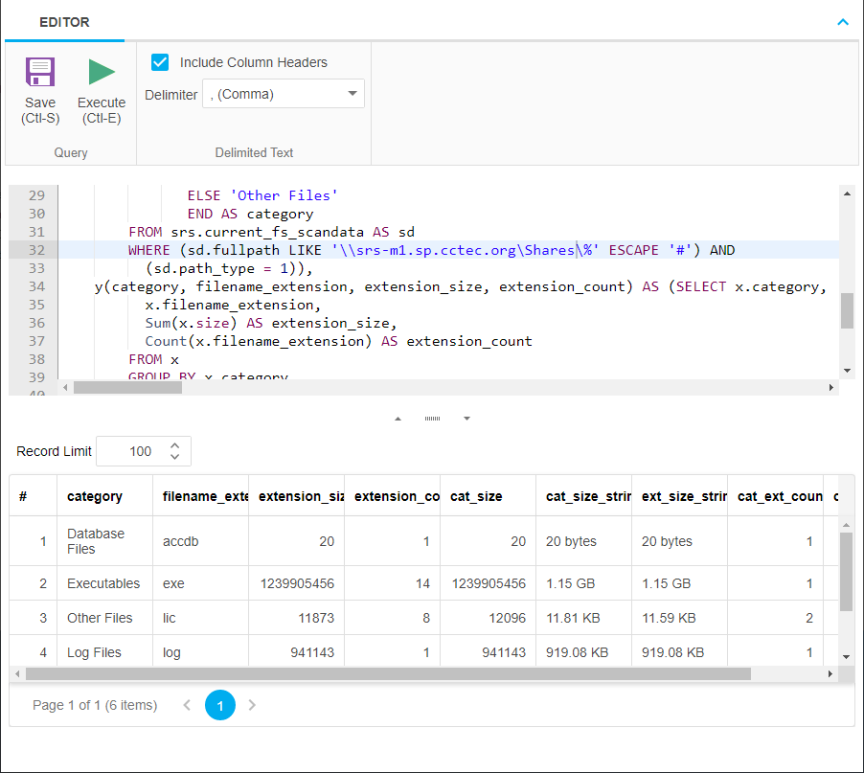
Enter the SQL query according to the information you want to include in the report.
-
Click Execute as you update the query to see a preview in the bottom portion of the editor that shows how the report will appear.
-
The Row Limit setting does not limit the size of the report. Instead, it limits how much can be previewed.
-
-
When you are satisfied with the report and the previewed results, click Save.
-
Close the Custom Query Report Editor.
-
Select Report Definitions in the Reports menu.
-
Select the Custom Query report you just saved and generate the report as either a Preview Report or a Stored Report — see Preview Reports and Stored Reports in the File Reporter24.4 Administration Guide for details.