Auditing a batch of issues
To audit multiple issues at a time for an application version:
In the Applications view, open the AUDIT page for the application version.
- In the issues list, select all of the check boxes for the issues you want to include in the batch audit.
Click AUDIT.
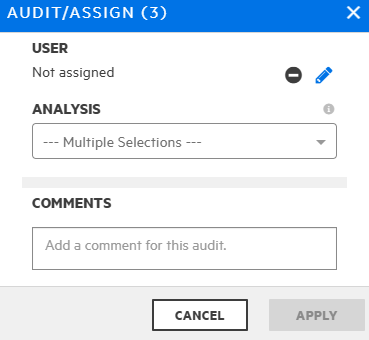
To assign a user to the selected issues:
Select the Edit assigned user button
 .
.To find a user account, in the Find user box, type part or all of a user's name, and then click FIND.
In the list of returned names, click the name of the user to assign.
Click DONE.
The USER section now displays the selected user name and avatar (if available).
- From the ANALYSIS list (or other defined primary custom tag), select a value that reflects your assessment of this batch of issues.
If additional custom tags are associated with the application version, specify the values for those tags.
If Fortify Audit Assistant assessed the issues, the additional tags AA_Prediction, AA_Confidence, and AA_Training are displayed. For information about how to use these fields, see Reviewing Fortify Audit Assistant results.
(Optional) In the COMMENTS box, type a comment about this issue audit.
Click APPLY.
See Also