Viewing information about issues to audit
To display the issues you want to audit:
Upload analysis results for the application version you want to audit (see Uploading scan artifacts).
Open the AUDIT page for the application version.
To selectively display the issues you want to audit, apply filters to the issues list.
For more information, see Filtering issues for display and Viewing issues based on folders.
In the issues table, if you have selected a grouping, expand a group to view the issues it contains.
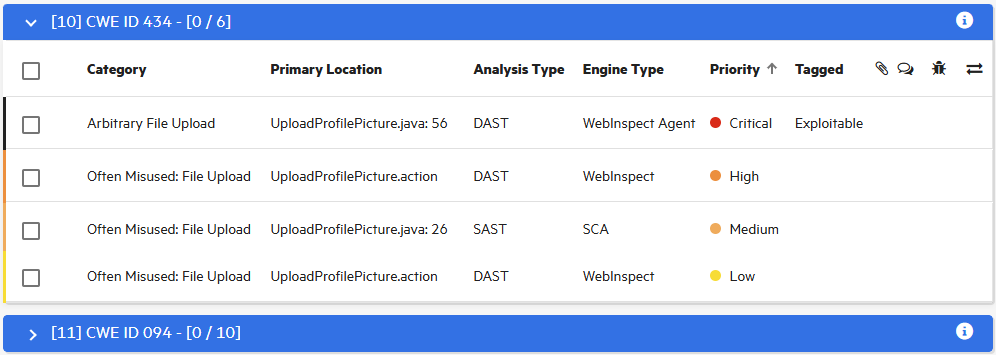
The following table describes the columns in the issues table. To sort listed issues, click a column heading (note that you cannot sort the Contains attachment ( ), Contains comments (
 ), or Bug submitted (
 ) columns).
| Column | Description |
|---|---|
| Category | Displays the category of issue uncovered (sort is alphanumeric) |
| Primary Location | Shows the file scanned and line of code on which the issue was detected (sort is alphanumeric) |
| Analysis Type | Displays the type of analysis performed on the code |
| Engine Type | Displays the analysis engine used to perform the scan |
| Priority | Shows the relative threat the issue represents (sort is from high to low or low to high priority) |
| Tagged | Displays the primary custom tag value applied to the issue if any |
Contains attachment | Indicates whether any attachments are associated with the issue |
Contains comments | Indicates whether any comments were added to the issue |
| Bug submitted | Indicates whether any defects were submitted against the issue |
 Has correlated issues | Indicates that static and dynamic results for the issue are correlated. If they are, the issue is listed twice in the table, once for each analysis type. If either a subsequent static scan or dynamic scan shows an issue was fixed, the correlation icon is removed. (Sort displays correlated issues first or last.) |
See Also