Application Settings: Two-Factor Authentication
To access this feature, click Edit > Application Settings and then select Two-Factor Authentication.
Two-Factor Authentication Control Center
"Something you have" two-factor authentication involves an application server sending an SMS or email response to the user upon login to the web application. To use two-factor authentication in a scan, you must configure a Node.js server as a control center to process the SMS and email responses coming from your application server. For more information, see Using Two-factor Authentication.
To configure the control center:
-
In the Local IP Address drop-down list, select an IP address.
Note: These IP addresses are available on the machine where Fortify WebInspect is installed.
-
Do one of the following:
-
To use a specific port, select the port from the Port list.
-
To have Fortify WebInspect choose the port, select the Automatically Assign Port check box.
Important! The port for the control center must be exposed in the firewall so that the mobile application can access the server.
-
-
Click Initialize.
The control center is started.
Mobile Application
If your application server sends SMS responses, then you must install the Fortify2FA mobile application and download your two-factor authentication settings to it. After configuration, the mobile application receives the SMS response and forwards it to the control center.
Note: Currently, the mobile application is available only for Android operating systems.
To configure the mobile application:
-
In the Mobile Phone Number box, enter the phone number that will receive SMS responses.
-
Click Generate QR Code.
The control center generates a quick response (QR) code that includes the two-factor authentication settings and a link to download the mobile application.
-
Install and configure the mobile application. For more information, see Installing and Configuring the Fortify2FA Mobile App.
Tip: If you use multiple threads in the scan, you might want to use more than one phone. Using the same phone number for multi-user scans can affect the scan time.
-
(Optional) To configure the mobile application for another phone, repeat steps 1-3.
Installing and Configuring the Fortify2FA Mobile App
To install and configure the mobile application on the phone that will receive SMS responses:
-
Use the mobile phone's camera to scan the QR code in the Two-factor Authentication Mobile Application settings.
A link appears.
-
Click the link (or Open button) to access the site for downloading the app.
A warning about the self-signed certificate appears.
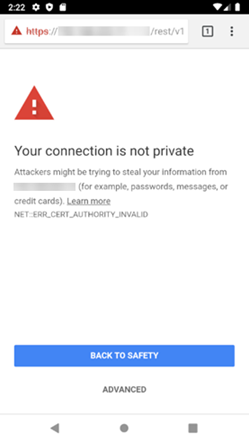
-
Click ADVANCED.
Additional information is provided along with a link to proceed.
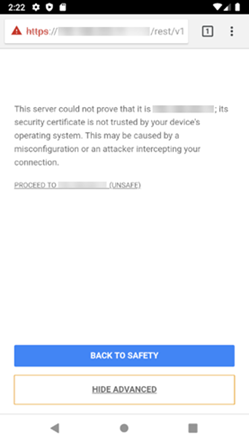
-
Click PROCEED TO <ip_address> (UNSAFE).
A prompt requests storage access to download files.
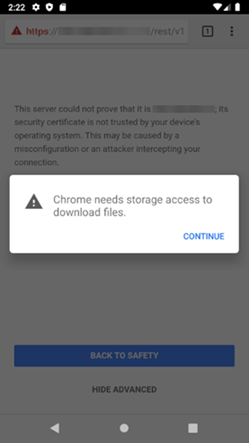
-
Click CONTINUE.
A prompt requests access to photos, media, and files on the device.
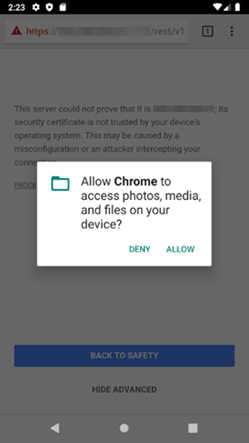
-
Click ALLOW.
The fortify-2fa.apk file is downloaded.
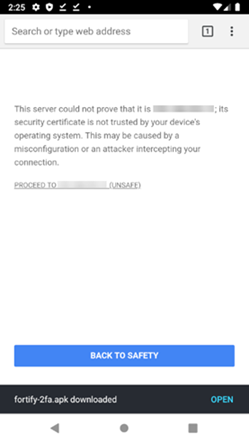
-
Click OPEN.
A prompt advises about installing unknown apps.
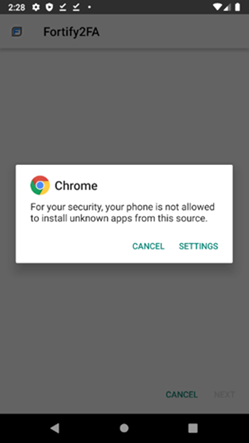
-
Click SETTINGS.
The Install unknown apps setting appears.
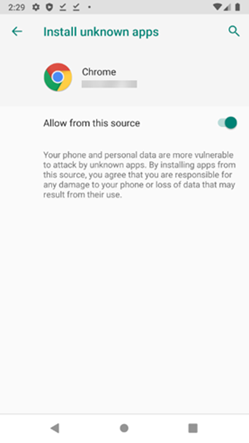
-
Enable Allow from this source.
A prompt asks if you want to install the application.
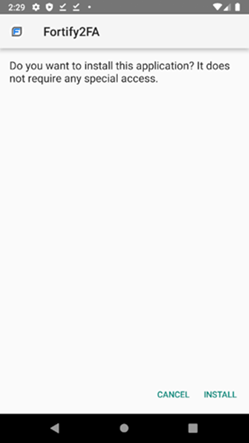
-
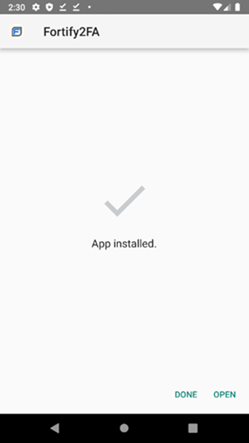
Click INSTALL.
A message indicates that the app is installed.
-
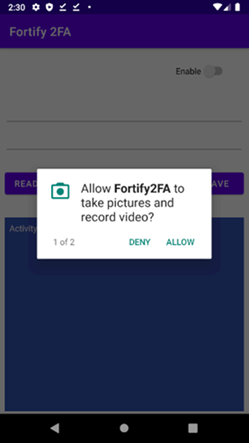
Click OPEN.
A prompt requests permission to take pictures and record video.
-
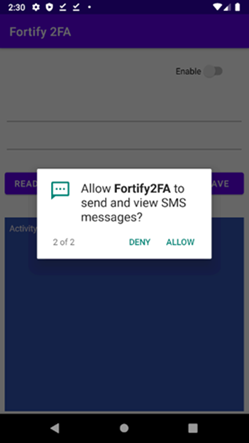
Click ALLOW.
A prompt requests permission to send and view SMS messages.
-
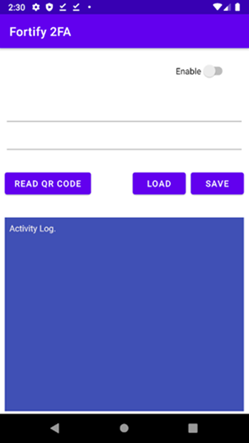
Click ALLOW.
The app is ready to be configured.
-
Click READ QR CODE to scan the QR code in the Two-factor Authentication Mobile Application settings.
The two-factor authentication settings are configured in the Fortify2FA mobile application.
See Also
Application Settings: Database
Application Settings: Directories
Application Settings: Micro Focus ALM
Application Settings: Override SQL Database Settings
Application Settings: Run as a Sensor
Application Settings: Server Profiler
Application Settings: Smart Update