Application Settings: General
To access this feature, click Edit > Application Settings and then select General.
General
The General options are described in the following table.
| Option | Description |
|---|---|
|
Enable Active Content in Browser Views |
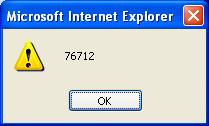
Select this option to allow execution of JavaScript and other dynamic content in all browser windows within Fortify WebInspect. For example, one Fortify WebInspect attack tests for cross-site scripting by attempting to embed a script in a dynamically generated Web page. That script instructs the server to display an alert containing the number "76712." If active content is enabled and if the attack is successful (i.e., cross-site scripting is possible), then selecting the vulnerable session and clicking on Web Browser in the Session Info panel will execute the script and display the following:
Note: If you initiate or open a scan while this option is disabled, and you then enable this option, the browser will not execute the active content until you close and then reopen the scan. |
|
Enable Diagnostic File Creation |
If the Fortify WebInspect application should ever fail, this option forces Fortify WebInspect to create a file containing data that was stored in main memory at the time of failure. You can then provide the file to Fortify support personnel. If you select this option, you may also specify how many diagnostic files should be retained. When the number of files exceeds this limit, the oldest file will be deleted. |
|
Reset "Don't Show Me Again" messages |
By default, Fortify WebInspect displays various prompts and dialog boxes to remind you of certain consequences that may occur as a result of an action you take. These dialog boxes contain a check box labeled "Don't show me again." If you select that option, Fortify WebInspect discontinues displaying those messages. You can force Fortify WebInspect to resume displaying those messages if you click Reset "Don't Show Me Again" messages. |
|
This option allows you to select The Seven Pernicious Kingdoms taxonomy for ordering and organizing the reported vulnerabilities. Seven Pernicious Kingdoms (7PK) is a taxonomy of software security errors developed by the Fortify Software Security Research Group together with Dr. Gary McGraw. Each vulnerability category is accompanied by a detailed description of the issue with references to original sources and code excerpts, where applicable, to better illustrate the problem. The organization of the classification scheme is described with the help of terminology borrowed from biology: vulnerability categories are referred to as phyla, while collections of vulnerability categories that share the same theme are referred to as kingdoms. Vulnerability phyla are classified into pernicious kingdoms presented in the order of importance to software security. The seven kingdoms are:
The first seven kingdoms are associated with security defects in source code, while the last one describes security issues outside the actual code. The primary goal of defining this taxonomy is to organize sets of security rules that can be used to help software developers understand the kinds of errors that have an impact on security. By better understanding how systems fail, developers will better analyze the systems they create, more readily identify and address security problems when they see them, and generally avoid repeating the same mistakes in the future. For more information, see https://vulncat.fortify.com/. You might want to use the Seven Pernicious Kingdoms taxonomy if you are integrating Fortify WebInspect with other Micro Focus Fortify products as it provides for a unified taxonomy. |
|
| Use OpenSSL Engine |
By default, Fortify WebInspect uses this option. The OpenSSL engine provides support for websites that require use of the TLS 1.3 security protocol. OpenSSL is backwards compatible with previous versions of the TLS protocol. If this option is enabled, the SSL/TLS Protocols options are disabled in Scan Settings: Method. You cannot select individual protocols for a scan. |
| Enable HTTP/2 Support |
Use this option if your website supports the HTTP/2 protocol only and you experience issues using the HTTP/1 protocol. |
WebInspect Agent
The Fortify WebInspect Agent options are described in the following table.
| Option | Description |
|---|---|
|
Use WebInspect Agent information when encountered on target site |
If this option is selected and Fortify WebInspect detects that Fortify WebInspect Agent is installed on a target server, it will incorporate Fortify WebInspect Agent information to improve overall scan efficiency. A notation on the Fortify WebInspect dashboard indicates whether or not Fortify WebInspect Agent has been detected. |
|
Automatically group by duplicate vulnerabilities in vulnerability window |
If this option is selected and Fortify WebInspect Agent information is used (above setting), then vulnerabilities listed on the Findings tab in the Summary pane will be grouped by check and then by equivalent vulnerabilities. |
|
Allow WebInspect Agent to suggest attack strategy |
If this option is selected and Fortify WebInspect information is used (see Use WebInspect Agent Information When Encountered on Target Site above), the agent operates in an active mode and can suggest attack strategies to Fortify WebInspect to improve accuracy and performance. This feature requires version 4.1 or above of the Fortify WebInspect Agent and you must be using the Seven Pernicious Kingdoms taxonomy. |
See Also
Application Settings: Database
Application Settings: Directories
Application Settings: Micro Focus ALM
Application Settings: Override SQL Database Settings
Application Settings: Run as a Sensor
Application Settings: Server Profiler
Application Settings: Smart Update
Application Settings: Step Mode
Application Settings: Support Channel