Application Settings: Reports
To access this feature, click Edit > Application Settings and then select Reports.
Options
The Reports options are described in the following table.
| Option | Description |
|---|---|
| Always prompt to save favorites | A "favorite" is simply a named collection of one or more reports and their associated parameters. When using the Report Generator, you can select reports and parameters, and then select Favorites > Add to favorites to create the combination. If you select this option, then Fortify WebInspect will prompt you to save the favorite whenever you modify it by adding or removing a report. |
| Smart truncate vulnerability text |
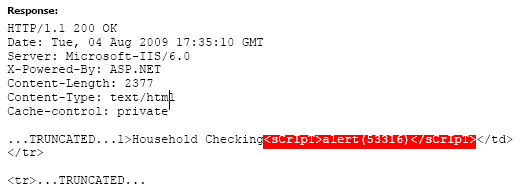
Generated reports can contain very lengthy HTTP request and response messages. To save space and help focus on the pertinent data related to a vulnerability, you can exclude message content that precedes and follows the data that identifies or confirms the vulnerability (identified by red highlighting). The following example illustrates the report of a cross-site scripting vulnerability using "smart" truncation and a padding size of 20 characters. The complete header is always reported. The remaining message text is deleted, except for the vulnerability and the 20 characters preceding it and the 20 characters following it. The retained text is then bracketed by the notation "...TRUNCATED..." to indicate that truncation has occurred. Note that the length of the original message was 2,377 characters (Content-Length: 2377).
To use smart truncation in reports, select Smart truncate vulnerability text and then specify the number of characters to retain preceding and following the data that identifies or confirms the vulnerability. A maximum of 10 vulnerabilities can be reported in a single request or response. Note: This feature functions as described only if the report controls containing the RequestText and ResponseText data fields have the TruncateVulnerability property set to True and the MaxLength property set to zero. If TruncateVulnerability is set to True and the MaxLength property is nonzero, then the application setting for padding size is overridden by the MaxLength value. |
Headers and Footers
Select a template containing the headers and footers to be used by default on all reports. Also, if necessary, enter the requested parameters.
The Fortify WebInspect Master Report uses three images to create a report.
-
The cover page image appears in the center of the cover page, with the top of the image approximately 3.5 inches from the top.
-
The header logo image appears on the left side of the header on every page.
See Also
Application Settings: Database
Application Settings: Directories
Application Settings: Micro Focus ALM
Application Settings: Override SQL Database Settings
Application Settings: Run as a Sensor
Application Settings: Server Profiler
Application Settings: Smart Update
Application Settings: Step Mode
Application Settings: Support Channel