5 Upgrading
This section is about upgrading an existing installation of version 8.3 to a later version. This involves upgrading the Content Manager components, and possibly upgrading the app. You need to update the app only if it is mentioned specifically in the new version.
NOTE: Version 9.2 of the Content Manager Governance and Compliance app will only work with version 8.3 of Records Manager. You must upgrade to version 8.3 of Records Manager before upgrading the Content Manager Governance and Compliance App for SharePoint.
5.1 Upgrading the Content Manager components
The upgrade process will overwrite any IIS configuration settings made. Reapply the following:
- Configuring the use of https (if the Content Manager server is configured to use https)
- Additional steps for Windows Azure (if the Content Manager server is in that environment)
- Additional steps for use with SharePoint Online (if the app if hosted in SharePoint Online)
5.1.1 Before you begin
Ensure the following before you begin the upgrade:
-
Stop the service: Content Manager SharePoint Service on each server in the Content Manager farm. This will ensure that any pending jobs will not get processed during the upgrade.
-
Upgrade one workgroup server at a time, first making it unavailable to the load balancer in use. This will ensure that events being raised by SharePoint can still be handled by the remaining servers in the Content Manager farm.
-
Perform any configuration tool work once the last server has been upgraded. This will ensure that any database upgrades are not performed until the latest time.
5.1.2 Performing the upgrade
-
Upgrading from 8.3
If upgrading from 8.3 a tool has been provided to prepare the existing configuration for the 9.2 upgrade. To upgrade the 8.3 Records Manager Farm database see Upgrade the Content Manager 8.3 Farm database.
-
Install the SharePoint client components
When upgrading to version 8.3, it may be necessary to install the SharePoint client components.
-
Upgrade the server components
The components that are required to be installed on a Content Manager workgroup server can be installed using the CM_SharePointIntegration_x64.msi MSI found on the installation media.
NOTE: You must perform this upgrade on each workgroup server used in the Content Manager farm.
On every server in the Content Manager farm, run the MSI to upgrade the components.
Repeat any steps determined to be applicable in the preceding considerations section.
5.2 Upgrading the app configuration database
NOTE: These steps only need to be performed on one server in the Content Manager farm.
To upgrade, perform the following:
-
Reconnect to the app configuration database
Following upgrade, it will be necessary to connect to the app configuration database again using the configuration tool.
Connecting to an existing configuration database
-
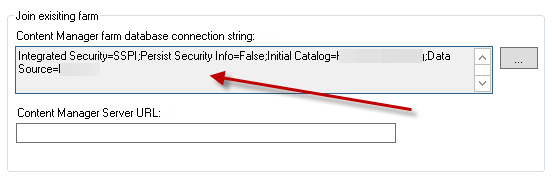
In the Join existing farm group, the Content Manager farm database connection string allows specifying the connection string to use to connect to the correct database.
If you have created the database using the steps in the previous section the connecting sting details are automatically filled in. Else, click the ellipsis and fill in the details of the database in the Data Link Properties dialog box.
-
In the Data Link Properties dialog, enter the name of the SQL Server instance where the database resides.
-
Choose Use Windows NT Integrated security.
-
Select the database from the Select the database on the server dropdown.
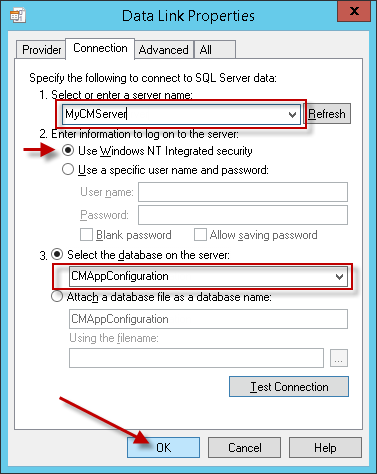
CAUTION: The app configuration database is not the database that Content Manager uses for record storage. Do not attempt to connect to the Content Manager records database in this step.
-
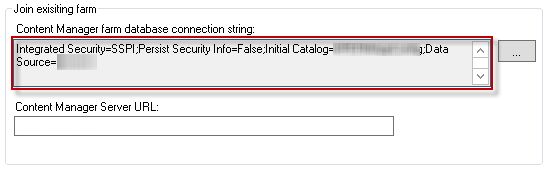
Click OK to construct the connection string.
-
Specify the Content Manager farm URL. Under the connection string details is a text box that allows the entry of the URL to use when interacting with the Content Manager farm.
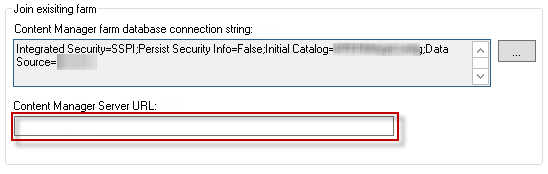
If your farm has only a single server, this is the URL of that server. In the case where HTTP is being used, the URL will be:
http://MachineName:portWhere “MachineName” is the name of the Content Manager server and “port” is the port that you selected during installation. For example, if the machine name was “CM1” and you elected to use port 200, the URL would be:
http://CM1:200If you Content Manager farm contains multiple servers though, this URL must be the load balanced URL for the Content Manager farm.
-
-
Upgrade the app configuration database
Using the configuration tool, perform a publish. This will perform any upgrades required on the app configuration database for 9.0 and beyond.
5.3 Upgrading the Content Manager SharePoint configuration app
NOTE: These steps only need to be performed on one server in the Content Manager farm.
To upgrade the SharePoint app, perform the following:
-
Rerun the Content Manager SharePoint configuration app
Regardless of whether the app was updated or not, following an upgrade the app configuration tool must be rerun. It is not necessary to publish again.
-
Update the app in the app catalog
It will not always be necessary to update the app and therefore it should only be updated if it is specifically mentioned that it should be done.
NOTE: Upgrading to version 8.3 release requires the app to be upgraded. The upgraded app will be version 8.3.0.0.
Should the app require updating, ensure that you have generated the updated app file before proceeding.
IMPORTANT: There is a known issue in SharePoint that in some scenarios causes the app upgrade process described below to not work correctly. If the upgrade process does not work correctly, an alternative set of steps are included. It is permissible to simply follow the alternative upgrade procedure described without attempting the upgrade first.
-
Standard app upgrade procedure
-
Navigate to the app catalog. See the appendix Identifying the app catalog in use for guidance.
-
Navigate to the Apps for SharePoint section.
-
Click new app and when prompted, choose the updated .app file ensuring that Add as a new version to existing files is checked.
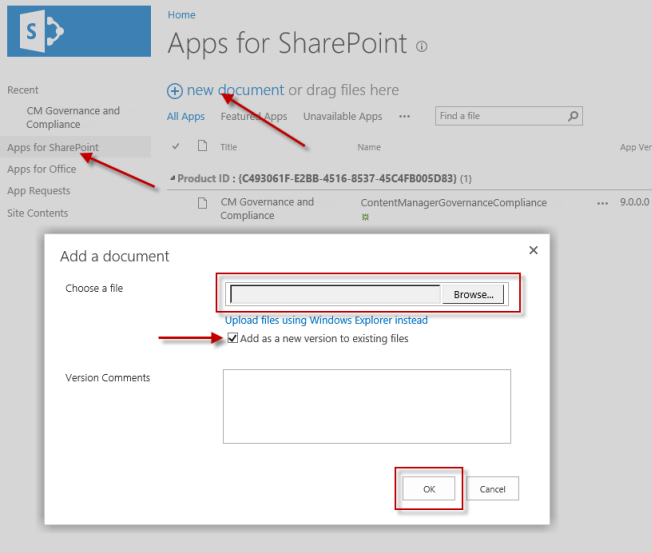
This will add the updated app as a new version to the existing app. You can see the app version in the app catalog.
When updating the app, you add the app from that point on, the new version of the app will be used. For existing places where the app has been added, you will need to elect to update the app.
-
Navigate to the site that the app is added to and then to the site contents for that site. The app will indicate that an update is available:

NOTE: The availability of the update may not appear immediately.
-
Click update. This will show the details of the update (similar to below):
NOTE: The version displayed in this screenshot is for illustrative purposes only. The version will be the one described at the beginning of this section.
-
Click GET IT to begin the update.
A quick way to test that the app has upgraded successfully is to navigate to the ribbon for a list or library. From the List or Library tab, drop down the Content Manager next to the list or library settings. Confirm that the Audit History option appears and that the ribbon button is Content Manager and uses the new green background logo.
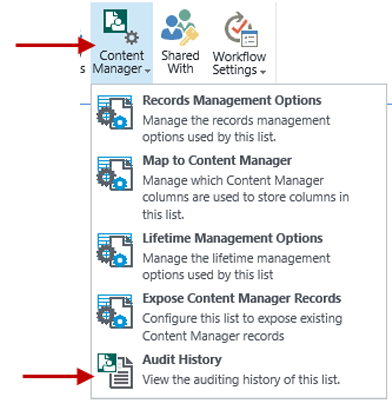
NOTE: It may take up to an hour for SharePoint to begin displaying the new images and menu options.
-
Select an item in a list or library and from the Items of Files tab, choose the Management Details option.
The size of the dialog should be taller than it is wide. If it is almost square, then the app has not updated correctly.
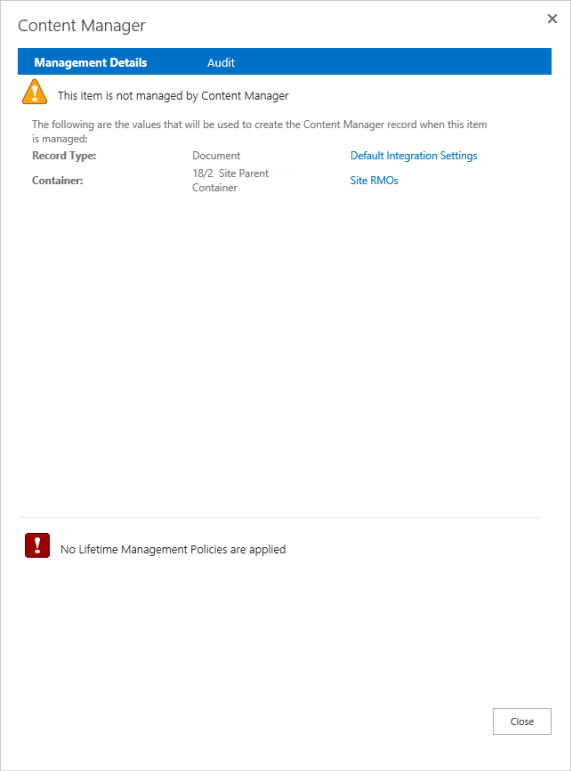
NOTE: There is a SharePoint issue that can result in the size of this dialog being correct on some lists but not on others. Removing the app from the site and re-adding it generally corrects this issue.
-
-
Alternative app upgrade procedure
Should the app upgrade fail then the following steps provide an alternative upgrade path. These steps involve removing the app wherever it has been added, removing it from the app catalog then re-adding it to the catalog and all required sites.
NOTE: Removing the app will not remove the configuration that has been performed. Configuration such as mappings, RMOs, LMPs and management rules will all still remain in the configuration database. Removing the app does not delete this configuration. When the app is re-added after updating, all of the previous configuration data will remain unchanged.
-
Start by removing the app wherever it has been added. Ensure that you remove all instances of it or this will cause issues.
-
Remove the app, see Removing the SharePoint app.
-
Re-add the app to the catalog, see Add the app to the corporate catalog.
-
Re-add the app to the sites that require it, see Add the app to the default site collection.
-
-
5.4 Upgrading from SharePoint 2010 Integration Solution
The Content Manager Governance and Compliance app for SharePoint was introduced in version 8.1. Although much of the functionality is similar to the Content Manager SharePoint Integration for SharePoint 2010, it must be thought of as an entirely new product.
-
Supported upgrade path
There is currently no supported true upgrade path. To move from a version of the Content Manager SharePoint Integration for SharePoint 2010 to the Content Manager Governance and Compliance app for SharePoint requires a complete removal and clean-up of the legacy Integration, performing the steps outlined in the Microsoft guides for upgrading SharePoint 2010 to SharePoint 2013 or later versions, and finally following the steps in this guide for preparing SharePoint for Apps.
-
SharePoint 2010
The Content Manager SharePoint Integration for SharePoint 2010 is a legacy product. It is not possible to use the Content Manager Governance and Compliance app in SharePoint 2010, only 2013 and later versions.
If the intention is to upgrade to SharePoint 2013 or later versions, you must:
-
Read this blog article for latest information on how to remove the legacy Content Manager SharePoint Integration from SharePoint 2010:
http://www.imsharepoint.net/blog/2017/6/21/how-to-upgrade-from-sharepoint-2010-integration-solution-to-sharepoint-2013-integration-app
-
Upgrade SharePoint 2010 to SharePoint 2013 or later versions.
-
Install the Content Manager Governance and Compliance app.
-
-
-
Configuration data
As the process of moving from the legacy Integration to the Integration app version is not a true upgrade, any configuration that has been made in an existing installation will be lost and will need to be recreated once the Integration app has been successfully installed.
If configuration data needs to be replicated in the Integration app version then you will need to document the existing configuration data. This includes:
- Site collection integration settings
- Records management options that are not default values
- Custom lifetime management policies
- Lifetime management options
- Content type to record type mappings
- Custom column mappings (the default ones will be created automatically)
- Exposure settings for lists that expose Content Manager content
NOTE: Record type to content type mappings are not supported in the Integration app version.
-
Removing the legacy SharePoint 2010
Before making any changes to the deployed Integration solution please read this blog article for latest information required to perform the removal and clean up steps: http://www.imsharepoint.net/blog/2017/6/21/how-to-upgrade-from-sharepoint-2010-integration-solution-to-sharepoint-2013-integration-app
CAUTION: Do not deactivate any features or retract the solution from SharePoint web app.
Identify where the Content Manager solution is deployed
Make a list of the full URLs of every web application in the farm that the Content Manager SharePoint 2010 Integration has been deployed to.
In SharePoint 2010 this solution is hprecordsmanager.14.wsp.
In SharePoint 2013 this solution is hprecordsmanager.15.wsp
You will need to read this blog article for latest information and execute the steps against every web application that has the solution deployed:
http://www.imsharepoint.net/blog/2017/6/21/how-to-upgrade-from-sharepoint-2010-integration-solution-to-sharepoint-2013-integration-app
-
Upgrade SharePoint
If moving from SharePoint 2010, perform the necessary steps to upgrade to SharePoint 2013 SP1.
-
Installing the new version
Follow this document to install the Content Manager Governance and Compliance app.