Findings Tab
The Findings tab lists information about each vulnerability discovered during an audit of your Web application.
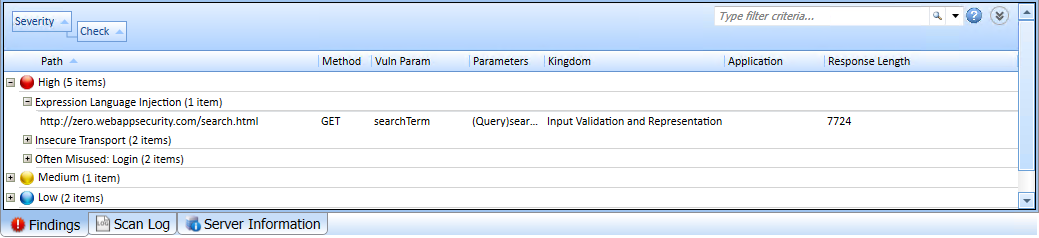
This tab also includes Informational issues discovered during the scan. These are not considered vulnerabilities, but identify interesting points in the site or certain applications or Web servers.
Additionally, this tab includes Best Practices issues discovered during the scan. Likewise, these are not considered vulnerabilities, but relate to commonly accepted best practices for Web development, and are indicators of overall site quality and site development security practices (or lack thereof).
Note: You can also group and filter results on the Findings tab. For more information, see Using Filters and Groups in the Summary Pane.
Available Columns
Several columns of data are available for viewing. To select the information you want to display, right-click the column header bar and choose Columns from the shortcut menu.
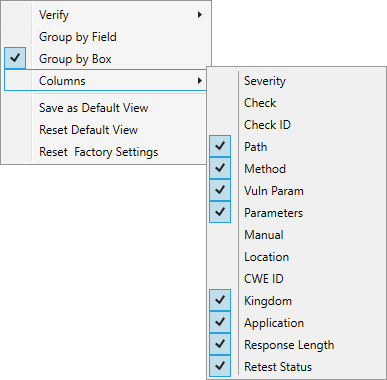
The available columns are:
-
Severity: A relative assessment of the vulnerability, ranging from low to critical. See below for associated icons.
-
Check: A Fortify WebInspect probe for a specific vulnerability, such as cross-site scripting, unencrypted log-in form, etc.
-
Check ID: The identification number of a Fortify WebInspect probe that checks for the existence of a specific vulnerability. For example, Check ID 742 tests for database server error messages.
-
Path: The hierarchical path to the resource.
-
Method: The HTTP method used for the attack.
-
Stack: Stack trace information obtained from Fortify WebInspect Agent . Column is available only when Fortify WebInspect Agent is enabled during scan.
-
Vuln Param: The name of the vulnerable parameter.
-
Parameters: Names of parameters and values assigned to them.
-
Manual: Displays a check mark if the vulnerability was manually created.
-
Duplicates: Vulnerabilities detected by Fortify WebInspect Agent that are traceable to the same source. Column is available only when Fortify WebInspect Agent is enabled during scan.
-
Location: Path plus parameters.
-
CWE ID: The Common Weakness Enumeration identifier(s) associated with the vulnerability.
-
Kingdom: The category in which this vulnerability is classified, using a taxonomy of software security errors developed by the Fortify Software Security Research Group.
-
Application: The application or framework in which the vulnerability is found, such as ASP.NET or Microsoft IIS server.
-
Pending Status: The status (assigned automatically by Fortify WebInspect or manually) if this scan were to be published.
-
Published Status: The status as it exists in Software Security Center, if previously published.
-
Reproducible: Values may be Reproduced, Not Found/Fixed, or New. Column is available for Site Retests only (Retest Vulnerabilities).
-
Response Length: The response size in bytes for the vulnerable session.
-
Retest Status: The status of a verification scan that was performed on one or more issues. This column is available for a retest scan only. For more information, see Retesting Vulnerabilities.
Vulnerability Severity
The severity of vulnerabilities in the Findings tab is indicated by the following icons.
| Critical | High | Medium | Low |

|

|

|

|
Working with Findings
If you click an item in the list, the program highlights the related session in the navigation pane and displays associated information in the information pane. For more information, see Navigation Pane and Information Pane.
With a session selected, you can also view associated information by selecting an option from the Session Info panel.
For Post and Query parameters, click an entry in the Parameters column to display a more readable synopsis of the parameters.
If you right-click an item in the list, a shortcut menu allows you to:
- Copy URL - Copies the URL to the Windows clipboard.
-
Copy Selected Item(s) - Copies the text of selected items to the Windows clipboard.
-
Copy All Items - Copies the text of all items to the Windows clipboard.
-
Export - Creates a comma-separated values (csv) file containing either all items or selected items and displays it in Microsoft Excel.
-
View in Browser - Renders the HTTP response in a browser.
-
Filter by Current Value - Restricts the display of vulnerabilities to those that satisfy the criteria you select. For example, if you right-click on "Post" in the Method column and then select Filter by Current Value, the list displays only those vulnerabilities that were discovered by sending an HTTP request that used the Post method.
Note: The filter criterion is displayed in the combo box in the upper right corner of the summary pane. Alternatively, you can manually enter or select a filtering criterion using this combo box. For additional details and syntax rules, see Using Filters and Groups in the Summary Pane.
-
Change SSC Status - Change the status of a vulnerability/issue before publishing to Fortify Software Security Center.
Note: This option is available only when connected to Fortify WebInspect Enterprise that is integrated with Fortify Software Security Center.
-
Change Severity - Allows you to change the severity level.
-
Edit Vulnerability - Displays the Edit Vulnerabilities dialog box, allowing you to modify various vulnerability characteristics. For more information, see Editing Vulnerabilities.
-
Rollup Vulnerabilities - Available if multiple vulnerabilities are selected; allows you to roll up the selected vulnerabilities into a single instance that is prefixed with the tag “[Rollup]” in Fortify WebInspect, Fortify WebInspect Enterprise, and reports. For more information, see Vulnerability Rollup.
Note: If you have selected a rolled up vulnerability, this menu option is Undo Rollup Vulnerabilities.
-
Retest - Performs a retest of one or more selected vulnerabilities, all vulnerabilities, or vulnerabilities of a specific severity. For more information, see Retesting Vulnerabilities.
-
Mark as - Flags the vulnerability as either a false positive (and allows you to add a note) or as ignored. In both cases, the vulnerability is removed from the list. You can view a list of all false positives by selecting False Positives in the Scan Info panel. You can view a list of false positives and ignored vulnerabilities by selecting Dashboard in the Scan Info panel, and then clicking the hyperlinked number of deleted items in the statistics column.
Note: You can recover "false positive" and "ignored" vulnerabilities. See Recovering Deleted Items for details.
-
Send to - Converts the vulnerability to a defect and adds it to the Micro Focus Application Lifecycle Management (ALM) database.
-
Remove Location - Removes the selected session from the navigation pane (both Site and Sequence views) and also removes any associated vulnerabilities.
Note: You can recover removed locations (sessions) and their associated vulnerabilities. See Recovering Deleted Items for details.
-
Crawl - Recrawls the selected URL.
-
Tools - Presents a submenu of available tools.
-
Attachments - Allows you to create a note associated with the selected session, flag the session for follow-up, add a vulnerability note, or add a vulnerability screenshot.
If you right-click a group heading, a shortcut menu allows you to:
-
Collapse/Expand All Groups
-
Collapse/Expand Group
-
Copy Selected Item(s)
-
Copy All Items
-
Change Severity
-
Mark as
-
Send to
-
Remove Location
See Also