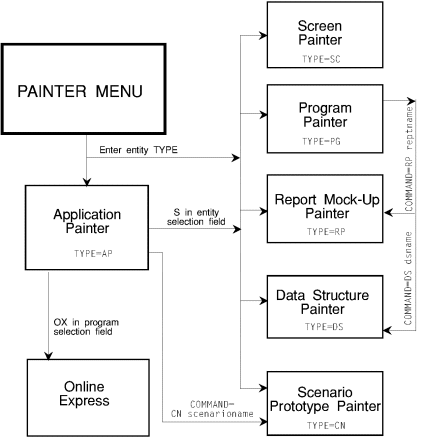
This chapter describes APS Painter navigation, includes a development
checklist, and shows you APS menus and the Help Facility.
Follow the steps below to develop your online applications. Refer to
appropriate APS manual(s) for details about each step.
Step
|
Manual and
Topic
|
- Paint the application definition in the Application Painter.
|
APS User's Guide:
Paint the Application
Definition
APS Reference:
Application Painter
DB/DC Target Combinations
See Application Painter
See Limits
|
- Import the database definitions via the appropriate APS
Importer.
|
APS User's Guide:
Import Database
Definitions
APS Reference:
DDI Statements
DDISYMB Flags
See Importers
|
- Paint character screens in the Screen Painter.
|
APS User's Guide:
Paint Character
Screens
See Screen Painter
See Limits
|
- Define screen field attributes.
|
APS User's Guide:
Paint Character
Screens
APS Reference:
Attributes, Screen
Fields
See Screen Painter
|
- Create and run the application scenario in the Scenario
Painter.
|
APS User's Guide:
Paint Character
Screens
See Scenario Painter
|
- Specify field edits for screen fields.
|
APS User's Guide:
Paint Character
Screens
APS Reference:
About Field Edits
See Screen Painter
|
- Define the program functions in Online Express on the Program
Functions, Alternate Functions, PF Key Functions, and Special Key Definition
screens.
|
APS User's Guide:
Define Processing
Logic
See Online Express
|
- Specify character screen field mapping in Online Express on the
Field Mapping screen.
|
APS User's Guide:
Define Processing
Logic
See Online Express
|
- Define database access in Online Express
|
APS User's Guide:
Define Database
Access
See Online Express
See Limits
|
- Set environment and generation options from APS Generation
Options.
|
APS User's Guide:
Generate the
Application
APS Reference:
Bind and Translate Options,
SQL
Generator Options
IDMS Options
Job Control
Cards
MFS Function Keys
MFS Trancode Construction
MID MOD Reorder
Panel Options, ISPF Dialog
Precompiler
Options
See Generation
|
- Generate the application to the appropriate DB/DC targets from
the Application Painter.
|
APS User's Guide:
Generate the
Application
See Generation
|
- Run and test the application.
|
APS User's Guide:
Generate the
Application
See Generation
|
- Produce reports that document the application in the
Application Painter, Documentation Facility, or Report Generator.
|
APS Reference:
About Application
Reports
See Reports--APS-Generated
|
- Optionally, check files into ENDEVOR.
|
APS User's Guide:
Using the APS/ENDEVOR
Interface
APS Reference:
Checkin
Checkout
See ENDEVOR Interface |
Follow the steps below to develop your batch report programs. Refer to
appropriate APS manual(s) for details about each step.
Step
|
Manual and
Topic
|
- Paint the application definition in the Application Painter.
|
See step 1 for Online Programs
|
- Paint the report mock-up in the Report Mock-Up Painter.
|
APS User's Guide:
Create Reports with Report
Writer
APS Reference:
Report Mock-Ups
See Reports--Report Writer
See Limits
|
- Specify the report logic in Program Painter using the APS
Report Writer structures.
|
APS User's Guide:
Create Reports with Report
Writer
APS Reference:
Report Writer Structures
Specific keyword or structure
See Reports--Report Writer
See Limits
|
- Specify the program logic in the Program Painter, using
keywords, and COBOL, COBOL/2, or S-COBOL structures, data structures, database
calls, and APS/VSAM Batch calls.
|
APS User's Guide:
Create Reports with Report
Writer
APS Reference:
Specific call, construct,
keyword, or structure
See Database Calls
See Data Communication Calls
See Data Structures
See Keywords
|
- Set environment and generation options from APS Generation
Options.
|
See step 13 for Online Programs
|
- Generate the application to the appropriate DB/DC targets from
the Application Painter.
|
See step 14 for Online Programs
|
- Run and test the application.
|
See step 15 for Online Programs
|
- Produce reports that document the application in the
Application Painter, Documentation Facility, or Report Generator.
|
See step 16 for Online Programs
|
- Optionally, check files into the APS Version Control System.
|
See step 17 for Online Programs |
Follow the steps below to develop your batch applications. Refer to
appropriate APS manual(s) for details about each step.
Step
|
Manual and
Chapter
|
- Paint the application definition in the Application Painter.
|
See step 1 for Online Programs
|
- Specify the program logic in the Program Painter, using
keywords, and COBOL, COBOL/2, or S-COBOL structures, data structures, database
calls, and APS/VSAM Batch calls.
|
APS User's Guide:
Create Reports with Report
Writer
APS Reference:
Specific call, construct,
keyword, or structure
See Database Calls
See Data Communication Calls
See Data Structures
See Keywords
|
- Set environment and generation options from APS Generation
Options.
|
See step 13 for Online Programs
|
- Generate the application to the appropriate DB/DC targets from
the Application Painter.
|
See step 14 for Online Programs
|
- Run and test the application.
|
See step 15 for Online Programs
|
- Produce reports that document the application in the
Application Painter, Documentation Facility, or Report Generator.
|
See step 16 for Online Programs
|
- Optionally, check files into the APS Version Control System.
|
See step 17 for Online Programs |
Use the APS Main Menu to select any of the various APS screens or
functions.
Option
|
Function
|
|
0 |
Transfer to APS Options Menu, a central facility for setting
system-wide options.
|
|
1 |
Transfer to APS Painter Menu to select a specific painter.
|
|
2 |
Transfer to APS Dictionary Services to access:
- APS Importers to import IMS or IDMS data base specifications,
DB2 catalog entities, VSAM files, or screens
- Documentation Exporter to print reports
- Data Element Facility to specify global definitions for APS
screen fields
- User Help Facility to create end-user help
- Data Element Library Administration
|
|
3 |
Transfer to Prototype Execution to run the application
prototype.
|
|
4 |
Transfer to APS Utilities Menu to access:
- APS Precompiler to compile and link non-painted source code
- Custom utilities for system administration
- DDI file utilities to unlock, backup, and restore DDI files.
- SQL Subschema Maintenance Utilities to define, edit, browse,
generate, and document XDB subschemas
|
|
5 |
Transfer to the ENDEVOR Interface Main Menu.
|
|
C |
Display summary of new features in APS.
|
|
T |
Transfer to APS Help Facility Tutorial. |
Use this screen to access any Painter, file, or ISPF data set. Then, you
can create, modify, view, delete, or rename a component, print selected APS
component reports, or create a new component identical to an existing one.
Field
|
Description and Values
|
|
Command |
Leave Option and Member blank to display a list of entities. Enter
one of the following values in selection field to the left of the
component:
|
E |
Edit
component. Create or modify a component. Default for all Painter Type
selections except AP. Enter component name in Member field.
|
|
D |
Delete
component. Enter component name in Member field.
|
|
B |
Browse
component. Enter painter type in Type field and name of component in Member
field. Default option for Type=AP.
|
|
P |
Print APS
report. Enter painter type in Type field and component name in Member
field.
|
|
C |
Create
Like. Enter painter type in Type field, name of existing component in Member
field, and name of new component in Newname field.
|
|
R |
Rename
component. Enter painter type in Type field, name of existing component in
Member field and new name for component in Newname field.
|
|
|
Type |
Painter type:
|
AP |
Application Painter
|
|
SC |
Screen
|
|
PG |
Program
|
|
CN |
Scenario
|
|
RP |
Report
|
|
DS |
Data Structure
|
|
|
Member |
Component name.
|
Programs: |
First character alphabetic; remaining characters
alphabetic, numeric, @, $, or #; 8-character maximum.
|
|
Screens: |
First character alphabetic; remaining characters alphabetic
or numeric; 7-character maximum for CICS or ISPF prototyping, 8-character
maximum for IMS or ISPF Dialog.
|
|
Data structures: |
First character alphabetic; remaining characters alphabetic
or numeric; 8-character maximum.
|
|
Report mock-ups: |
First character alphabetic, @, or #; remaining characters
alphabetic, numeric, @, $, or #; 8-character maximum.
|
|
|
Screen Size |
Size of application
screens.
Value
|
Screen Size
|
Fits on
Terminal Size
|
|
MOD2 |
24 x 80 |
MOD2|3|4|5 |
|
MOD3 |
32 x 80 |
MOD 3|4 |
|
MOD4 |
43 x 80 |
MOD4 |
|
MOD5 |
27 x 132 |
MOD5 |
|