Inspecting the Results
This topic describes inspecting the results for a Basic Scan and a Web Services Scan.
Basic Scan
As soon as you start a Basic Scan, Fortify WebInspect begins scanning your Web application and displays in the navigation pane an icon depicting each session (using either the Site or Sequence view). It also reports possible vulnerabilities on the Findings tab in the summary pane. For more information, see Navigation Pane and Findings Tab.
If you click a URL listed in the summary pane, the program highlights the related session in the navigation pane and displays its associated information in the information pane. For more information, see Information Pane.
Sometimes the attack that detected a vulnerable session is not listed under attack information. That is, if you select a vulnerable session in the navigation pane and then click Attack Info in the Session Info panel, the attack information does not appear in the information pane. This is because attack information is usually associated with the session in which the attack was created and not with the session in which it was detected. When this occurs, select the parent session and then click Attack Info. For more information, see Session Info Panel.
Working with One or More Vulnerabilities
If you right-click one or more vulnerabilities in the summary pane, a shortcut menu allows you to:
-
Copy URL - Copies the URL to the Windows clipboard.
-
Copy Selected Item(s) - Copies the text of selected items to the Windows clipboard.
-
Copy All Items - Copies the text of all items to the Windows clipboard.
-
Export - Copies the item to a CSV file.
-
View in Browser - Available if one vulnerability is selected; renders the HTTP response in a browser.
-
Filter by Current Value - Available if one vulnerability is selected; restricts the display of vulnerabilities to those that satisfy the criteria you select. For example, if you right-click on "Post" in the Method column and then select Filter by Current Value, the list displays only those vulnerabilities that were discovered by sending an HTTP request that used the Post method.
Note: The filter criterion is displayed in the combo box in the upper right corner of the summary pane. Alternatively, you can manually enter or select a filtering criterion using this combo box. For additional details and syntax rules, see Using Filters and Groups in the Summary Pane.
-
Change Severity - Allows you to change the severity level.
-
Edit Vulnerability - Available if one vulnerability is selected; displays the Edit Vulnerabilities dialog, allowing you to modify various vulnerability characteristics. For more information, see Editing Vulnerabilities.
-
Rollup Vulnerabilities - Available if multiple vulnerabilities are selected; allows you to roll up the selected vulnerabilities into a single instance that is prefixed with the tag “[Rollup]” in Fortify WebInspect, Fortify WebInspect Enterprise, and reports. For more information, see Vulnerability Rollup.
Note: If you have selected a rolled up vulnerability, this menu option is Undo Rollup Vulnerabilities.
-
Retest - Performs a retest of one or more selected findings, all findings, or findings of a specific severity. For more information, see Retesting Vulnerabilities.
-
Mark as - Flags the vulnerability as either a false positive (and allows you to add a note) or as ignored. In both cases, the vulnerability is removed from the list. You can view a list of all false positives by selecting False Positives in the Scan Info panel. You can view a list of false positives and ignored vulnerabilities by selecting Dashboard in the Scan Info panel, and then clicking the hyperlinked number of deleted items in the statistics column.
Note: You can recover "false positive" and "ignored" vulnerabilities. See Recovering Deleted Items for details.
-
Send to - Converts the vulnerability to a defect and adds it to the Micro Focus Application Lifecycle Management (ALM) database.
-
Remove Location - Removes the selected session from the navigation pane (both Site and Sequence views) and also removes any associated vulnerabilities.
Note: You can recover removed locations (sessions) and their associated vulnerabilities. See Recovering Deleted Items for details.
-
Crawl - Available if one vulnerability is selected; re-crawls the selected URL.
-
Tools - Available if one vulnerability is selected; presents a submenu of available tools.
-
Attachments - Available if one vulnerability is selected; allows you to create a note associated with the selected session, flag the session for follow-up, add a vulnerability note, or add a vulnerability screenshot.
Working with a Group
If you right-click a group, a shortcut menu allows you to:
-
Collapse/Expand All Groups
-
Collapse/Expand Group
- Copy URL
-
Copy Selected Item(s)
-
Copy All Items
-
Export
-
Change Severity
-
Rollup Vulnerabilities
-
Mark as
-
Send to
-
Remove Location
Understanding the Severity
The relative severity of a vulnerability listed in the summary pane is identified by its associated icon, as described in the following table.
| Icon | Description |
|---|---|
|
|
A vulnerability wherein an attacker might have the ability to execute commands on the server or retrieve and modify private information. |
|
|
Generally, the ability to view source code, files out of the Web root, and sensitive error messages. |
|
|
Indicates non-HTML errors or issues that could be sensitive. |
|
|
Interesting issues, or issues that could potentially become higher ones. |
|
|
An interesting point in the site, or detection of certain applications or Web servers. |
|
|
Issues related to commonly accepted best practices for Web development that may indicate overall site quality and site development security practices (or lack thereof). |
 Critical
 High
High Medium
 Low
Low Information
 Best Practice
Working in the Navigation Pane
You can also select an object or session in the navigation pane and investigate the session using the options available on the Session Info panel. For more information, see Navigation Pane and Session Info Panel.
Web Services Scan
Web services are programs that communicate with other applications (rather than with users) and answer requests for information. Most Web services use Simple Object Access Protocol (SOAP) to send XML data between the Web service and the client Web application that initiated the information request. XML provides a framework to describe and contain structured data. The client Web application can readily understand the returned data and display that information to the end user.
 Web Services Scan Image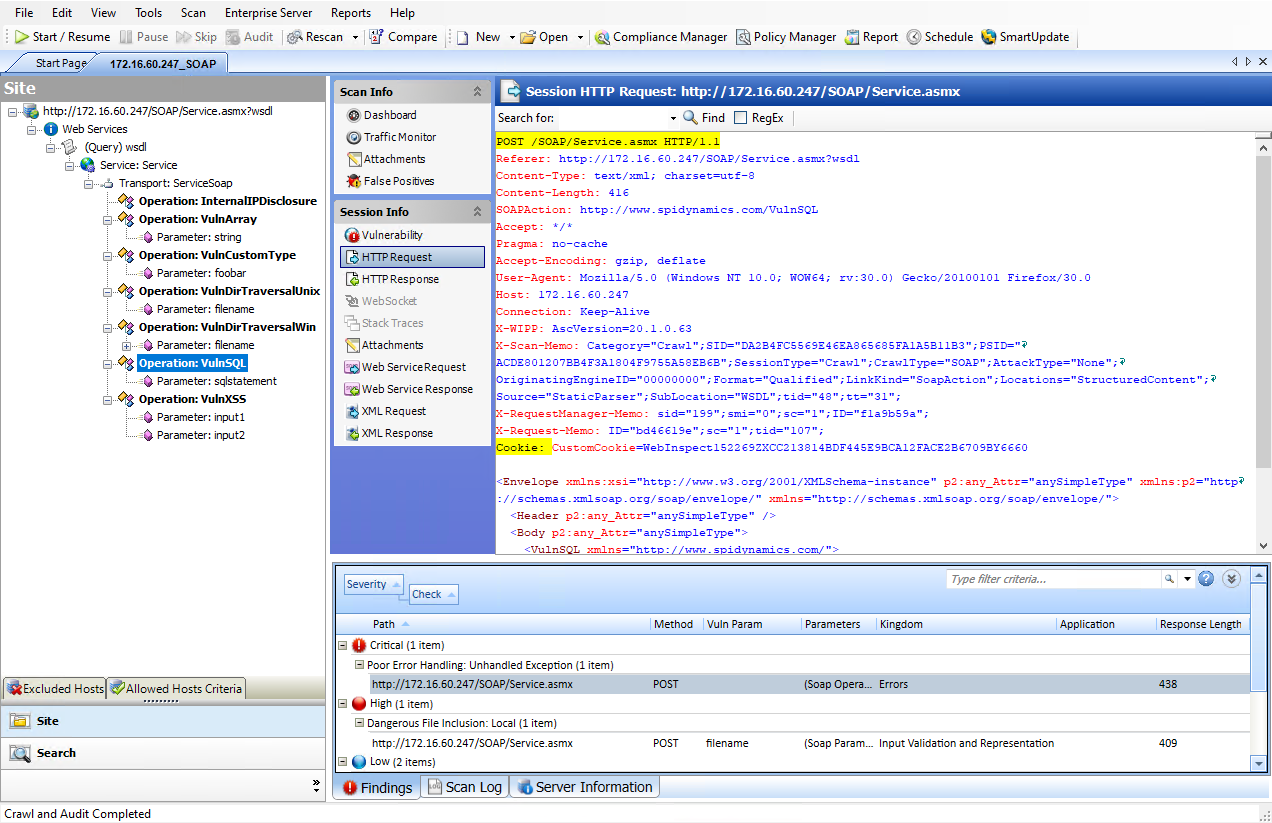
A client Web application that accesses a Web service receives a Web Services Definition Language (WSDL) document so that it understands how to communicate with the service. The WSDL document describes the procedures included in the Web service, the parameters those procedures expect, and the type of return information the client Web application will receive.
After selecting a session object in the navigation pane or on the Findings tab of the summary pane, you can select options from the Session Info panel. For more information, see Navigation Pane, Findings Tab, and Session Info Panel.
See Also